

The email arrives: version 2.4 of your EA is out, with a bug fix you have been waiting for. Your current version is running on your VPS right now, with three trades open. How do you swap it over without breaking anything?
Updating an EA is not hard, but it is one of the few routine jobs where a small slip can leave trades unmanaged, reset your settings to defaults, or start a second copy trading alongside the first. This post walks through a safe update, step by step, and what to check afterwards.
What Can Go Wrong in an Update
It helps to know what you are guarding against:
- Settings reset to defaults. A new version attached fresh to a chart starts with its default inputs, not yours. Defaults may use a different lot size, risk or magic number.
- Open trades orphaned. If the new version uses a different magic number, or a different way of recognising its trades, it will ignore positions the old version opened. Nothing trails or closes them.
- Two versions running. If you attach the new version to a second chart without removing the old one, both trade the same account.
- Lost internal state. Some EAs remember things between ticks, such as a grid step count or a daily loss tally. A restart can reset them. See EA restart state: what your EA remembers.
- Licence problems. A new version from the MQL5 Market or a vendor may need activating again.
📊 Key Stat: Open positions live on the broker’s server, not in the EA. Updating the EA never closes them. The risk is that nothing manages them if the new version does not recognise them.
Before You Start
Read the release notes. Check whether the vendor says anything about upgrading with open trades, changed inputs, or a new magic number scheme. Some updates are safe to drop in mid-week. Others say to update only with no open trades.
Pick a quiet time. A weekend, when the market is closed, is ideal. Otherwise choose a period away from news and the daily rollover, when your EA is unlikely to act. See the holiday trading checklist for EAs for planning around quiet periods.
Note your open trades. Write down each open ticket, symbol, lot size, stop loss and take profit. If anything goes wrong you know exactly what should be there.
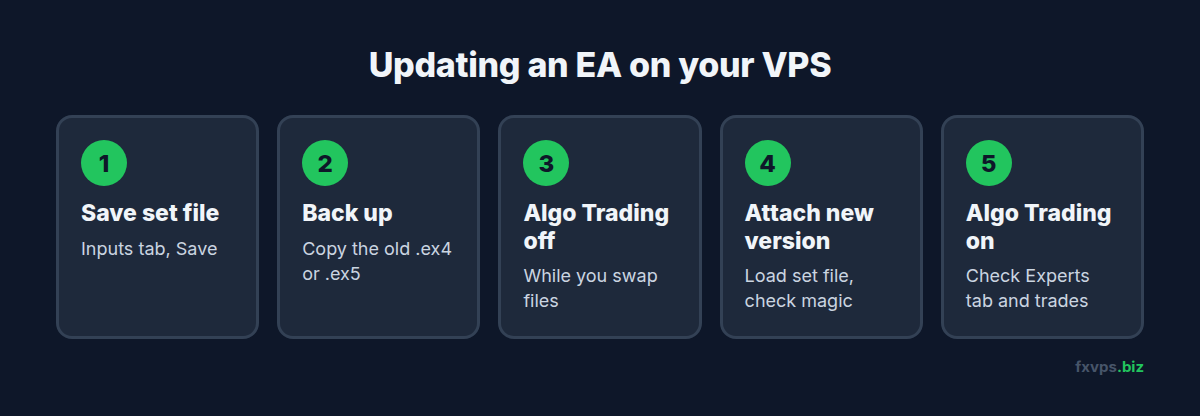
Step by Step: Updating an EA on Your VPS
1. Save Your Current Settings
Open the EA’s properties on the chart (right-click the chart, Expert Advisors, Properties, or double-click the EA’s icon), go to the Inputs tab and click Save. This writes a set file with all your inputs. Do this for every chart the EA is attached to, with a clear name such as MyEA_EURUSD_v2-3.set. See EA set files and presets on a VPS.
2. Back Up the Old Version
Open the data folder (File, then Open Data Folder) and go to MQL4\Experts (MT4) or MQL5\Experts (MT5). Copy the existing .ex4 or .ex5 file somewhere safe, such as a backup folder on the desktop. If the new version misbehaves, you can go straight back. See MQL4 and MQL5 folders: where EAs and indicators go.
3. Save Your Profile
Use File, then Profiles, then Save As so your chart layout, with the EA attached, is saved under a name you will recognise. See MT4 and MT5 templates and profiles on a VPS.
4. Switch Off Algo Trading
Click AutoTrading (MT4) or Algo Trading (MT5) so it is off. The EA stays on its charts but cannot trade while you work.
5. Copy In the New Version
Copy the new file to the VPS (see copy and paste not working over RDP if the clipboard gives you trouble) and put it in the same Experts folder. If it has the same file name, replace the old one. If the name has changed, you will have both, and must make sure only the new one ends up on your charts.
If the update includes indicators, libraries or other files, put each in the folder the vendor specifies.
6. Remove the Old EA and Attach the New One
On each chart, remove the old EA (right-click the chart, Expert Advisors, Remove), then drag the new version on from the Navigator. Right-click the Navigator and choose Refresh if the new file does not appear. In the properties window, go to Inputs, click Load and choose the set file you saved in step 1.
Check the magic number in particular. It must match the one your open trades were opened with, unless the vendor’s notes say otherwise.
7. Switch Algo Trading Back On
Turn on AutoTrading or Algo Trading and check the EA is active on each chart.
⚠️ Warning: Do not skip loading the set file. A new version attached to a chart starts with its default inputs, which may use a different lot size, risk setting or magic number from the ones you had. One wrong default can double your risk or orphan every open trade.
After the Update: Check It Worked
- Experts tab. Look for the EA’s start up messages and the new version number, and for any errors.
- Journal tab. Confirm the EA loaded and there are no messages about missing files or DLLs. See EA DLL imports and WebRequest permissions on a VPS.
- Open trades. Check the EA is managing them, for example that its trailing stop or dashboard shows them. Compare against the list you wrote down.
- Licence. If the EA reports a licence or activation problem, see EA licensing and MQL5 Market activations on a VPS.
- Save the profile again, now with the new version, so a restart brings back the right one.
- Watch the first few trades to confirm lot sizes and behaviour look right.
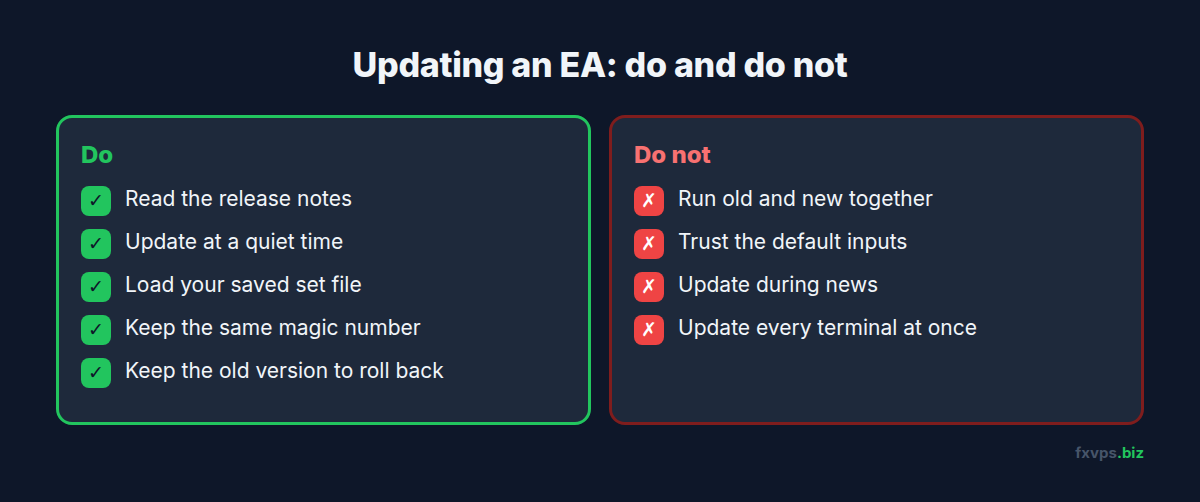
💡 Tip: If you run the same EA in several terminals, update one first and let it run for a day before doing the rest. If something is wrong with the new version, only one account is affected.
Test First If You Can
For a major update, run the new version on a demo account on the same VPS for a few days before using it live. Install it in a separate terminal so the live one is untouched. See forward testing an EA on a VPS and running multiple MT4/MT5 terminals on a VPS.
Watch for differences in when it opens trades, how it sizes them, and how it manages exits. A quick backtest of the new version can also show whether anything big changed. See MT4 and MT5 strategy tester optimisation on a VPS.
Rolling Back
If the new version misbehaves:
- Switch off Algo Trading.
- Remove the new EA from its charts.
- Put your backed up
.ex4or.ex5back in theExpertsfolder. - Attach it, load your saved set file, and check the magic number.
- Switch Algo Trading back on and check the open trades are being managed.
Then tell the vendor what you saw, with the relevant lines from the Experts tab.
✅ Best Practice: Keep a small update log on the VPS: date, old version, new version, and anything you changed. When results change months later, you will know whether an update lines up with it.
Recommended FXVPS Plan
Updating an EA does not need extra resources, but testing a new version beside the live one does:
- Core ($29/mo, 2GB RAM, 1 vCPU): one or two terminals, enough for a live terminal and a demo to test updates.
- Pro ($39/mo, 4GB RAM, 2 vCPU): several terminals and EAs.
- Scaling ($79/mo, 8GB RAM, 4 vCPU): many accounts, or EAs that need more CPU.
See the pricing page, or start with the $2.99 7-day trial.
Why FXVPS for Running and Updating EAs
- 24/7 uptime, so your EA is running before and after the update.
- Your own Windows desktop, with full access to the data folder, logs and profiles.
- Room for test terminals beside your live ones.
- Servers near your broker in London, New York, Tokyo, Hong Kong and over 15 locations.
Frequently Asked Questions
Will updating my EA close my open trades?
No. Open trades live on the broker’s server. Updating the EA does not close them. The new version needs the same magic number to recognise and manage them.
Do I need to stop trading to update an EA?
Switch off Algo Trading while you swap the files and attach the new version. It only takes a few minutes. A weekend or quiet period is best.
Why did my settings go back to default after the update?
A new version attached to a chart starts with its default inputs. Save a set file before the update and load it after.
Can I keep the old version as a backup?
Yes. Copy the old .ex4 or .ex5 file out of the Experts folder before replacing it, so you can roll back.
My new version says the licence is invalid. What now?
Check the vendor’s instructions for activating new versions. For MQL5 Market products, see our guide to EA licensing and activations.