

Setting up one MetaTrader terminal by hand is fine. Setting up the fifth, on a new VPS, after a broker change, with twelve charts each carrying the same indicators and an EA, is an evening gone. And when you are done, one chart will have the wrong colour scheme, one indicator will have a different period, and one EA will be missing.
MetaTrader solves this with two features most traders use only lightly: templates and profiles. A template saves how one chart looks and what is on it. A profile saves a whole set of charts. Between them, rebuilding a terminal on a VPS takes minutes.
This post explains what each one stores, where the files live, how to move them between terminals, and the one thing to watch for: templates can carry EAs with them.
Templates: One Chart’s Setup
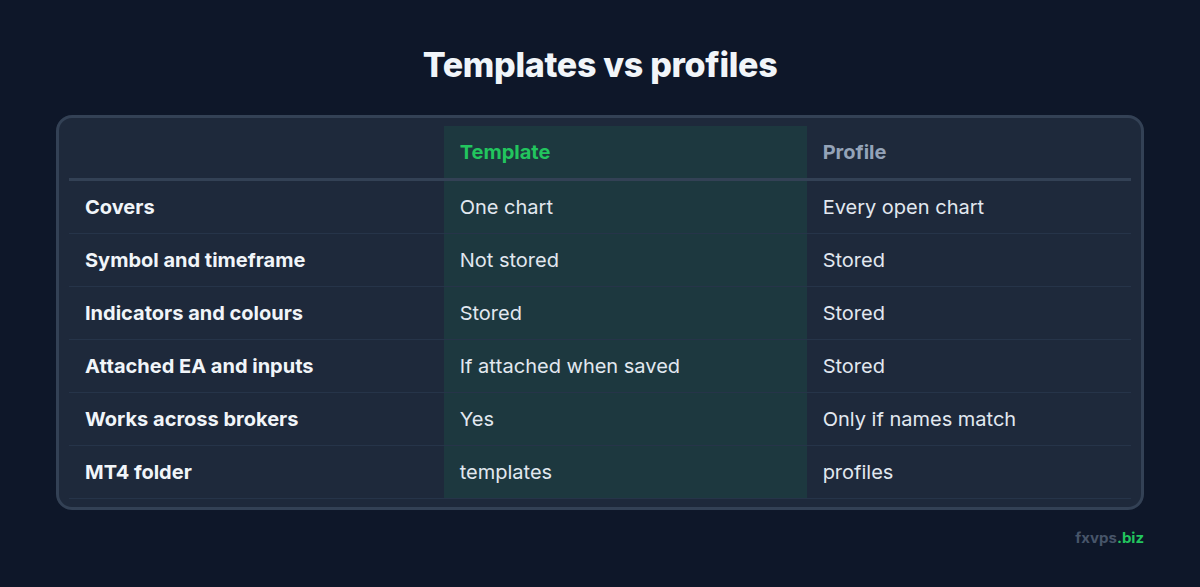
A template stores the setup of a single chart:
- Colours, chart type, grid and scale settings.
- Every indicator on the chart, with its inputs.
- Objects such as lines and text, in many cases.
- The EA attached to the chart, with its inputs, if one was attached when you saved.
It does not store the symbol or timeframe. You can apply the same template to EURUSD H1 and GBPJPY M5.
To save a template: right-click the chart, choose Template, then Save Template, and give it a name.
To apply a template: right-click a chart, choose Template, and pick it from the list.
The Default Template
A template called default is applied to every new chart you open. Save your preferred clean layout as default and every new chart starts that way. Keep the default template free of EAs, or every new chart you open will try to run one.
⚠️ Warning: Applying a template that contains an EA replaces whatever EA is on that chart with the one in the template, with the template’s inputs. Applying a “nice indicators” template to a live EA chart can swap or remove the EA without you noticing. Keep separate templates for layouts and for EAs, and name them clearly.
Profiles: A Whole Set of Charts
A profile stores every open chart in the terminal: symbols, timeframes, window positions, and each chart’s full setup, including attached EAs.
When the terminal starts, it opens the last profile you used. That is how EAs come back after a restart. The terminal writes profile changes when it closes normally, so changes made just before a crash may not be saved.
To manage profiles: go to File, Profiles. From there you can save the current set of charts as a new profile or switch to another one.
Profiles are useful for:
- Keeping a live EA profile separate from an analysis profile, so manual chart work never touches the EA charts.
- Rebuilding a terminal on a new VPS with every chart in place.
- Testing a new layout without losing the working one.
Where the Files Live
Open File, Open Data Folder in the terminal. The files are inside:
- MT4: templates in
templates, as.tplfiles. Profiles inprofiles, one folder per profile. - MT5: templates in
MQL5\Profiles\Templates. Profiles inMQL5\Profiles\Charts, one folder per profile.
Each terminal has its own data folder. A template saved in one terminal is not visible in another until you copy it across.
Moving Templates and Profiles to a VPS
Templates and profiles travel well, as long as the indicators and EAs they reference are installed in the destination terminal.
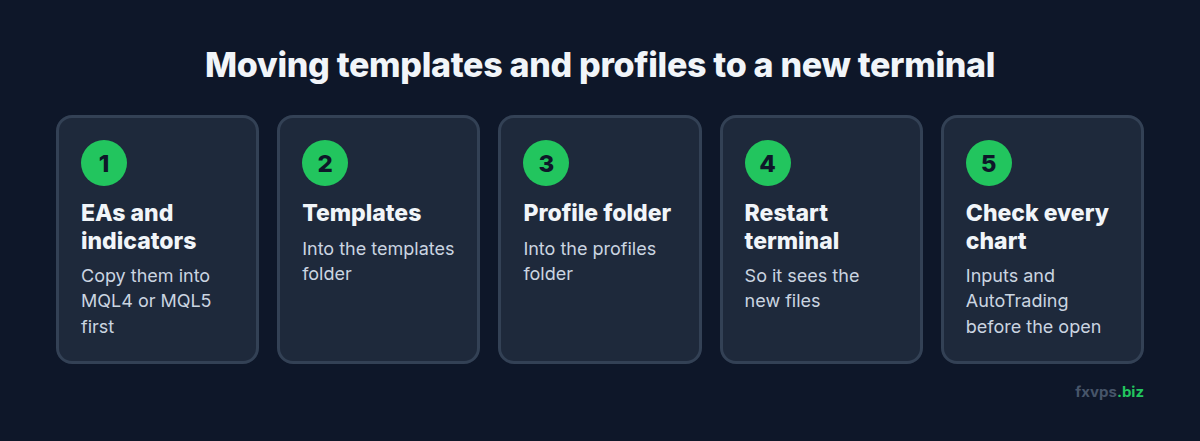
- Copy the EAs and indicators first into the destination terminal’s
MQL4orMQL5folders. A template that references a missing indicator opens without it. - Copy the template files into the destination’s templates folder.
- Copy the profile folder into the destination’s profiles folder, if you want the whole chart set.
- Restart the terminal, or refresh the Navigator, so it sees the new files.
- Open the profile or apply the templates, then check each chart.
- Check every EA’s inputs and the AutoTrading button before the market opens.
For copying files from your computer, see mapping a network drive from Remote Desktop or, from a Mac, copying files from a Mac to a Windows VPS.
💡 Tip: Templates work across brokers. Profiles reopen charts by symbol name, so a profile copied from a broker that uses “EURUSD” will not open “EURUSD.r” charts on another. Across brokers, copy templates and rebuild the charts. See symbol suffixes and why your EA will not trade.
Templates for Several Terminals
If you run several terminals on one VPS, for different accounts or brokers, templates keep them consistent:
- Build the chart setup once in one terminal.
- Save it as a template without the EA, and as a separate template with the EA.
- Copy both into every other terminal’s templates folder.
- Apply the layout template everywhere, then attach the EA with that account’s own .set file.
This way the look is shared, but EA settings stay per account. See EA .set files on a VPS and running multiple MT4 and MT5 terminals on a VPS.
When a Template or Profile Does Not Load Properly
Most problems after copying templates and profiles come down to a few causes:
- An indicator is missing from the chart. It is not installed in the destination terminal, or it was compiled for the other platform. Copy the indicator file into the right
Indicatorsfolder and apply the template again. - The EA is missing from the chart. The EA file is not in the destination’s
Expertsfolder, or it needs a licence activation on the new machine. See EA licensing and MQL5 Market activations on a VPS. - A chart opened on the wrong symbol, or did not open at all. The profile refers to a symbol name this broker does not use.
- The EA is attached but not trading. AutoTrading is off in this terminal, or live trading is not allowed on the EA’s Common tab.
- The template list does not show the new file. The file was copied into the wrong terminal’s data folder. Check the path with File, Open Data Folder from inside the terminal you are using.
Keep the EA Profile Lean
Every open chart uses memory and CPU, and so does every indicator on it. On the profile that runs your EAs:
- Keep only the charts the EAs are attached to.
- Remove indicators the EA does not need. An EA calculates its own indicators internally and does not need them drawn.
- Do manual analysis in a separate profile, or a separate terminal.
See how much RAM a forex VPS needs and fixing 100% CPU on a trading VPS.
✅ Best Practice: Once your EA profile is right, save it under a name like “LIVE” and back up its folder along with your templates. If a terminal ever needs rebuilding, you copy two folders instead of starting again. See how to back up your trading data on a VPS.
Recommended FXVPS Plan
The leaner your profiles, the further a plan stretches:
- Core ($29/mo, 2GB RAM, 1 vCPU): one or two terminals with lean EA profiles.
- Pro ($39/mo, 4GB RAM, 2 vCPU): several terminals, or a live profile plus an analysis profile with many charts.
- Scaling ($79/mo, 8GB RAM, 4 vCPU): many terminals and accounts.
See the pricing page, or rebuild your terminals from templates on a fresh server with the $2.99 7-day trial.
Frequently Asked Questions
What is the difference between a template and a profile?
A template stores one chart’s setup and can be applied to any symbol and timeframe. A profile stores a full set of charts, including which symbols and timeframes are open.
Does a template save my EA?
Yes, if an EA was attached when you saved it. Applying the template attaches that EA with the saved inputs.
Why did my EA disappear after I applied a template?
The template you applied either had no EA, or a different one. Applying a template replaces the chart’s EA with the template’s. Reattach the EA, or apply your EA template.
Can I use MT4 templates in MT5?
No. The file formats and indicators differ. Rebuild the layout in MT5 and save a new template.
Why did my charts not reopen after a crash?
The terminal saves profile changes when it closes normally. Changes made since the last normal close may be lost. Close terminals with File, Exit when you can.