

Your EA runs on the VPS, and you are at dinner with the MetaTrader app open under the table. A trade is down more than you like. You could close it with two taps. Should you?
The MT4 and MT5 mobile apps are a great way to keep an eye on an account an EA is trading. They are also an easy way to confuse the EA, if you do not know how it treats trades it did not open itself. This post covers what the app can do alongside a VPS, what it cannot, and the habits that keep your phone and your EA from working against each other.
How the Phone and the VPS Share One Account
Your trading account lives on the broker’s server, not on the VPS or your phone. The terminal on the VPS and the app on your phone are both just windows onto that account.
- Both can be logged in at the same time. Most brokers allow the same account to be open in several places at once. If yours limits sessions, the broker will say so.
- Both see the same positions and orders, because they read them from the broker.
- Only the VPS terminal runs the EA. The mobile apps cannot run Expert Advisors, custom indicators or scripts at all.
So the phone is a viewer and a manual trading tool. The EA keeps running on the VPS whether the app is open, closed or uninstalled.
📊 Key Stat: The MetaTrader mobile apps cannot run EAs. Closing the app, or your phone losing signal, has no effect on an EA running on your VPS.
What the App Is Good For
- Watching open positions, floating profit and margin level.
- Checking history to see what the EA did overnight.
- Receiving push notifications sent by the VPS terminal or by your EA. See MT4 and MT5 push notifications for monitoring a VPS.
- Closing positions in an emergency, when you cannot reach the VPS.
- Placing manual trades on the same account, if your EA is designed to live alongside them.
What Happens When You Touch an EA’s Trade
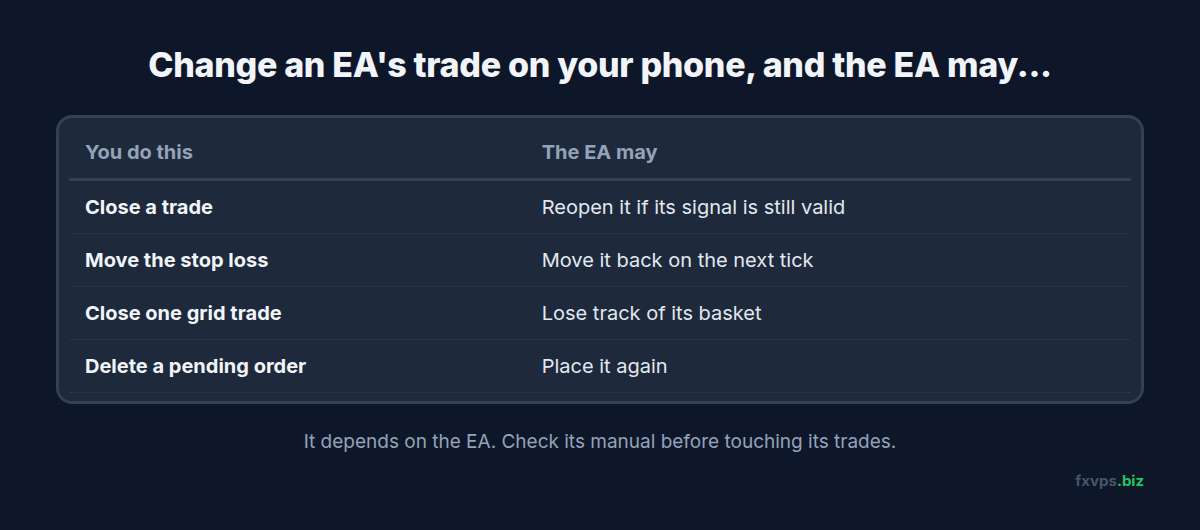
This is where things go wrong. Every EA decides for itself how to react when a position changes outside its control. Common behaviours include:
- Closing a trade by hand: many EAs simply notice it has gone. Some open a new trade straight away if their entry signal is still true, so you can close a position and see it come back seconds later.
- Moving the stop loss or take profit: EAs that manage stops, such as trailing stops or break-even logic, may move it back on their next tick.
- Closing one trade of a grid or basket: the EA’s view of the basket changes, which can throw off its averaging or recovery logic.
- Deleting a pending order: some EAs replace it at once.
None of this is a fault in the app or the VPS. It is the EA following its own rules. Check the EA’s manual, or ask the vendor, how it handles manual interference before you rely on it.
⚠️ Warning: If you need to stop an EA, closing its trades on your phone is not enough. It may keep opening new ones. Turn off AutoTrading or remove the EA in the terminal on the VPS, then close positions.
Manual Trades Next to an EA
Most EAs tag their trades with a magic number and only manage trades carrying it. Trades you place by hand from the app have a magic number of zero, so a well-written EA ignores them. See magic numbers when running several EAs on one account.
Some EAs, though, manage every trade on a symbol, or count all open positions when deciding risk. A manual trade can then change the EA’s lot sizes or trigger its close-all rules. On MT5 netting accounts, a manual trade on the same symbol even merges with the EA’s position. See MT5 hedging vs netting accounts for EAs.
💡 Tip: If you want to trade by hand on your phone, consider a separate account for manual trading. The EA’s account then contains only the EA’s trades, which keeps its logic and its statistics clean.
The Right Way to Stop an EA From Your Phone
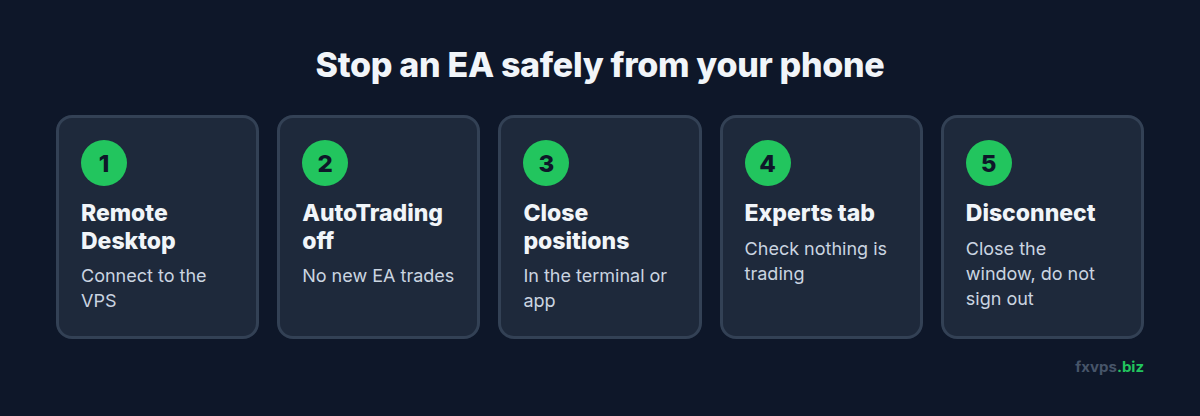
If something goes badly wrong and you want everything off, the clean sequence is:
- Connect to the VPS with the Remote Desktop app on your phone. See how to connect to your VPS from an iPhone or iPad or from Android.
- Turn off AutoTrading (Algo Trading in MT5) in the terminal toolbar, so no EA can open new trades.
- Close positions in the terminal or in the MetaTrader app.
- Check the Experts tab to make sure nothing is still trying to trade.
- Disconnect by closing the Remote Desktop session, not by signing out, so the terminal stays open.
If you cannot reach the VPS at all, closing positions in the app is still better than nothing. Just expect the EA to act on its next tick, and get to the VPS as soon as you can.
Watch-Only Access With the Investor Password
If you only want to watch, log in to the app with the account’s investor password rather than the master password. The investor login can see everything but cannot trade, so an accidental tap can never close a position. See investor password vs master password in MT4 and MT5.
✅ Best Practice: Use the investor password on your phone for day-to-day watching, and keep the master password for the terminal on the VPS. Log in with the master password on the phone only when you genuinely need to act.
Do Not Change Settings in Two Places
A few things only exist in the terminal on the VPS, and the app cannot change them:
- EA inputs and AutoTrading, which you set on the VPS.
- Charts, templates and profiles, which are separate on each device. A chart layout on your phone has no effect on the VPS.
- The terminal’s connection to the broker, which is what keeps your EA trading.
If the app shows the account as disconnected, that is your phone’s connection, not the VPS’s. Check the VPS terminal before worrying.
A Simple Routine for Watching From Your Phone
Most EA traders settle into a routine like this:
- Morning: open the app with the investor login and check overnight history and the margin level.
- During the day: rely on push notifications from the VPS terminal rather than opening the app every few minutes.
- Weekly: connect to the VPS itself, check the Experts and Journal tabs, and make sure the terminal is still connected and AutoTrading is on. See the weekly trading VPS maintenance checklist.
The less you trade by hand on the EA’s account, the easier it is to judge whether the EA is actually working.
Recommended FXVPS Plan
Monitoring from your phone works on every plan, so choose by what you run on the VPS:
- Core ($29/mo, 2GB RAM, 1 vCPU): one or two terminals.
- Pro ($39/mo, 4GB RAM, 2 vCPU): several terminals across a few accounts.
- Scaling ($79/mo, 8GB RAM, 4 vCPU): many terminals, prop firm accounts and copiers.
See the pricing page, or try it on the $2.99 7-day trial.
Why FXVPS for EA Traders on the Move
- Your EA keeps trading when your phone is off, out of signal or in your pocket.
- Reach the VPS from your phone with the standard Remote Desktop apps on iPhone, iPad and Android.
- Locations near your broker in London, New York, Tokyo, Hong Kong and more than 15 others.
- Dedicated resources for terminals that run around the clock.
Frequently Asked Questions
Can I run an EA on the MT4 or MT5 mobile app?
No. The mobile apps cannot run Expert Advisors, custom indicators or scripts. EAs need the desktop terminal, which is why traders run them on a VPS.
Can I be logged in on my phone and my VPS at the same time?
Usually yes. Most brokers allow the same account to be open in several places at once.
If I close an EA’s trade on my phone, will the EA reopen it?
It might. That depends on the EA. Some reopen at once if their signal is still valid. Check the EA’s manual.
How do I stop my EA from my phone?
Connect to the VPS with the Remote Desktop app and turn off AutoTrading in the terminal. Closing trades in the MetaTrader app alone does not stop the EA.
Is it safe to watch my account on my phone?
Yes. For watching only, log in with the investor password so you cannot place or close trades by accident.