

A trading VPS is built to be left alone. That is the point of it. But “left alone” and “never looked at” are different things, and the difference usually shows up at the worst moment: a disk that filled up on Wednesday night, a Windows update that restarted the server during London open, a terminal that has been running for nine weeks and now takes four seconds to respond.
None of these arrive without warning. Each one builds slowly and can be seen days ahead by anyone who looks. The forex market gives you a window every week, from Friday’s close to Sunday’s open, when looking costs nothing.
This is a checklist for that window. It takes about twenty minutes once you know it, and it turns most mid-week emergencies into non-events.
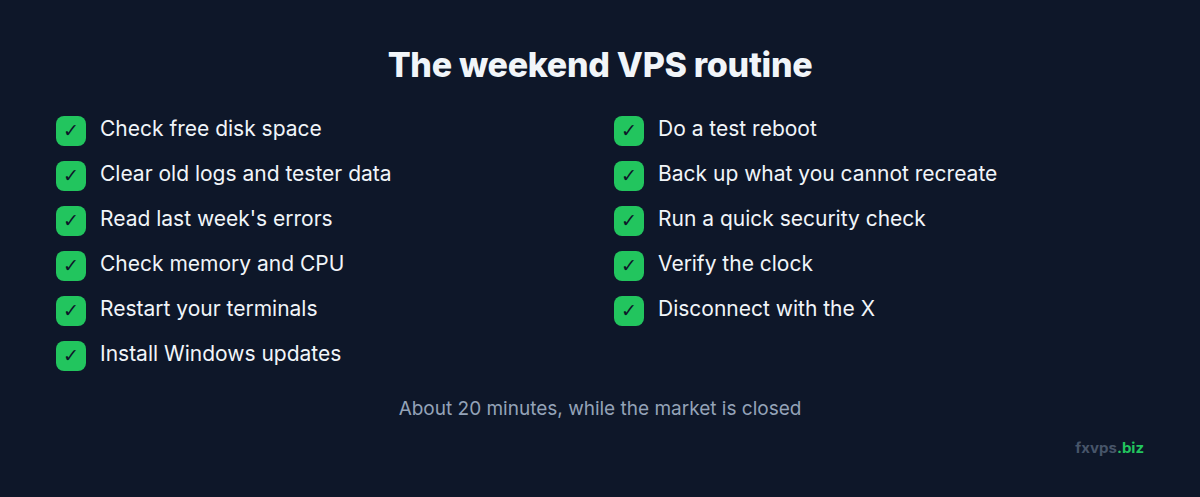
📊 Key Stat: The spot forex market is closed for roughly 48 hours each weekend. That is the only period in the week when restarting a terminal or rebooting a server carries no risk of a missed entry or an unmanaged exit.
Before You Start
Pick a fixed time. Saturday is ideal, because it leaves Sunday as a buffer if something needs fixing before the open.
Check two things first:
- Open positions. Server-side stop losses and take profits stay at the broker while you work. Anything managed by an EA, such as a trailing stop, will pause while the terminal is closed, which does not matter while the market is shut.
- Markets that do not close. If you trade crypto CFDs or run crypto bots, there is no closed window. Do the routine at your quietest hour and keep restarts short. See VPS for crypto trading bots.
The Checklist
1. Check Free Disk Space (1 minute)
Open File Explorer, click This PC, and look at the C: drive. As a rule of thumb, keep at least 15-20% free. Windows needs working room for updates, and a terminal that cannot write to its logs or history files starts misbehaving in ways that are hard to diagnose.
If free space is shrinking week after week, find out what is growing. See how much disk space a trading VPS needs.
2. Clear Old Terminal Logs and Tester Data (3 minutes)
In each terminal, go to File > Open Data Folder. The folders that grow are:
logs— the terminal’s own journal, one file per dayMQL4\LogsorMQL5\Logs— everything your EAs print, one file per daytester— Strategy Tester logs, cache, and downloaded history
A chatty EA can write hundreds of megabytes of logs in a month. Delete log files older than a few weeks, keeping recent ones for troubleshooting. Clear tester caches if you are not mid-optimisation.
⚠️ Warning: Delete only inside the
logs,Logs, andtesterfolders. Do not touchprofiles,templates,MQL4\Experts,MQL4\Files, orconfig. Those hold your chart layouts, EAs, EA data files, and account settings.
3. Read Last Week’s Errors (3 minutes)
Before deleting anything recent, scan the past week’s Experts and Journal logs for repeated errors: failed orders, lost connections, EAs that could not load a library. One line is noise. The same line fifty times is a problem that has not hurt you yet.
Our guide to reading MT4 and MT5 log files explains what the common messages mean, and MT4 and MT5 no connection errors covers the connection ones.
4. Check Memory and CPU at Rest (2 minutes)
Open Task Manager (Ctrl+Shift+Esc) and look at the Performance tab, then sort the Processes tab by memory.
- Memory: if the server sits above about 80% used with the market closed, you are short of headroom for a busy session.
- CPU: with no ticks arriving, usage should be low. A terminal using significant CPU at the weekend usually has an indicator or EA stuck in a loop. See trading VPS CPU at 100 percent.
- Per-terminal memory: note the figure for each terminal. If one has grown a lot since last week, it is the candidate for the next step.
5. Restart Your Terminals (3 minutes)
MetaTrader terminals that run for weeks without a restart tend to accumulate memory, especially with many charts and custom indicators. A weekly restart returns them to a clean state.
Close each terminal with File > Exit so it saves its profile, then reopen it. Confirm that:
- It reconnects and shows the right account
- Every chart reopens with its EA attached
- The AutoTrading or Algo Trading button is on
- Each EA shows as active on its chart
Restarting is also when a waiting platform build installs. See MT4 and MT5 build updates on a VPS.
6. Install Windows Updates on Your Schedule (5 minutes, sometimes more)
Updates you install on Saturday are updates that cannot force a restart on Tuesday. Open Settings > Windows Update, install what is pending, and reboot when asked.
Our guide to how and when to do Windows updates covers how to prevent automatic restarts during trading hours. You do not need to do this every single weekend. Once or twice a month, after the monthly security release, is a reasonable rhythm.
7. Do a Test Reboot (3 minutes)
Even with no updates pending, reboot the VPS once a month and watch what comes back by itself. This is the only honest test of your auto-start configuration.
After the reboot, reconnect and check that every terminal has launched, logged in, and loaded its EAs without your help. If anything needed a manual click, fix it now. See the MetaTrader automatic startup guide and automating EA restarts with Task Scheduler.
💡 Tip: A reboot that reveals a broken auto-start on a Saturday is a gift. The same discovery after an unplanned restart at 3am on a Thursday means hours with no EA running and nobody aware of it.
8. Back Up What You Cannot Recreate (2 minutes)
Copy these to your local computer or cloud storage:
- EA
.setfiles and any custom settings - The
profilesandtemplatesfolders - Custom EAs and indicators, and their licence details
- Anything in
MQL4\FilesorMQL5\Filesthat an EA uses to store state
You do not need to back up the terminal itself or price history, both of which can be downloaded again. See how to back up your forex trading data on a VPS.
9. Run a Quick Security Check (2 minutes)
- Failed logins. Open Event Viewer, go to Windows Logs > Security, and filter for Event ID 4625, which records failed logon attempts. Any server with Remote Desktop exposed to the internet sees some. A very large number is a reason to tighten access.
- Unknown programs. Glance at the list of installed apps and at Task Manager’s Startup tab for anything you do not recognise.
- Antivirus status. Confirm Windows Security shows no outstanding alerts. See antivirus on a trading VPS.
- Password age. If the administrator password has not changed since the server was delivered, change it.
The full set of protective steps is in VPS security hardening for traders.
10. Verify the Clock (30 seconds)
Check that the Windows clock is correct to the second against a reliable source. A drifting clock causes trouble with time-based EAs and with secure connections. See time synchronization on a trading VPS.
11. Disconnect Properly (10 seconds)
Close the Remote Desktop window with the X. Do not choose Sign out, which closes your session and every terminal in it. See how to properly disconnect from an RDP session.
✅ Best Practice: After your weekend routine, log in again shortly after the Sunday open and spend two minutes confirming that prices are ticking, EAs are active, and spreads have returned to normal. The first hour of the week is thin, and it is the first real test of everything you restarted. See the weekend gap and Sunday rollover guide.
The Monthly and Quarterly Extras
Once a month:
- The test reboot from step 7
- Windows updates from step 6
- Review resource trends: is memory use creeping up as you add EAs?
Once a quarter:
- Review whether the plan still fits your workload. See how to choose the right VPS plan for your trading.
- Check your broker has not moved your account to a different server or datacenter. See MT4 data centers, MT5 access points, and terminal ping.
- Remove EAs, indicators, and terminals you no longer use.
- Restore one backup file to prove the backups work.
Signs You Have Outgrown Your Plan
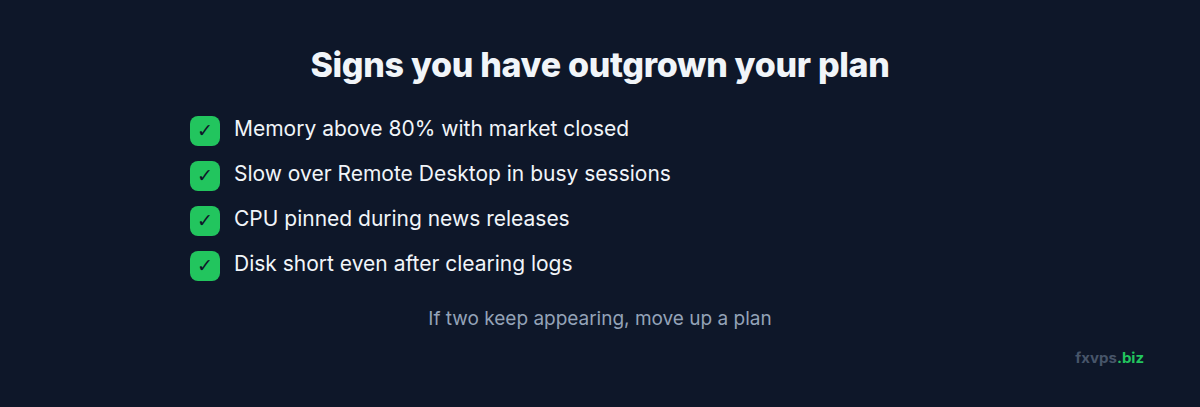
The weekly check is also how you find out the server is too small before it costs you a trade:
- Memory above 80% with the market closed
- Terminals slow to respond over Remote Desktop during busy sessions
- CPU pinned during news releases
- Disk space that keeps running short even after clearing logs
If two of these keep appearing, move up a plan before adding anything else.
Core Plan ($29/mo), 2GB RAM and 1 vCPU: one or two terminals with a few EAs.
Pro Plan ($39/mo), 4GB RAM and 2 vCPUs: several terminals or heavier indicator sets.
Scaling Plan ($79/mo), 8GB RAM and 4 vCPUs: multi-account and prop trading setups.
Full details are at /pricing/. Our guide to how much RAM a forex VPS needs helps with sizing.
🚀 Try FXVPS for $2.99. Run your setup on dedicated resources for a week with a 7-day Core VPS trial and see what your terminals really use.
Frequently Asked Questions
How often should I restart MetaTrader on a VPS?
Once a week during the weekend close is a sound default. Terminals with many charts and custom indicators benefit most.
How often should I reboot the whole VPS?
About once a month, timed with Windows updates. More often is unnecessary on a healthy server.
Is it safe to delete MetaTrader log files?
Yes, for files in the logs and MQL4\Logs or MQL5\Logs folders. Keep the last few weeks in case you need to investigate a trade. The terminal cannot delete the current day’s file while it is running.
Will restarting the terminal close my trades?
No. Open positions and their server-side stop loss and take profit levels stay at the broker. Only EA-managed logic pauses while the terminal is closed.
Can I automate this routine?
Parts of it. Terminal restarts and log clean-up can be scheduled with Windows Task Scheduler. The checks that involve judgement, such as reading errors and confirming that EAs came back, are worth doing by eye.
Related Reading
- How and When to Do Windows Updates — controlling the one task that can restart your server
- Tips for Optimizing Your VPS for Forex Trading — one-time tuning that complements the weekly routine
- Common Issues Traders Face When Using a VPS — what the checklist is designed to prevent
- Standby Backup VPS for Expert Advisors — the next level of protection