

You rent a VPS in London because your broker’s server is in London. You install MetaTrader, log in, and look at the bottom-right corner. It says 48 ms. You expected 2.
Or the opposite happens. You trade from a home PC in Singapore, the terminal shows a pleasing 6 ms, and yet your orders take a quarter of a second to fill.
Both situations come from the same misunderstanding. The number in the status bar is not always the latency to the server that executes your trades. It is the latency to whichever access point your terminal is connected to. Brokers run networks of these, and the terminal’s choice of one is not always the best one. Knowing how that works takes ten minutes and will save you from choosing the wrong VPS location or blaming the right one.
📊 Key Stat: A MetaTrader broker’s infrastructure is not one server. It is a trade server plus a set of access points (called data centers in MT4 and access servers in MT5) that can be spread across several cities. Your terminal connects to an access point, and the access point talks to the trade server.
How the Connection Is Really Built
MT4: Data Centers
In MT4, the broker’s main server holds accounts and executes trades. In front of it, the broker can deploy any number of data centers: proxy servers that accept client connections, cache and distribute price history and quotes, and pass trading requests back to the main server. They exist to spread load and to shield the main server from direct exposure to the internet.
MT5: Access Servers
MT5 splits the platform into separate components. Trade servers handle accounts and execution, history servers hold price data, and access servers are the front door that terminals connect to. A broker can place access servers in many locations, and the terminal can only ever talk to the platform through one of them.
What That Means for an Order
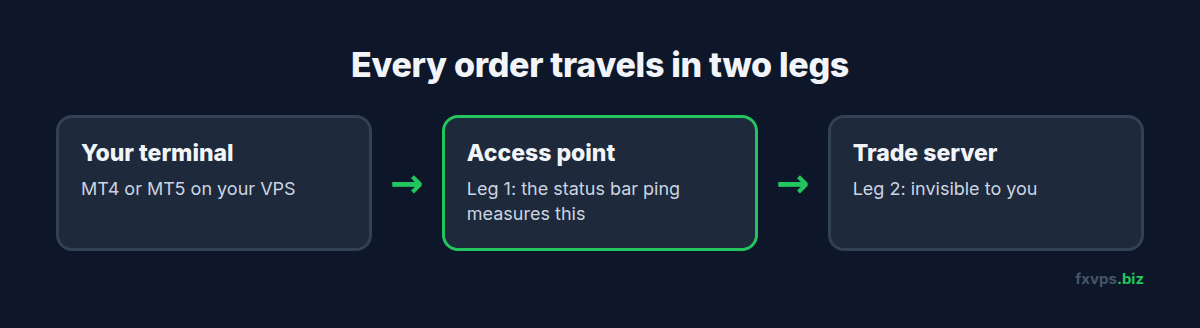
In both platforms, a trade request travels in two legs:
- Terminal to access point. This is the leg the status bar ping measures.
- Access point to trade server. This leg is invisible to you.
If the access point sits beside the trade server, leg two is negligible and the ping you see is a fair picture of your execution latency. If the access point is on another continent from the trade server, the ping you see tells you very little.
⚠️ Warning: A low ping to a nearby access point does not mean fast execution. A broker with its trade server in New York may run an access point in Singapore for Asian clients. A terminal in Singapore shows single-digit ping, but every order still crosses the Pacific on the broker’s side before it is filled.
How to See Which Access Point You Are On
In MT4
Click the connection status in the bottom-right corner of the terminal (the box showing the traffic figures). A menu opens listing the available data centers for your server, each with a ping in milliseconds, and a Rescan servers option. The one with the tick is your current connection.
In MT5
Click the connection status in the bottom-right corner. The list shows the access points for your broker’s server with their ping values, and the current one is marked. MT5 shows the ping of the active connection directly in the status bar.
Access point names are chosen by the broker. Some are helpfully named after cities or datacenters. Others are just numbered, in which case the ping values from different VPS locations are your best clue.
Why a VPS Sometimes Shows a High Ping
When a correctly located VPS shows an unexpectedly high figure, the cause is usually one of these:
- The terminal picked a distant access point. MetaTrader chooses an access point when it first connects and tends to stick with it. If it scanned at a bad moment, or the installer was preconfigured for another region, it can sit on a poor choice. A rescan normally fixes it.
- You are on the wrong server for your account. Brokers run several trade servers (Live01, Live02, and so on), sometimes in different regions. The server for your account is fixed, and it may not be where the broker’s headline infrastructure is.
- The broker’s access points and trade server are in different places than you assumed. “London broker” does not always mean London trade server.
- A third-party proxy or protection layer sits in front of the broker’s servers and adds a detour.
Our article on what “London server” really means covers the VPS provider’s side of the same problem.
💡 Tip: After a fresh install on a VPS, always open the access point list and run Rescan servers once. It takes a few seconds, and it is the single most common fix for “my VPS ping is higher than advertised”.
Finding Where the Trade Server Really Is
Since the terminal only shows the first leg, you need other evidence for the second.
- Ask the broker. Support can usually tell you the datacenter of the trade server your account is on. Ask about your specific server name, not the broker in general.
- Compare access point pings from the VPS. The access point with a ping of 1-2 ms from a London VPS is in or near London. If none are that low, the broker has nothing close to you there.
- Measure order execution time, not ping. This is the test that includes both legs. In the Journal tab, MT5 logs the time each order took to complete in milliseconds. In MT4, an EA or script can record the tick count before and after
OrderSend. Our guide to reading MT4 and MT5 log files shows where to find these lines. - Resolve the server address if you want a network-level view. See how to extract the IP or DNS address of your broker’s MT4 server.
Execution time includes the broker’s own processing and any liquidity provider round trip, so it will always be higher than ping. What matters is the comparison: run the same test from two candidate locations, and the one with consistently lower execution time is the right place for your VPS.
✅ Best Practice: Decide VPS location by measured execution time on your own account, not by the broker’s marketing page or the ping to a single access point. A short trial in each candidate location, with a handful of small test orders, gives you a definitive answer for a few dollars.
Should You Pin the Terminal to One Access Point?
Clicking a specific access point in the list tells the terminal to connect there. This is useful when the automatic choice is poor. Two cautions:
- Access points exist for redundancy. If the one you chose goes down, the terminal should fail over to another. After pinning, check that reconnection still works by watching what happens on the next disconnect.
- The lowest ping is not always the best path. If one access point shows 1 ms and another 3 ms, both are effectively local and the difference is noise. Choose on stability, not on a millisecond.
If your terminal frequently drops and reconnects, the access point is one of several possible causes. Our guide to MT4 and MT5 “No Connection” errors works through the rest.
A Worked Example
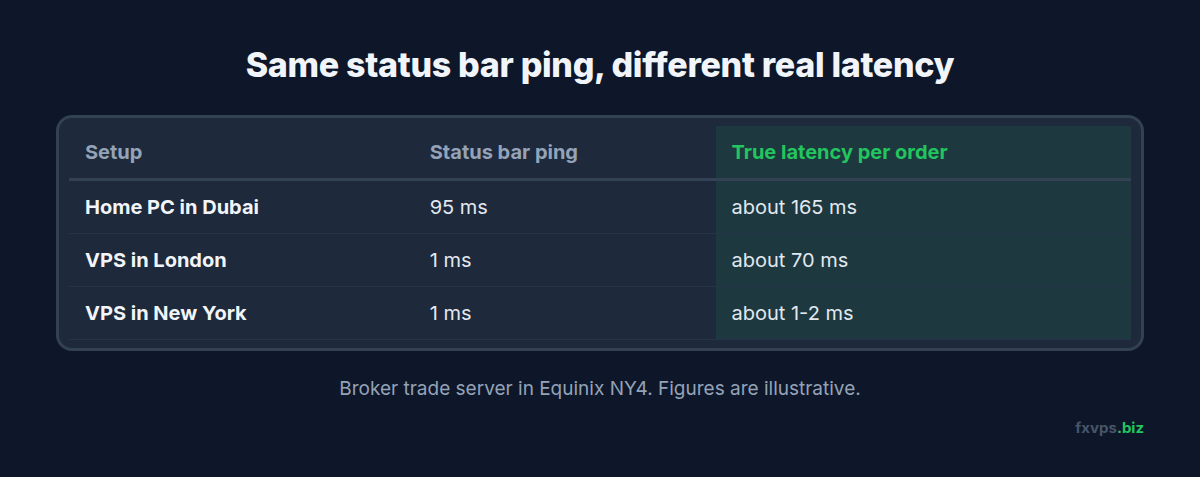
A trader in Dubai runs an EA on a broker whose trade server is in Equinix NY4. The broker operates access points in New York, London, and Singapore.
- Home PC in Dubai. The terminal picks the London access point: ping 95 ms. Orders then travel London to New York on the broker’s network, roughly another 70 ms round trip. True network latency per order: about 165 ms.
- VPS in London. Ping to the London access point: 1 ms. The status bar looks perfect. But the London to New York leg is unchanged. True network latency: about 70 ms.
- VPS in New York. Ping to the New York access point: 1 ms, and the access point is beside the trade server. True network latency: about 1-2 ms.
The London VPS and the New York VPS show the same number in the status bar. Only one of them is in the right place. The figures here are illustrative, but the pattern is exactly what traders run into.
What This Means for Choosing a VPS
- Match the trade server, not the nearest access point and not your own location. See tips for choosing the best VPS location.
- If you run several brokers on one VPS, place it for the most latency-sensitive strategy and accept a longer path for the rest.
- If your broker moves you to a different server, re-check. Moving a VPS between locations is straightforward. See moving your trading VPS to a different location.
FXVPS offers London, New York, Tokyo, Hong Kong, and more than 15 locations in total, so you can match whichever datacenter your trade server turns out to be in. Core ($29/mo, 2GB RAM, 1 vCPU) covers a single terminal, Pro ($39/mo, 4GB RAM, 2 vCPUs) covers several, and Scaling ($79/mo, 8GB RAM, 4 vCPUs) covers multi-account setups. Full details are at /pricing/.
🚀 Try FXVPS for $2.99. Use a 7-day Core VPS trial to measure access point ping and real execution time on your own account before you commit to a location.
Frequently Asked Questions
Why is my MT4 ping high on a VPS in the right city?
Most often the terminal has connected to a distant data center. Click the connection status, choose Rescan servers, and check which access point is selected.
Is the ping in MT5 the same as my execution latency?
No. It is the round trip to the access point. Execution latency also includes the leg from the access point to the trade server and the broker’s processing time.
Can I add my own access point or connect straight to the trade server?
No. The list of access points is published by the broker, and terminals connect through it.
My home ping is lower than my VPS ping. Is the VPS in the wrong place?
Not necessarily. You may simply be near one of the broker’s regional access points. Compare order execution times from both, which is the measurement that counts.
How often should I rescan?
After a new install, after moving the VPS, and after the broker announces a server migration. There is no need to rescan routinely.
Related Reading
- VPS Latency: What “London Server” Really Means — the provider’s side of location claims
- Latency, Jitter, and Packet Loss — the three numbers behind connection quality
- How to Check if a Forex VPS Is Online With Ping — basic network testing
- Equinix Data Centers Explained — where trade servers tend to live