

Your Renko EA traded nicely all week. Then on Monday morning the Renko chart is frozen on Friday’s last brick, the EA has not traded since the VPS restarted for updates, and the normal charts beside it are ticking along happily.
Renko, range bar and other custom charts are not built into MetaTrader the way M1 to MN charts are. Something has to build them, tick by tick, and that something has to be running for the chart, and any EA on it, to work. This post explains how custom charts work in MT4 and MT5, why they stop, and how to set them up on a VPS so they keep going.
Why Custom Charts Need a Generator
MetaTrader receives prices from your broker as ticks and builds standard time-based bars from them. Renko bricks, range bars, tick charts and similar chart types are not part of that. They are produced by a separate program, usually an EA or indicator called a generator, which:
- Reads the live ticks of a real symbol from the broker.
- Builds bricks or bars according to its own settings.
- Writes them into a chart that MetaTrader can display.
If the generator stops, the custom chart stops. It does not fail with an error. It just stops updating, which is easy to miss.
📊 Key Stat: A custom chart is only as live as the generator behind it. Generator off means no new bricks, and no new bricks means an EA on that chart sees no new bars.
How It Works in MetaTrader 4
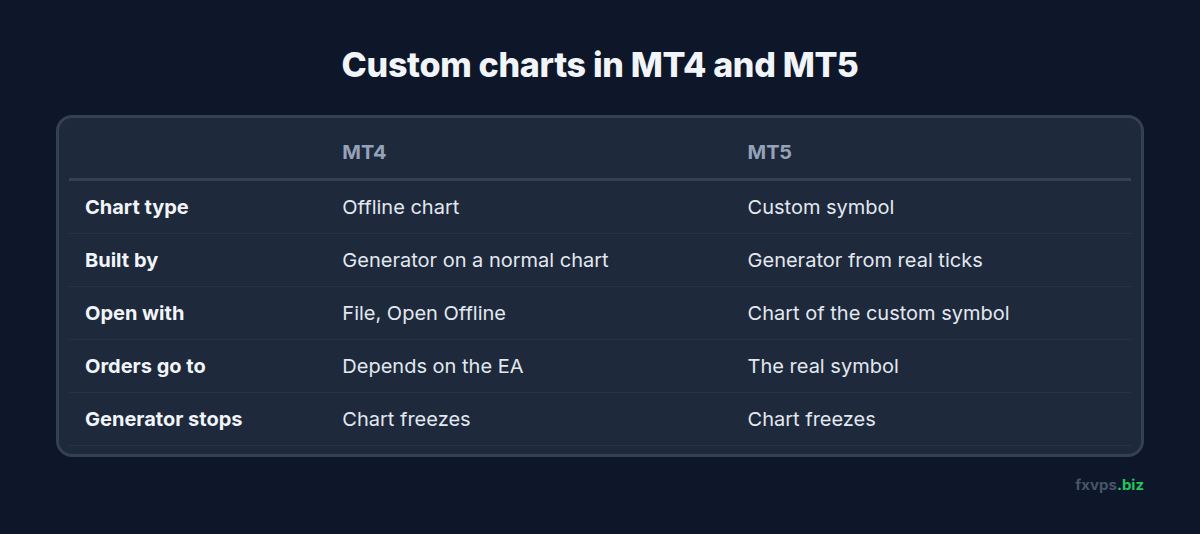
In MT4, custom charts are usually offline charts:
- A generator runs on a normal chart, for example an M1 EURUSD chart.
- It writes bars to a history file that MT4 can open as an offline chart, via File, Open Offline.
- The offline chart is refreshed by the generator as new bricks form.
- An EA attached to the offline chart reads those bricks. Many offline-chart EAs trade the real symbol behind it, but behaviour varies by EA and generator.
The key point: the original chart with the generator must stay open. Close it, and the offline chart freezes.
How It Works in MetaTrader 5
MT5 replaced offline charts with custom symbols:
- A generator builds a custom symbol, such as
EURUSD_Renko, from the real symbol’s ticks. - You open a chart of that custom symbol like any other.
- Custom symbols exist only in your terminal. The broker’s server does not know about them, so the broker will not accept orders on a custom symbol.
- EAs therefore analyse the custom chart but send orders to the real symbol. A Renko EA for MT5 must be written to do this. Check the vendor’s instructions for the exact symbol setting.
Custom symbols can also be used in the Strategy Tester, which is handy for testing a Renko strategy before running it live.
⚠️ Warning: If your MT5 Renko EA logs errors like an unknown or invalid symbol when it tries to trade, it is probably sending orders to the custom symbol instead of the real one. Check the EA’s symbol input against the vendor’s guide.
Why Custom Charts Stop on a VPS
The usual causes, in rough order:
- The terminal restarted (after Windows updates, a VPS restart, or a crash) and the generator chart did not come back, or came back without the generator attached.
- AutoTrading was off when the terminal started, and the generator is an EA, so it never ran. See AutoTrading disabled: why your EA stopped trading.
- The generator chart was closed to tidy up the workspace, not realising it was doing work.
- Missing history. Some generators build bricks from past data and stall or produce odd bricks if the history is incomplete. See missing chart history on a new VPS.
- Wrong order of loading. In some setups the EA on the offline chart loads before the generator has produced any data.
Setting It Up to Survive Restarts
The aim is that after any restart, the terminal opens with the generator running and the custom chart live, without you logging in.
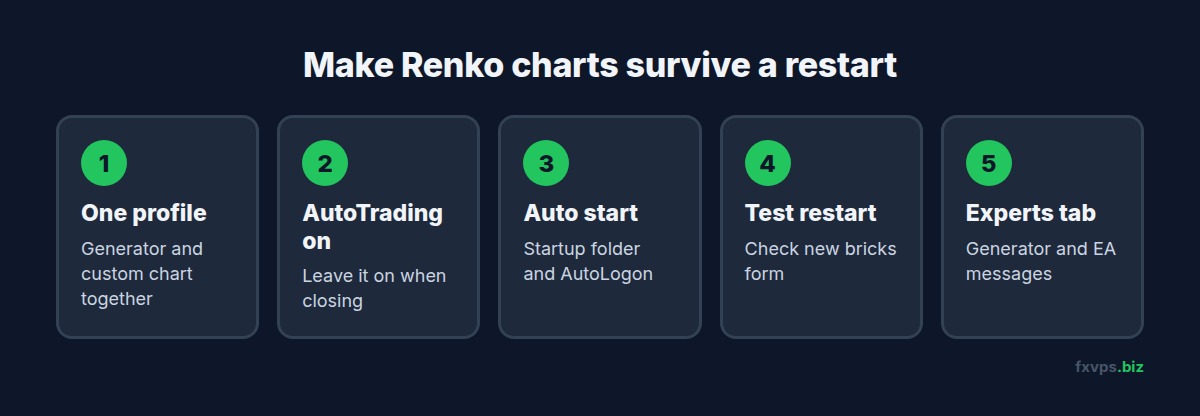
- Put the generator chart and the custom chart in one profile, and save it. MetaTrader reopens the last profile on start. See MT4 and MT5 templates and profiles on a VPS.
- Leave AutoTrading on when you close the terminal, so EAs and EA-based generators start running when it reopens.
- Make the terminal start automatically after the VPS restarts, using the Windows Startup folder and AutoLogon. See MetaTrader automatic startup.
- Restart the VPS once on purpose and check after a few minutes that new bricks are forming and the EA shows as active.
- Check the Experts tab for messages from both the generator and the EA.
💡 Tip: Label the generator chart clearly, for example with a text object reading “Renko generator, do not close”. A tidy-up months later is the most common way these setups break.
Checking a Custom Chart Is Live
A frozen Renko chart looks normal at a glance. Quick ways to tell:
- Compare with the real symbol. If price on the M1 chart has moved several brick sizes but no new brick has appeared, the generator is not running.
- Look at the last brick’s time. If it is hours old during an active session, something is wrong.
- Read the Experts tab for the generator’s own messages.
If your generator or EA can send push notifications, set one up for “no new bar for X minutes” if that option exists. See MT4 and MT5 push notifications for monitoring a VPS.
Moving a Renko Setup to a New VPS
Custom charts are easy to rebuild badly. When you move a setup:
- Copy the generator along with the EA, from the
ExpertsorIndicatorsfolder, plus any.setfiles for both. - Note the generator’s exact settings, especially brick size and whether it uses wicks or a particular price type. Different settings produce a different chart, and the EA will trade differently.
- Let history load on the real symbol before starting the generator, so the first bricks are built from complete data.
- Run it on a demo account first and compare a few hours of bricks with the old setup before switching the EA to live.
See migrate your EA to FXVPS for the general process.
Resource Use
Generators process every tick, so a terminal with several Renko or tick charts uses more CPU than one with plain time charts. A few symbols are fine on any plan. If you build custom charts for many symbols across several terminals, watch CPU in Task Manager. See how to monitor CPU, RAM and disk on your trading VPS.
✅ Best Practice: Keep each Renko setup (generator, custom chart and EA) in one terminal and one profile, and write down the generator’s settings. If you ever rebuild the terminal, matching brick size and settings exactly keeps the EA seeing the same chart.
Recommended FXVPS Plan
Size by how many generators and terminals you run:
- Core ($29/mo, 2GB RAM, 1 vCPU): one terminal with a few custom charts.
- Pro ($39/mo, 4GB RAM, 2 vCPU): several terminals or custom charts on many symbols.
- Scaling ($79/mo, 8GB RAM, 4 vCPU): many terminals, tick-heavy generators, prop firm accounts and copiers.
See the pricing page, or test your setup on the $2.99 7-day trial.
Why FXVPS for Custom Chart Traders
- The terminal stays on around the clock, so the generator never misses ticks while your PC sleeps.
- A full Windows desktop where you control the Startup folder and AutoLogon.
- Locations near your broker in London, New York, Tokyo, Hong Kong and more than 15 others.
- Dedicated resources for terminals that process every tick.
Frequently Asked Questions
Why is my Renko chart not updating?
The generator that builds it is not running. Check that its chart is open, that it is attached, and that AutoTrading is on if the generator is an EA.
Can an EA trade on an MT5 custom symbol?
The broker will not accept orders on a custom symbol, because it exists only in your terminal. The EA must analyse the custom chart and send orders to the real symbol.
Do I need to keep the original chart open in MT4?
Yes, if the generator is attached to it. Closing that chart stops the offline chart from updating.
Will my Renko setup restart by itself after the VPS reboots?
Only if the terminal starts automatically, reopens the profile containing the generator, and AutoTrading was left on. Test it with a planned restart.
Can I backtest a Renko EA?
In MT5, custom symbols can be used in the Strategy Tester. In MT4, options depend on the generator and EA. Check the vendor’s instructions.