

You connect to your VPS in the morning and MetaTrader is not running. Or it is running, but the Journal starts at 03:12 and the EA’s daily counter has reset. Something restarted the server overnight, and you want to know what.
Guessing leads nowhere. Was it a Windows update? Did someone with access click Restart? Did a program crash and take Windows down with it? Windows keeps a precise record of every shutdown and startup, with the time, the reason and often the program responsible. It is all in Event Viewer, and it takes about two minutes to read once you know which entries to look for.
Step 1: Check When the VPS Last Started
Before digging into logs, confirm there really was a restart and when.
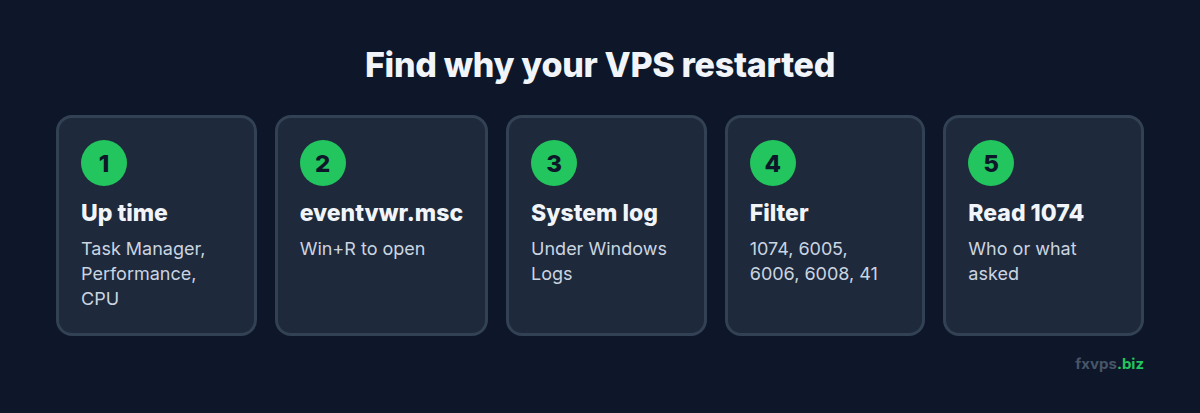
- Open Task Manager (right-click the taskbar, or
Ctrl+Shift+Esc), go to the Performance tab and select CPU. The Up time figure shows how long Windows has been running since the last start. - Subtract that from the current time and you have the restart time.
If up time is several days, Windows did not restart. Your terminal closed for another reason, such as a crash, someone signing out of the Remote Desktop session, or a terminal update. See how to properly disconnect from an RDP session.
Step 2: Open Event Viewer and Filter the System Log
- Press
Win+R, typeeventvwr.mscand press Enter. - In the left panel, open Windows Logs and click System.
- In the right panel, click Filter Current Log.
- In the box that says
<All Event IDs>, type1074,6005,6006,6008,41and click OK.
You now see only the events that describe shutdowns and startups, newest first. Look for entries around the restart time you worked out in step 1.
Step 3: Read the Five Event IDs
Each of these IDs records a different part of the story.
Event 1074 (source: User32): a restart or shutdown was requested. This is the most useful one. It records who or what asked Windows to restart or shut down: the user account, the program that made the request, and a reason. A Windows update restart typically shows the update service or the trusted installer as the process. A manual restart shows the user account and a program such as Explorer or the Start menu. A 1074 shows the request, not proof that the shutdown completed.
Event 6006 (source: EventLog): the event log service stopped. Windows writes this during a clean shutdown. A 1074 followed by a 6006 is a normal, orderly restart.
Event 6005 (source: EventLog): the event log service started. This marks Windows starting up. It is effectively the boot time.
Event 6008 (source: EventLog): the previous shutdown was unexpected. Windows writes this at startup when the previous shutdown never finished. The message reads “The previous system shutdown at [time] on [date] was unexpected”. It gives you the time, but not the cause.
Event 41 (source: Kernel-Power): the system rebooted without shutting down cleanly. Windows logs this when it starts after an unclean stop, such as a crash, a forced power-off or a hang that ended in a hard reset.
📊 Key Stat: Five event IDs tell the whole story of a restart: 1074 (who asked), 6006 (clean stop), 6008 and 41 (unclean stop), and 6005 (Windows started again).
Step 4: Put the Pattern Together
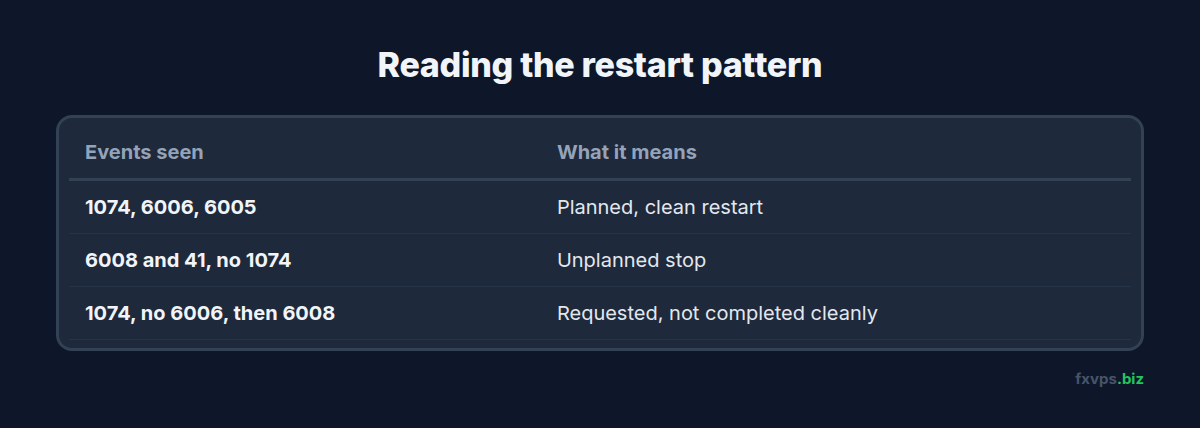
Read the events in time order and the pattern usually tells you what happened:
- 1074, then 6006, then 6005: a planned, clean restart. Read the 1074 to see whether it was Windows Update, a program or a person.
- 6008 and 41 at startup, with no 1074 before them: an unplanned stop. Windows did not get the chance to shut down normally.
- 1074, no 6006, then 6008 at the next start: a restart was requested but Windows did not finish shutting down cleanly.
💡 Tip: Double-click a 1074 event and read the General tab in full. The program name and the “Reason Code” or comment line are where you find out whether it was an update, an installer or a person.
The Same Check From PowerShell
If you prefer a command, open PowerShell and run:
Get-WinEvent -FilterHashtable @{LogName='System'; Id=1074,6005,6006,6008,41} -MaxEvents 20 |
  Format-Table TimeCreated, Id, Message -Wrap
It lists the 20 most recent shutdown and startup events, newest first, with the full message for each. The 1074 messages include the process and user that asked for the restart, the same detail you would see in Event Viewer.
The Most Common Causes on a Trading VPS
Windows Update. By far the most common cause of a restart nobody planned. Windows installs updates and restarts to finish them, often outside the hours you are watching. The fix is to control when updates install, not to switch them off. See how and when to do Windows updates.
A software installer. Some installers restart Windows when they finish, or schedule a restart. The 1074 entry names the installer.
Someone with access. If more than one person has the VPS login, a 1074 with a user account and Explorer or the Start menu means someone chose Restart. See shared trading VPS: multiple users on RDP.
An unplanned stop. A 6008 and 41 with no 1074 means Windows stopped without being asked. If you see this, note the time and contact support with it so the cause can be checked from the host side.
⚠️ Warning: Do not switch off Windows Update to stop restarts. An unpatched server exposed to the internet is a far bigger risk to your account than a planned weekend restart. Schedule updates instead.
What to Do After Any Restart
Whatever the cause, the checks afterwards are the same:
- Are the terminals running? If not, set them to start automatically. See MetaTrader automatic startup.
- Is each terminal connected, with traffic in the bottom right corner?
- Is AutoTrading on in every terminal? See AutoTrading disabled: seven reasons your EA stopped trading.
- Did each EA pick up its open positions? See what your EA remembers after a restart.
- Did anything trade, or fail to, while it was down? Check the account history from your phone.
✅ Best Practice: When you find a restart, write down the time, the event IDs and the 1074 details. A short log over a few months shows whether restarts are all planned updates or whether something else needs attention.
Recommended FXVPS Plan
Restarts affect every plan the same way, so choose by how many terminals you run:
- Core ($29/mo, 2GB RAM, 1 vCPU): one or two terminals.
- Pro ($39/mo, 4GB RAM, 2 vCPU): several terminals or accounts.
- Scaling ($79/mo, 8GB RAM, 4 vCPU): many terminals, prop firm accounts and copiers.
See the pricing page, or try it with the $2.99 7-day trial.
Why FXVPS for Reliable Trading
- 24/7 Windows servers in London, New York, Tokyo, Hong Kong and over 15 locations.
- Your own Windows desktop, so you can read Event Viewer and set up automatic startup yourself.
- Your session keeps running when you disconnect from Remote Desktop.
- Support you can send the event details to if a restart was not one you or Windows asked for.
Frequently Asked Questions
How do I see when my Windows VPS last restarted?
Open Task Manager, go to Performance, select CPU and read the Up time. For the exact time and cause, check the System log in Event Viewer for event IDs 1074, 6005, 6006, 6008 and 41.
What does Event ID 1074 mean?
It records that a user, program or Windows itself asked for a restart or shutdown. It names the account and process responsible, and usually includes a reason.
What does Event ID 6008 mean?
It means the previous shutdown was unexpected. Windows writes it at startup when the last shutdown did not complete.
Why did my VPS restart overnight?
The most common reason is Windows Update finishing an installation. Check the 1074 event for the restart time to confirm which process requested it.
Will my EAs restart automatically after a VPS restart?
Only if you have set MetaTrader to start automatically and left AutoTrading on. Otherwise the terminals stay closed until you open them.