

You install MetaTrader on your new VPS, log in, open the same charts you use at home, and something is off. A moving average sits in a different place. A daily pivot indicator shows nothing. Your EA’s dashboard says “waiting for data”, or worse, takes a trade your home terminal would never have taken.
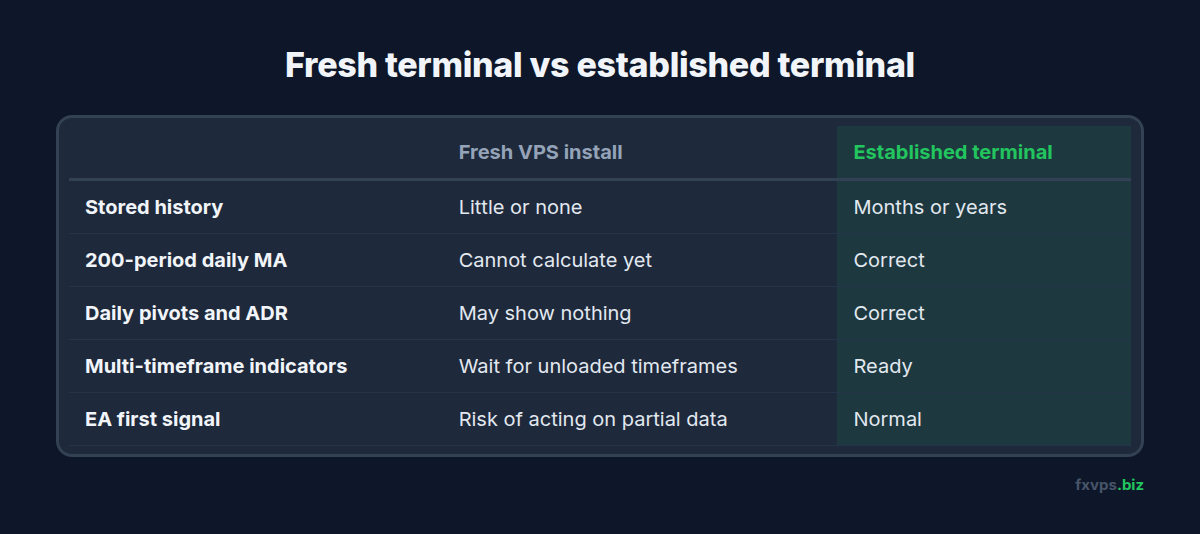
The VPS is fine and the broker is the same. The difference is history. Your home terminal has months or years of bars stored. The fresh install on the VPS has almost none yet.
This post explains how MetaTrader stores and loads price history, why it matters for indicators and EAs, and how to make sure a new terminal has enough data before anything trades on it.
Where History Comes From
MetaTrader does not ship with price history. It requests bars from your broker’s server and stores them locally in the terminal’s data folder:
- MT4 stores bars per symbol and timeframe in the
historyfolder, under a subfolder named after the broker server. - MT5 stores history per symbol under the
basesfolder. It downloads one-minute bars from the server and builds the other timeframes from them.
A new install starts empty. History arrives as charts are opened and as indicators and EAs request it. On a fast VPS connection this is quick, but it is not instant, and it only happens for symbols and timeframes that are actually requested.
📊 Key Stat: An indicator that needs 200 bars on a daily chart needs about 200 trading days of history, which is roughly ten months. A fresh terminal that has only loaded a few weeks cannot calculate it correctly.
Why Short History Changes Indicator Values
Most indicators depend on past bars:
- Moving averages need as many bars as their period. Exponential averages are affected by bars well beyond their period too, so values can differ slightly until enough history is loaded.
- Daily, weekly and monthly levels such as pivots, previous day high and low, or ADR need higher-timeframe bars that may not have been loaded yet.
- Multi-timeframe indicators read bars from timeframes you may never have opened on this terminal.
- Multi-symbol indicators like currency strength meters need history for every symbol they read.
If the bars are not there, an indicator either shows nothing, shows a value calculated on fewer bars than it should, or shows a value that changes once the rest of the history arrives.
Why It Matters for EAs
An EA reads the same history. If it calculates a signal before the data is complete, it can act on numbers that will look different an hour later. The risk is highest:
- Right after a new install, the first time the EA starts.
- After adding a new symbol or timeframe the terminal has not loaded before.
- After a broker server change, when history for the new server starts from scratch. See broker server changes on MT4 and MT5.
Well-written EAs check that data is ready before acting:
- In MT4, functions that request history from another timeframe can return error 4066, meaning the requested history is being updated. A robust EA waits and tries again rather than using whatever is there.
- In MT5,
SeriesInfoInteger()withSERIES_SYNCHRONIZEDreports whether a symbol and timeframe’s data is synchronised with the server, andCopyRates()orCopyBuffer()return fewer values than requested, or -1, while data is still loading. Indicator handles may not be ready on the first tick either.
⚠️ Warning: If your EA’s documentation mentions a “warm-up” period or a minimum number of bars, take it literally on a new VPS. Let the terminal load history and let the EA run for that period on demo before you enable it on a live account.
How to Load Enough History Before Trading
You can preload history in a few minutes:
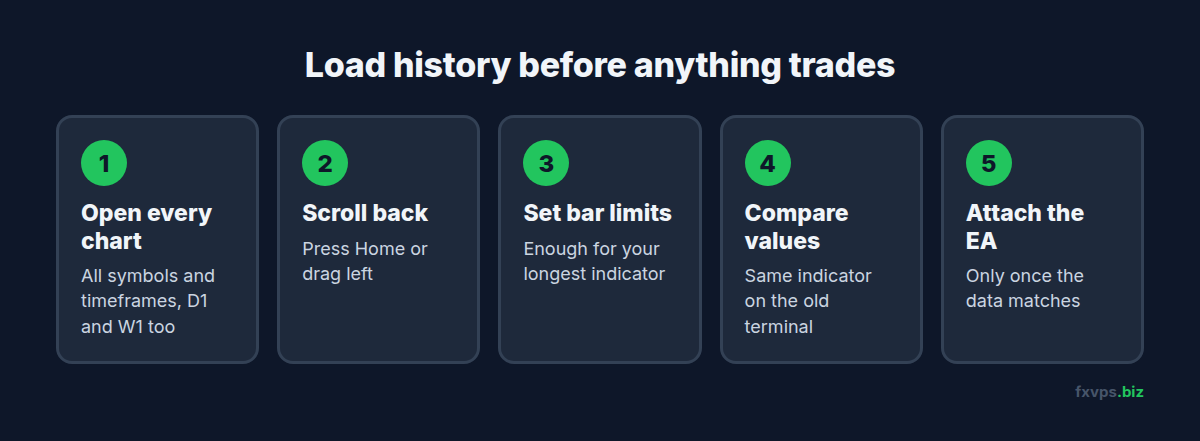
- Open a chart for every symbol and timeframe the EA and its indicators use, including higher timeframes like D1 and W1 if an indicator reads them.
- Scroll back. Press Home on the chart, or drag it to the left. MetaTrader requests older bars from the server as you go, until it reaches the broker’s limit or your terminal’s limit.
- Check the chart limits. In MT4, Tools, Options, Charts has “Max bars in history” and “Max bars in chart”. In MT5, Tools, Options, Charts has “Max bars in chart”. Set them high enough for your longest indicator, but not unlimited, because every extra bar costs memory and CPU. See fixing 100% CPU on a trading VPS.
- Refresh if needed. In MT4, right-click the chart and choose Refresh to request missing bars again.
- Compare with your old terminal. Put the same indicator on the same symbol and timeframe in both, and check a few recent values match.
- Only then attach the EA, or enable AutoTrading.
In MT4, Tools, History Center (F2) shows which symbols and timeframes have stored bars and how far back they go.
💡 Tip: Open the higher timeframes first. Many indicators on an M5 or M15 chart read D1 or H4 bars in the background. Loading those charts by hand means the data is already there when the indicator asks for it.
When History Is Different, Not Just Missing
Sometimes the history is complete but still does not match what you see elsewhere:
- A different broker. Each broker has its own price feed. Candles, highs and lows differ slightly, and indicator values with them.
- A different server time zone. Daily candles start at the broker’s midnight. A broker on a different time offset has differently shaped daily bars, which changes daily pivots and ADR. See broker server time vs your VPS clock.
- Demo vs live server. Even at one broker, demo and live servers can have different history depth.
These are not VPS problems. They are the reason a backtest on one data source can differ from live results on another. See why your backtest does not match live results.
Backtesting on the VPS Needs History Too
The Strategy Tester has the same dependency. In MT5 the tester downloads the history it needs from the broker’s server for the test period, which can take a while the first time on a fresh terminal. In MT4 the tester uses the bars stored locally, so a short history means a short or misleading test. If you plan to run tests on your VPS, load the history first and check the date range the tester reports before reading any results. See MT4 and MT5 strategy tester optimisation on a VPS.
What About Gaps After Downtime?
If the terminal was offline for a while, it usually requests the bars it missed from the server when it reconnects. That is one more reason to let an EA check data synchronisation on start, rather than assuming the chart is complete. Our post on what your EA remembers after a restart covers the other half of a clean restart.
✅ Best Practice: Make “open every chart the EA uses, scroll back, compare one indicator value” a fixed step whenever you set up a new terminal, VPS or broker server. It takes a few minutes and removes a whole class of strange first-day trades.
Recommended FXVPS Plan
History uses disk space and memory in proportion to the symbols, timeframes and bar limits you choose:
- Core ($29/mo, 2GB RAM, 1 vCPU): one or two terminals with sensible bar limits.
- Pro ($39/mo, 4GB RAM, 2 vCPU): several terminals, or multi-symbol indicators reading many charts.
- Scaling ($79/mo, 8GB RAM, 4 vCPU): many terminals, long histories, or regular backtesting on the same server.
See the pricing page and how much disk space a trading VPS needs, or set up and compare your charts on a fresh server with the $2.99 7-day trial.
Frequently Asked Questions
Why does my indicator look different on the VPS than at home?
Most often the VPS terminal has less history loaded, or is connected to a different broker or server. Load more history and compare the same symbol, timeframe and broker.
Can I copy history files from my PC to the VPS?
You can copy the history folders for the same broker server, but the terminal requests data from the server anyway. Opening the charts and scrolling back is usually simpler and avoids mismatched files.
How much history do I need?
At least as many bars as your longest indicator period on the highest timeframe it uses, plus a margin. Your EA’s documentation may state a minimum.
What does MT4 error 4066 mean?
The requested history is being updated. The EA should wait and try again on a later tick instead of using incomplete data.
Will more history slow my VPS down?
Very large bar limits on many charts increase memory and CPU use. Set limits to what your indicators need rather than unlimited.