

The email arrives on a Thursday: “We are upgrading our trading infrastructure. From Saturday, please log in to Broker-Live7 instead of Broker-Live3.” Or: “Your account is being transferred to our new entity. Your new login details are below.”
On a home PC you would deal with it when you next sat down to trade. On a VPS, the EA keeps running against the old server until it stops working, and then it simply sits there showing “No connection” while the market moves.
Broker server changes are routine. Brokers consolidate servers, move datacenters, migrate clients between regulated entities, and occasionally merge with other brokers. Each of these looks slightly different from your side, but the work on your VPS is always the same short list. This post walks through it.
The Three Kinds of Server Change
1. Same Account, New Server Name
The broker moves your account to a different trade server. Your login number and password usually stay the same, but the server you select in the terminal changes. Positions and history normally come across with the account.
2. Same Server Name, New Address
The server keeps its name, but the broker changes the addresses behind it, often because the hardware has moved. Most of the time the terminal picks up the new addresses on its own, as long as it can still reach at least one of the broker’s access points. Sometimes it needs a rescan.
3. New Account Altogether
An entity transfer or a merger can give you a new account number on a new server. This is the most disruptive: the old account may be closed, open positions may be moved or may have to be closed first, and anything tied to the old account number needs updating.
📊 Key Stat: In all three cases, your EAs, indicators, templates and chart profiles stay on your VPS untouched. What changes is the account, the server, or both. The work is reconnecting, not reinstalling.
Before You Do Anything: Check the Message Is Real
“Please switch to our new server” is also a phishing template. A fake email can point you at a lookalike server, or ask you to download a “new terminal” that captures your password.
- Log in to your broker’s client area directly, not through a link in the email, and look for the same announcement.
- Never install a terminal from an email attachment or a shortened link. Download it from the broker’s own website.
- If in doubt, ask the broker’s support through the contact details on their website.
⚠️ Warning: A real server change never needs you to send your password to anyone. If a message asks for it, treat it as an attack and contact your broker.
Step by Step: Moving MT4 to the New Server
- Pick a quiet time. The weekend is ideal. If the broker sets the date, do it as soon as possible after the change goes live.
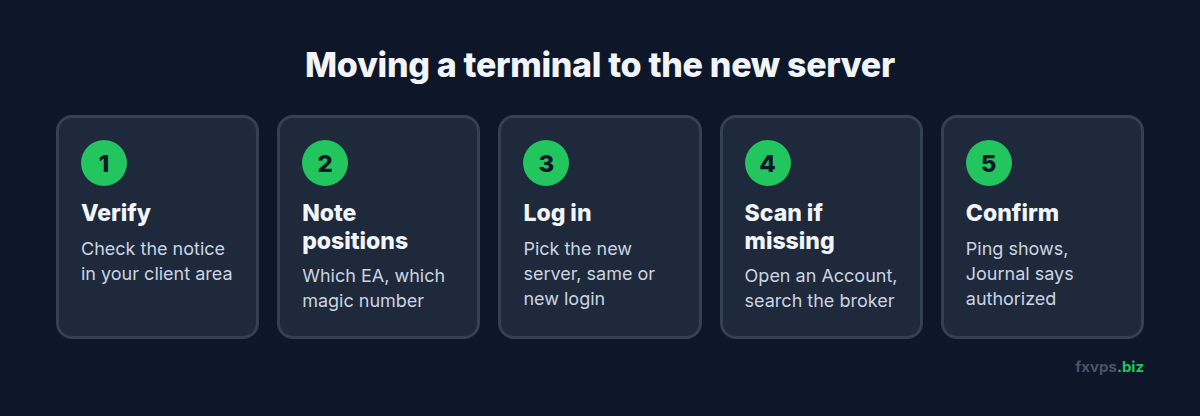
- Note your open positions and which EA manages each one, with its magic number.
- Open File > Login to Trade Account. If the new server appears in the Server list, select it, enter your login and password, and connect.
- If the server is not listed, open File > Open an Account, type the broker’s name in the search box and press Scan. MT4 downloads the broker’s current server list. Close the dialog and log in from step 3.
- If scanning still does not find it, type the server address the broker gave you, in the form
host:port, straight into the Server box of the login dialog. - Check the connection in the bottom right corner. It should show a ping and a data rate, not “No connection” or “Invalid account”.
Step by Step: Moving MT5 to the New Server
- Open File > Open an Account. Type the broker’s company name and select it.
- Choose “Connect with an existing trade account”. Pick the new server from the list, enter your login and password, and finish.
- If the server is missing, the broker may list it under a new company name, especially after an entity transfer. Search for that name instead, or ask the broker exactly how it appears.
- Check the Journal tab for the “authorized” line, then confirm the connection icon shows a ping.
💡 Tip: If you run several terminals for the same broker, update them one at a time and check each EA before moving on. Our guide to running multiple MT4 and MT5 terminals explains how to keep them apart.
After the Switch: What to Check
Reconnecting is the easy part. These are the things that catch people out over the next few days.
Are the EAs Trading Again?
Look for the smiley face (MT4) or blue cap icon (MT5) in the top right of each chart, and check the AutoTrading button in the toolbar. Then watch the Experts tab for the EA’s start-up messages.
Do the EAs Recognise Their Positions?
If positions were migrated with the account, check that each EA still sees its own. Brokers usually preserve them, but if tickets or magic numbers changed in the move, an EA may treat its old trades as someone else’s and open new ones. Our post on magic numbers and several EAs on one account explains why. Ask the broker in advance whether positions keep their tickets and magic numbers.
Are Licences Tied to the Old Account Number?
Many EA vendors lock their licence to an account number. A new account number means the EA will refuse to trade until the vendor updates the licence. Products bought on the MQL5 Market work differently. See EA licensing and MQL5 Market activations on a VPS.
Did the Symbol Names Change?
An entity transfer can change symbol suffixes, for example from EURUSD to EURUSD.r or EURUSDm. An EA attached to a chart of the old symbol will not trade the new one. Open new charts on the new symbols and re-attach the EAs with the same settings. The EA migration guide covers contract sizes, digits and the other details to compare.
Are Your Trackers and Copiers Pointing at the New Account?
Myfxbook, FX Blue, trade copiers and prop firm dashboards all store the old login and server. Update each one, or they will show the account as disconnected. See Myfxbook and FX Blue account tracking on a VPS.
Did the Server Move to a Different Datacenter?
This is the one most traders miss. A new server can live somewhere else entirely. If your broker’s old servers were in London and the new ones are in New York, your London VPS has just gone from a millisecond away to over 70ms away. Check the ping in the terminal, then confirm where the server really is with our guides to MT4 data centers and MT5 access points and finding your broker’s server address.
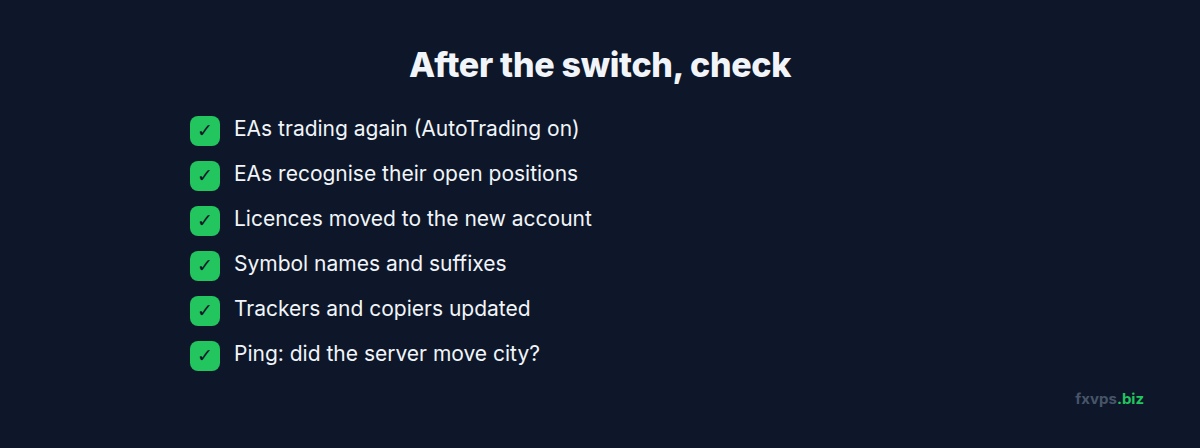
✅ Best Practice: Write down the ping from your VPS to the old server before the change, and compare it with the new server after. If it jumped, your server location no longer matches your broker.
If the Ping Jumped: Moving Your VPS
If the broker’s servers have moved to a different city, the fix is to move the VPS to match. FXVPS runs servers in London, New York, Tokyo, Hong Kong and more, 15+ locations in total. Our guide to moving your trading VPS to a different location explains the process, and VPS latency: what “London server” really means explains why the city alone is not the whole story.
Recommended FXVPS Plan
A server change does not change your resource needs, unless you end up running the old and new accounts side by side for a while. In that case, check you have room for the extra terminals:
- Core ($29/mo, 2GB RAM, 1 vCPU): one or two terminals with a few EAs.
- Pro ($39/mo, 4GB RAM, 2 vCPU): several terminals, or old and new accounts running in parallel during a transfer.
- Scaling ($79/mo, 8GB RAM, 4 vCPU): many terminals and accounts across several brokers.
See the pricing page to compare, or test a server near your broker’s new location with the $2.99 7-day trial.
Frequently Asked Questions
Why does MT4 show “Invalid account” after my broker’s server change?
The terminal is trying to log in to a server that no longer holds your account, or the login details changed. Select the new server the broker gave you and use the login and password from their announcement.
The new server is not in my MT4 server list. What do I do?
Open File > Open an Account, search for the broker’s name and scan. If that does not find it, type the server address the broker supplied into the Server box of the login dialog.
Will my EAs and settings survive the server change?
Yes. EAs, indicators, templates and profiles are stored in the terminal’s data folder on your VPS and do not depend on the server. You may need to re-attach EAs if symbol names changed.
Do I need to reinstall MetaTrader after a server change?
Usually not. Reconnecting the existing terminal to the new server is enough. Install a new terminal only if the broker moves you to a different company whose terminal you do not already have, and download it from the broker’s own website.
Should I change my VPS location after a broker migration?
Only if the new server is in a different place. Check the ping before and after. If it has gone up sharply, your broker’s servers have moved and a VPS in the new location will serve you better.