

MetaTrader will tell you your balance and show you a list of closed trades. It will not tell you your maximum drawdown as a percentage, your profit factor by symbol, whether you make money on Fridays, or how much slippage you paid last month. For that, traders connect their accounts to a tracking service. Myfxbook and FX Blue are the two names that come up most often.
A tracker is also how you prove a track record to anyone else: an investor, a signal subscriber, or a prop firm reviewing an application. A screenshot of a balance proves nothing. A verified, independently hosted record does.
Setting one up on a VPS takes ten minutes. Setting it up well means understanding which connection method you are using, what it needs from your server, and what it exposes. This guide walks through all three.
📊 Key Stat: Myfxbook’s own help pages describe its EA connection method as updating your account every 5 minutes. An EA-based tracker only updates while the terminal it sits in is running, which is why trackers and always-on VPS hosting go together.
The Two Ways a Tracker Reads Your Account
Every tracking service uses one of two approaches, and many offer both.
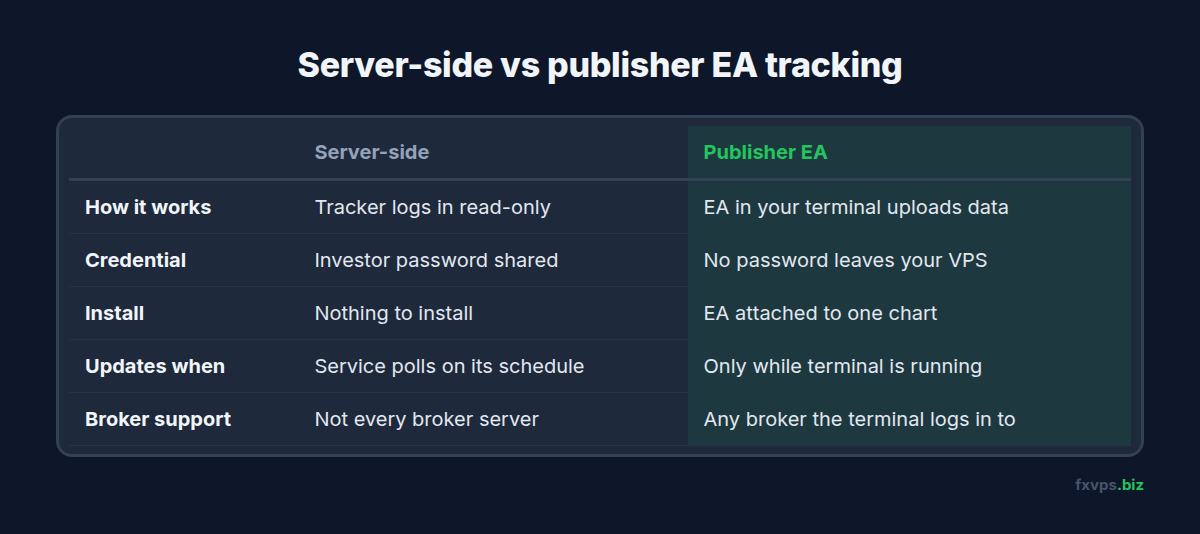
Server-Side: The Tracker Logs In With Your Investor Password
You give the service your account number, broker server name, and investor password. Its servers log in to your account directly, read-only, and pull the history. Nothing is installed on your VPS.
- Pros: nothing to install, no load on your terminal, works even when your VPS is off.
- Cons: you hand a credential to a third party, updates depend on the service’s polling schedule, and not every broker server is supported.
Client-Side: A Publisher EA Runs in Your Terminal
You install a small Expert Advisor from the tracking service and attach it to one chart. It does not trade. It reads the account history and open positions and uploads them to the service.
- Pros: no password leaves your VPS, it works with any broker the terminal can log in to, and it can report details the server-side method cannot see.
- Cons: it only updates while the terminal is running, and it needs permissions in MetaTrader.
Myfxbook supports both approaches for MetaTrader accounts. FX Blue’s live tracking is built around a publisher EA that you attach to a chart.
The Investor Password: What It Is and How to Set It
Every MetaTrader account has two passwords:
- The master password gives full trading access: opening, modifying, and closing positions, and changing the account’s passwords.
- The investor password is read-only. Whoever has it can log in, watch every open position and the full history, and cannot place or modify a single order.
To set or change it in MT4 or MT5, go to Tools > Options > Server, click Change, enter your master password, choose the option to change the investor (read-only) password, and type a new one. Some brokers also let you set it in their client portal.
⚠️ Warning: Never give any tracking, analytics, or “account management” service your master password. A legitimate tracker has no need for it. If a site or a person insists on the master password to “verify” your account, walk away.
Setting Up a Publisher EA on Your VPS
The exact steps are in each service’s own instructions, which you should follow. The general shape is the same everywhere:
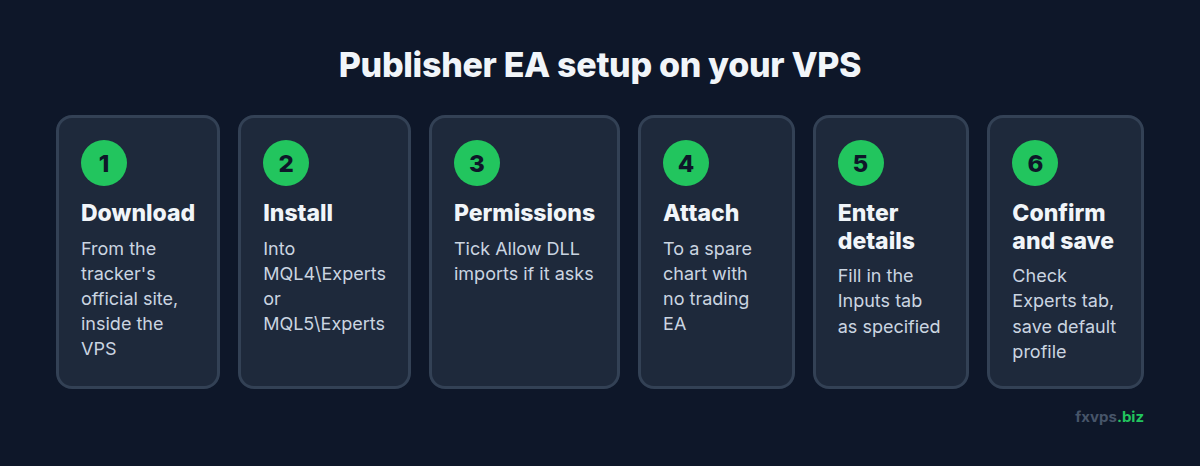
- Download the publisher EA from the tracker’s website inside your VPS. Get it from the official site only.
- Install it into the terminal’s data folder. Use File > Open Data Folder, then
MQL4\ExpertsorMQL5\Experts, or run the vendor’s installer and select the right terminal. - Restart the terminal or refresh the Navigator so the EA appears.
- Grant the permissions it needs. Myfxbook’s instructions for its EA tell you to tick Allow DLL imports in the EA’s properties when you attach it. Other publishers may need DLL imports or a URL added to the WebRequest list. Our guide to EA DLL imports and WebRequest permissions explains what each setting allows.
- Open a spare chart and attach the EA to it. Any symbol works. Use a chart that has no trading EA on it, because MT4 and MT5 allow only one EA per chart.
- Enter your tracker account details on the EA’s Inputs tab, as the service specifies.
- Confirm it is working. Check the Experts tab for a success message, then check the tracker’s website a few minutes later.
- Save the chart in your default profile so the publisher comes back after a restart, and confirm the terminal starts automatically. See the MetaTrader automatic startup guide.
💡 Tip: Put the publisher on a higher-timeframe chart of a symbol you already have in Market Watch, such as EURUSD H1. It adds almost no load. Avoid opening a new symbol only for the publisher, since every extra symbol means more ticks for the terminal to process.
What a Tracker Needs From Your VPS
Publisher EAs are light, but they are one more thing running. In practical terms:
- Uptime. If the terminal is closed, the published record stops updating. Gaps in a public track record raise questions.
- Outbound internet access. The EA sends data to the tracker over HTTPS. A standard VPS firewall allows this. If you have locked down outbound traffic, allow the tracker’s addresses.
- Accurate time. Trade timestamps come from the broker, but a badly wrong Windows clock can break secure connections. See time synchronization on a trading VPS.
- One publisher per account. If you run the same account on two machines, publish from one only.
On a Core plan with 2GB RAM, a publisher EA makes no measurable difference to capacity. If you run many terminals, each account you want tracked needs its own publisher in its own terminal. See how many MT4 terminals you can run on a VPS.
Privacy: What You Are Exposing
A tracker shows the world exactly what you choose to let it show, and the defaults are not always what you want.
Things to Decide Before You Publish
- Public or private. A private record is for your own analysis. Make it public only when you need to share it.
- Open trades. Showing live positions lets anyone copy you in real time or trade against a visible grid. Most services let you hide open trades and show closed ones only.
- Balance and account number. You can usually display percentage returns while hiding the money amounts.
- History depth. A full trade list with entry times and prices is, for many strategies, enough to reverse-engineer the logic.
The Investor Password Is a Live Feed
Anyone holding the investor password can log in from their own terminal and watch your account tick by tick. That is far more revealing than a tracker page. Give it only to services you chose, and change it when you stop using one.
✅ Best Practice: Use a different, unique investor password for each account, store it in a password manager, and rotate it whenever you disconnect a third-party service. Changing it takes one minute and cuts off every old login at once.
Verified Track Records and Why They Matter
Trackers that log in server-side can confirm two things independently: that the trade history really came from the broker’s server, and that the person who added the account has trading rights on it. Myfxbook shows these as separate verification badges for track record and trading privileges.
For anyone evaluating your results, those badges are the difference between data and a claim. If you intend to offer signals, apply for investor capital, or run a managed account, set up verification from the first day, since a record cannot be verified retroactively beyond what the broker’s server still holds. Our MAM and PAMM account manager VPS guide covers the infrastructure side of running money for others.
Using the Data to Check Your VPS
A tracker is also a diagnostic tool. Three things to look at once you have a few weeks of history:
- Slippage and execution statistics. A change after moving server or location shows up here. See slippage, requotes, and VPS latency.
- Gaps in activity. Hours where an always-on EA placed nothing can point to a terminal that was disconnected. Cross-check with the Journal. See reading MT4 and MT5 log files.
- Live versus backtest. Comparing the tracked record with your tester report is the fastest way to find out why a backtest does not match live results.
🚀 Try FXVPS for $2.99. Keep your terminal, your EAs, and your publisher running around the clock on a 7-day Core VPS trial. Plans are at /pricing/.
Which FXVPS Plan Fits
Core Plan ($29/mo), 2GB RAM and 1 vCPU: one or two tracked accounts with a few EAs.
Pro Plan ($39/mo), 4GB RAM and 2 vCPUs: several tracked accounts, or a master and slave pair with a copier.
Scaling Plan ($79/mo), 8GB RAM and 4 vCPUs: signal providers and account managers publishing many accounts from one server.
Frequently Asked Questions
Do I need a VPS to use Myfxbook or FX Blue?
Not for the server-side investor-password method, which runs on the tracker’s own servers. For an EA-based publisher, the terminal must be running for updates to happen, so a VPS is the practical way to keep the record continuous.
Will a publisher EA slow down my trading EAs?
No, not noticeably. It runs on its own chart and does a small amount of work every few minutes.
Can a tracking service place trades on my account?
Not with the investor password, which is read-only. A publisher EA with DLL access is software running in your terminal, so install it only from the official source.
Can I track a prop firm account?
Technically yes, since it is a normal MT4 or MT5 account. Check your firm’s rules first, since some restrict sharing account access or credentials with third parties.
My tracker stopped updating. What should I check?
Confirm the terminal is running and connected, the publisher EA still shows as active on its chart, algorithmic trading is enabled, and the Experts tab shows no errors. If you changed your password, update it in the tracker.
Related Reading
- Forex VPS Performance Metrics: What to Track — the server-side numbers to watch alongside your account
- MT4 and MT5 Push Notifications and Monitoring — real-time alerts to your phone
- EA DLL Imports and WebRequest Permissions — what you are granting a publisher EA
- Copy Trading Setup on VPS — for signal providers building on a tracked record