

You copy an EA into C:\Program Files\MetaTrader 5\MQL5\Experts, restart the terminal, and it is not in the Navigator. You search the drive and find a second MQL5 folder buried under AppData\Roaming\MetaQuotes\Terminal\ followed by a 32-character name that means nothing to anyone. That is where the terminal actually reads from.
This split between where MetaTrader is installed and where it keeps its data catches out almost every trader at some point. On a VPS running several terminals, it gets worse: each terminal has its own random folder name, and working out which is which takes guesswork.
Portable mode removes that confusion. This post explains what it does, when it is worth using on a VPS, and how to set it up without breaking an existing terminal.
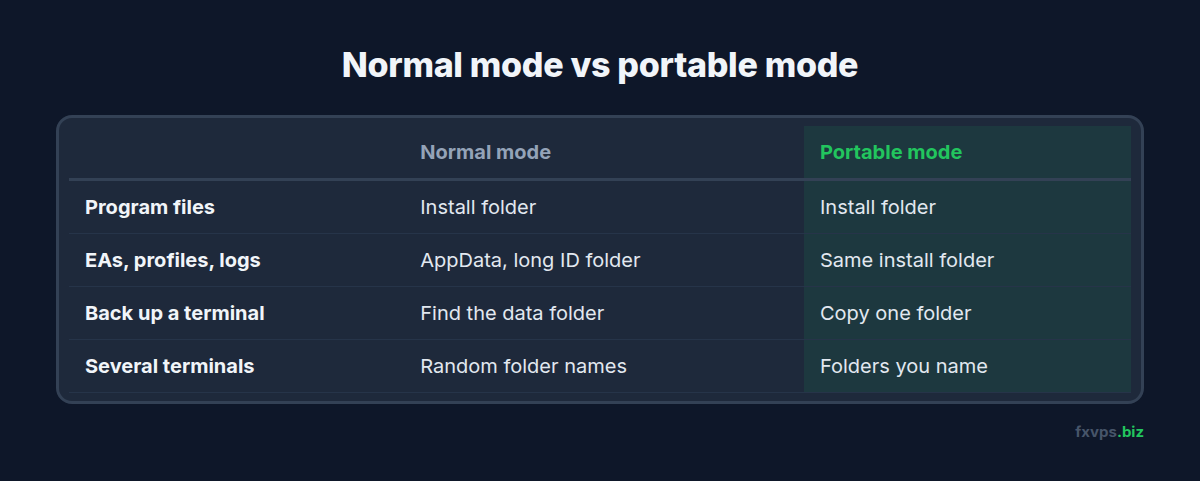
Where MetaTrader Normally Keeps Its Files
A standard MetaTrader install has two locations:
- The installation folder, usually under
C:\Program Files\. This holds the program itself. - The data folder, under your Windows user profile in
AppData\Roaming\MetaQuotes\Terminal\<long ID>\. This holds everything that changes:MQL4orMQL5(EAs, indicators, scripts,Files),profiles,templates,config, history and logs.
The data folder sits there because programs in Program Files are not supposed to write to their own folder under normal Windows rules. File, Open Data Folder in the terminal always takes you to the right place, but the path itself is hard to recognise from outside.
What Portable Mode Changes
MetaQuotes documents the /portable launch key for exactly this. When you start the terminal with /portable, it keeps its data inside the installation folder instead of in your user profile. The MQL5 (or MQL4), profiles, config and other folders sit right next to terminal64.exe or terminal.exe.
Everything a terminal uses is then in one folder you chose and named yourself.
📊 Key Stat: In portable mode, one folder holds a terminal’s program, EAs, indicators, profiles, settings and logs. Copy that folder and you have copied the whole terminal.
When Portable Mode Helps on a VPS
Several terminals. If you run three MT5 terminals for three accounts, naming their folders C:\MT5-ICMarkets-Live, C:\MT5-FTMO-1 and C:\MT5-Demo tells you exactly where each one’s files live. No more matching long IDs to accounts. See running multiple MT4 and MT5 terminals on a VPS.
Backups. Backing up a portable terminal means copying one folder. Restoring means copying it back. See how to back up your trading data on a VPS.
Moving to a new VPS. Close the terminal, zip the folder, copy it to the new server, unzip it and start it with the same /portable shortcut. Your charts, EAs and settings come with it. You may still need to log in again and re-enable things like AutoTrading.
Testing a copy. Duplicate a terminal’s folder to try a new EA version without touching the live one.
How to Set Up a Portable Terminal
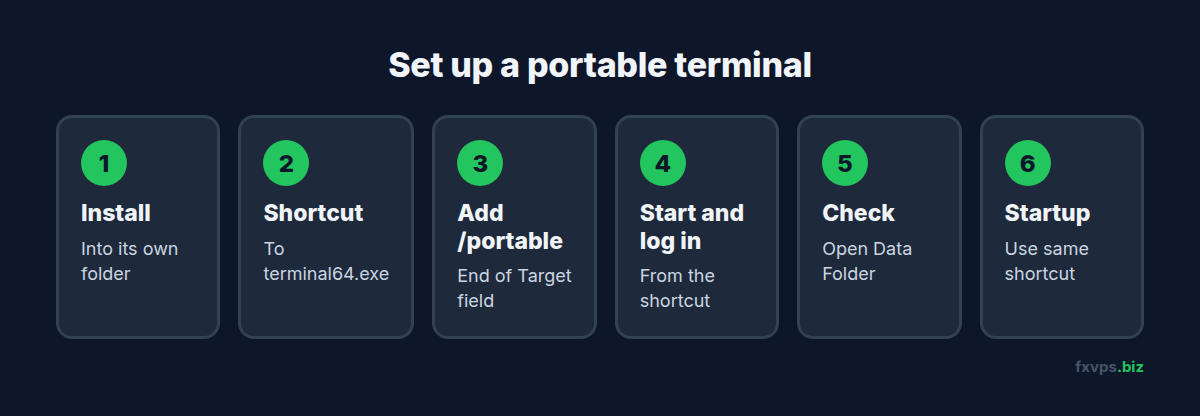
The cleanest way is to install into a folder outside Program Files from the start.
- Run the broker’s installer and choose Settings (or the install path option) to install into a folder such as
C:\MT5-Broker-Live. Each terminal needs its own folder. - Do not launch it yet if the installer offers to. Untick the option if you can.
- Create a shortcut to
terminal64.exe(MT5) orterminal.exe(MT4) in that folder. - Edit the shortcut. Right-click, Properties, and add
/portableat the end of the Target field, after the closing quote. For example:"C:\MT5-Broker-Live\terminal64.exe" /portable. - Start the terminal from that shortcut and log in to your account.
- Check it worked. File, Open Data Folder should now open
C:\MT5-Broker-Liveitself. - Use that same shortcut everywhere, including in the Windows Startup folder so the terminal opens in portable mode after a restart. See MetaTrader automatic startup.
⚠️ Warning: Always start a portable terminal with the
/portableshortcut. If you double-clickterminal64.exedirectly, it starts in normal mode and uses a different data folder, so your charts and EAs appear to have vanished. Nothing is lost: close it and start from the shortcut.
Why Not Inside Program Files?
MetaQuotes notes that if the terminal is installed in Program Files, portable mode needs administrator rights and User Account Control switched off. In any other folder you only need write permission to that folder. Installing to a simple path such as C:\MT5-Broker-Live avoids that entirely.
Converting an Existing Terminal
If your terminal already runs in normal mode with charts and EAs set up, do not just add /portable to the shortcut. The terminal would start with an empty data folder.
Instead:
- In the running terminal, use File, Open Data Folder and note the path.
- Close the terminal with File, Exit so its profile is saved.
- Copy the contents of that data folder (the
MQL5orMQL4,profiles,templates,configfolders and so on) into the installation folder, if it is outsideProgram Files. If it is insideProgram Files, install a fresh copy into a new folder first, then copy the data folder contents there. - Start the terminal with the
/portableshortcut and check your charts, EAs and login are all there.
💡 Tip: Keep the old data folder untouched until you have run the portable terminal for a few days. If anything is missing, it is still there to copy from.
Running Several Portable Terminals Side by Side
Portable mode really pays off when one VPS runs terminals for several accounts. A layout that stays manageable:
- One folder per account, named after the broker and account:
C:\MT5-BrokerA-Live,C:\MT5-BrokerA-Demo,C:\MT4-BrokerB-Live. - One shortcut per folder, each with
/portable, renamed to match the folder so the taskbar and Startup folder are easy to read. - The same broker can appear twice. Two folders installed from the same broker’s installer are two independent terminals, each with its own login, charts and EAs. See installing more MT4 platforms with the same broker.
- Each terminal has its own options. AutoTrading, DLL imports and WebRequest URLs need setting in each one.
When a terminal misbehaves, you open its folder, read its logs and MQL5\Logs (or MQL4\Logs) folders, and know for certain they belong to that account. See reading MT4 and MT5 log files on a VPS.
Things That Do Not Change
Portable mode only changes where files live. It does not:
- Make the terminal use less RAM or CPU.
- Change the account login, the broker’s server or your latency.
- Remove the need to enable AutoTrading, DLL imports or WebRequest URLs in each terminal’s options.
- Keep EA licences valid on a new machine. Many licences, including MQL5 Market activations, are tied to the computer. See EA licensing and MQL5 Market activations on a VPS.
✅ Best Practice: Name each portable folder after the broker and account it runs, and keep a short text file on the desktop listing each folder, its account number and the EAs it runs. It makes support, backups and moving servers much faster.
Recommended FXVPS Plan
Portable mode is mostly used by traders running several terminals. Size by how many terminals you keep open:
- Core ($29/mo, 2GB RAM, 1 vCPU): one or two terminals.
- Pro ($39/mo, 4GB RAM, 2 vCPU): several terminals across a few accounts.
- Scaling ($79/mo, 8GB RAM, 4 vCPU): many terminals, prop firm accounts and copiers. See how many MT4 terminals can I run on my VPS.
See the pricing page, or set up your portable folders on the $2.99 7-day trial.
Why FXVPS for Multi-Terminal Setups
- Your own Windows desktop, so you can install terminals in folders you name and add their shortcuts to the Startup folder.
- Dedicated resources sized for several terminals at once.
- Locations near your brokers in London, New York, Tokyo, Hong Kong and more than 15 others.
- Copy files in and out easily over Remote Desktop. See how to copy files from a Mac to your VPS.
Frequently Asked Questions
What does /portable do in MetaTrader?
It tells the terminal to store its data in the installation folder instead of in your Windows user profile. All EAs, indicators, profiles and settings then sit next to the program.
Does portable mode work for both MT4 and MT5?
Yes. Both terminals accept the /portable launch key.
Why did my charts disappear after I added /portable?
The terminal is now reading a different data folder, which is empty. Copy the contents of your old data folder into the installation folder, or remove /portable to go back.
Can I copy a portable terminal to another VPS?
Yes. Close it, copy the whole folder, and start it on the new server with the same shortcut. You may need to log in again and reactivate EA licences that are tied to the machine.
Is portable mode faster?
No. It changes only where files are stored. Performance and latency are the same.