

MetaTrader 4 and MetaTrader 5 were written for Windows. Nothing about that has changed, even though a large share of traders now work on a MacBook. Every “MT4 for Mac” or “MT5 for Mac” download you have ever seen is the Windows program plus something that makes macOS pretend to be Windows.
For looking at a chart and placing a manual trade, the pretending is usually good enough. For running Expert Advisors around the clock, it is where a lot of quiet problems start: an EA that will not load its library, a licence that will not activate, a laptop that went to sleep at 2am with a position open.
There are three realistic ways to run MetaTrader as a Mac user. This guide covers how each works, where each one fails, and which to pick for the way you trade.
📊 Key Stat: A MacBook with the lid closed is asleep, and a sleeping Mac runs no Expert Advisors. Every Mac-based option below shares that limit. Only the VPS option keeps the terminal running when your laptop is in a bag.
Option 1: The Official macOS Installer (Wine Underneath)
MetaQuotes and most brokers offer a macOS package for MT4 and MT5. It installs like a normal Mac app, but inside it is the Windows terminal bundled with Wine, a compatibility layer that translates Windows system calls into ones macOS understands. On Apple Silicon Macs there is a second layer of translation, because the terminal is built for Intel processors and the Mac is not.
What Works
- Charts, indicators, and manual order entry
- Simple Expert Advisors written in pure MQL4 or MQL5
- Logging in to several accounts, one at a time
What Tends to Break
MetaQuotes’ own documentation for running the terminal under Wine carries a plain warning that Wine is not a fully stable application and that some functions may work improperly or not at all. In practice the trouble clusters in a few places:
- EAs that import DLLs. A DLL is native Windows code. Many copiers, licence checkers, news filters, and bridge tools depend on one. Under Wine these either fail to load or behave unpredictably. If the vendor’s setup notes tell you to tick “Allow DLL imports”, your EA uses one.
- Licensing tied to hardware. Products that bind an activation to the machine see the Wine environment as their “hardware”. A macOS or app update can change that fingerprint and burn an activation. Our article on EA licensing and MQL5 Market activations explains why activations are scarce.
- Platform updates. MetaTrader pushes new builds regularly. A build that runs fine on Windows can misbehave under a Wine version that has not caught up.
- Fonts, scaling, and display glitches. Minor, but they add friction every day.
⚠️ Warning: A failure under Wine is often silent. The EA appears on the chart with its smiley face, the Experts tab shows one error line from three days ago, and no trades are taken. If you run an EA this way, check the Experts and Journal tabs daily. Our guide to reading MT4 and MT5 log files shows what to look for.
Option 2: A Windows Virtual Machine (Parallels, VMware Fusion, UTM)
The second route is to run real Windows in a window on your Mac. This is a big step up in compatibility, because MetaTrader is now talking to actual Windows.
There is one important catch on modern Macs. Apple Silicon machines (M1 and later) run the Arm edition of Windows 11, not the standard Intel edition. Windows on Arm then emulates Intel programs such as MetaTrader. That emulation is good, and most EAs work, but you are still one layer away from the environment the software was built and tested for. Boot Camp, which used to let Intel Macs start up directly in Windows, does not exist on Apple Silicon.
The Costs People Forget
- A Windows licence and, for Parallels, a subscription. These are ongoing costs, often comparable to a VPS over a year.
- RAM. The virtual machine takes a fixed slice of your Mac’s memory whenever it is running. On an 8GB MacBook, that is felt immediately.
- Battery and heat. A VM running terminals all day keeps the processor busy.
- It still sleeps. The VM stops when the Mac sleeps, restarts, or installs a macOS update overnight.
- It is still your home internet. Latency to your broker is whatever your Wi-Fi and ISP deliver, typically tens of milliseconds, with the occasional dropout. See VPS vs local PC latency benchmarks.
A virtual machine is a sensible choice for building and backtesting EAs on your own machine. It is a poor place to leave a live account running unattended.
Option 3: A Windows VPS, Reached From Your Mac
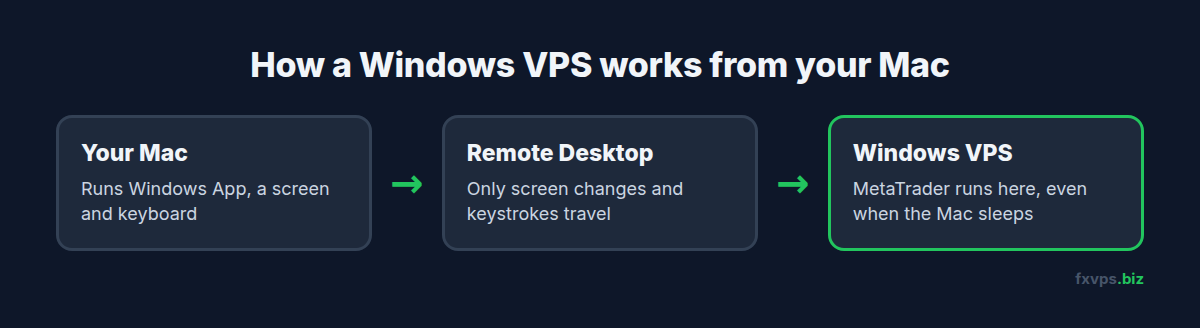
The third option moves MetaTrader off the Mac entirely. The terminal runs on a Windows Server machine in a datacenter, and your Mac becomes a screen and keyboard for it over Remote Desktop.
From the Mac side you install one free app from the Mac App Store: Microsoft’s Windows App, which is the current name for what used to be called Microsoft Remote Desktop. You enter the VPS address and login once, and from then on the Windows desktop opens in a window like any other Mac app. Our step-by-step guide to accessing your VPS using RDP on an Apple Mac covers the setup.
Why This Solves the Mac Problem Properly
- It is real Windows on Intel-compatible hardware. No Wine, no Arm emulation. DLL-based EAs, copiers, and licence checks behave exactly as their developers intended.
- It does not sleep. Close the MacBook, fly across the world, let macOS update itself. The terminal keeps running.
- It sits next to your broker. A VPS in the same datacenter region as your broker’s trade server reaches it in a few milliseconds rather than the tens of milliseconds a home connection manages. See slippage, requotes, and latency for what that is worth.
- Your Mac stays a Mac. No RAM reserved for a virtual machine, no fan noise, no Windows licence to manage.
- It works from every Apple device. The same VPS opens from an iPhone or iPad. See connecting to your VPS from iPhone or iPad.
💡 Tip: You can copy files between your Mac and the VPS through the Remote Desktop session, which is how you move EAs, set files, and templates across. Our guide to copying files from Mac to a Windows VPS shows the folder-redirection setting to switch on.
Side-by-Side Comparison
| macOS installer (Wine) | Windows VM on the Mac | Windows VPS | |
|---|---|---|---|
| Real Windows | No | Yes (Arm edition on Apple Silicon) | Yes |
| DLL-based EAs and copiers | Unreliable | Usually work | Work |
| Runs while the Mac sleeps | No | No | Yes |
| Latency to broker | Home internet | Home internet | Datacenter, typically a few ms |
| Uses your Mac’s RAM and battery | Some | A lot | Almost none |
| Ongoing cost | Free | Windows licence, VM software | From $29/mo |
| Best for | Manual charting | Development and backtesting | Live EAs, copiers, prop accounts |
Which Should You Choose?
You Trade Manually and Only Watch Charts
The official macOS installer is fine. Your stop loss and take profit live on the broker’s server, so nothing depends on the terminal staying open. If you want to understand exactly which features depend on an open terminal, read what stops working when your MT4 terminal goes offline.
You Develop or Backtest EAs
A Windows virtual machine gives you a full Windows environment with local files and no monthly hosting bill for the testing phase. Move to a VPS when the EA goes live.
You Run Live EAs, a Trade Copier, or a Prop Firm Account
Use a VPS. This is the only option where the terminal is always on, always connected, and running on the platform it was written for. For prop firm accounts there is a further benefit: the account always logs in from one fixed IP address, rather than from your home, a café, and an airport lounge in the same week. See prop firm rules and how a VPS helps compliance.
🚀 Try FXVPS for $2.99. Open a Windows trading desktop from your Mac in a few minutes on a 7-day Core VPS trial and see whether your EA behaves better on real Windows.
Recommended FXVPS Plan for Mac Traders
Core Plan ($29/mo) with 2GB RAM and 1 vCPU runs one or two MT4 or MT5 terminals with a handful of EAs. It is the right starting point for most Mac users moving a single account off their laptop.
Pro Plan ($39/mo) with 4GB RAM and 2 vCPUs suits several terminals, a trade copier between accounts, or MT5 with heavier indicators. See how many MT4 terminals you can run on a VPS.
Scaling Plan ($79/mo) with 8GB RAM and 4 vCPUs is for larger multi-account setups and prop traders running many terminals side by side.
Full specifications are at /pricing/.
Moving From Your Mac to a VPS: The Short Version
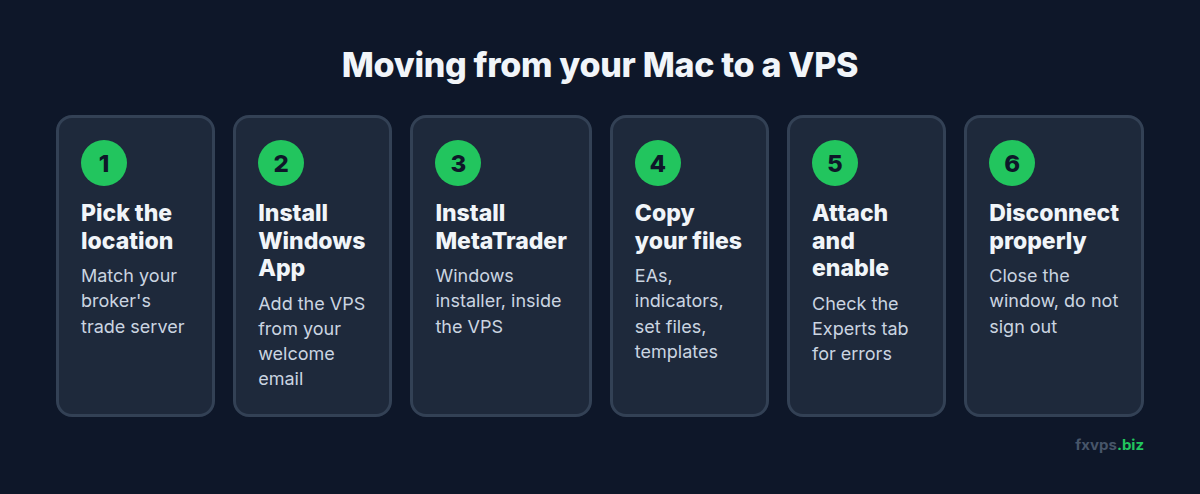
- Pick the VPS location that matches your broker’s trade server. London for most forex brokers, New York for many US-facing ones, Tokyo or Hong Kong for some Asian servers. If you are unsure, use the method in MT4 data centers, MT5 access points, and terminal ping.
- Install Windows App on the Mac and add the VPS using the address and credentials from your welcome email.
- Download MT4 or MT5 from your broker’s website inside the VPS, using the Windows installer, not the macOS one.
- Copy your EAs, indicators, set files, and templates from the Mac into the terminal’s data folder on the VPS (File > Open Data Folder).
- Log in, attach the EAs, and enable algorithmic trading. Confirm each EA initialises without errors in the Experts tab.
- Set the terminal to start automatically after a reboot. See the MetaTrader automatic startup guide.
- Disconnect properly. Close the Remote Desktop window rather than signing out, so the session and the terminal stay running. See how to properly disconnect from an RDP session.
✅ Best Practice: After moving, remove the EA from the terminal on your Mac or disable algorithmic trading there. Two copies of the same EA on the same account will both trade, doubling your position sizes.
Frequently Asked Questions
Is there a native MetaTrader for Mac?
No. The macOS downloads for MT4 and MT5 are the Windows terminals packaged with a compatibility layer. They look like Mac apps, but they are not native builds.
Do Expert Advisors work on the Mac version of MT5?
Simple EAs written purely in MQL5 generally do. EAs that rely on DLLs, external licence checks, or other Windows components are the ones that fail. If the vendor’s instructions tell you to tick “Allow DLL imports”, plan on running it on real Windows.
Will Remote Desktop feel slow from a Mac?
On a normal broadband connection it feels close to local, because only screen changes and keystrokes travel over the link. If it does feel sluggish, the fixes are usually display settings. See why your VPS feels slow over RDP.
Does my Mac need to stay on for the VPS to trade?
No. The VPS is a separate computer. Your Mac is only needed when you want to look at it.
Can I use an iPad instead of a Mac?
Yes. Windows App is available for iPad and iPhone, and a keyboard and trackpad make an iPad a comfortable way to check on terminals.
Related Reading
- How to Access Your VPS Using RDP on Apple Mac — the connection walkthrough
- How to Copy Files From Mac to a Forex VPS — moving EAs and templates across
- Forex VPS vs Home Computer — the wider comparison beyond Macs
- Running Expert Advisors 24/7: Complete Guide — keeping EAs alive once they are on the VPS