

Most EA problems people bring to support are not about the EA at all. They are about its settings. A lot size from a backtest that was never changed for live. A risk percentage typed into the wrong account. An update that quietly reset an input to its default. A “best” optimisation result nobody can find any more.
MetaTrader has a simple tool for all of this: the .set file. It is a small text file that holds every input value of an EA. Used well, it means your live settings are always written down, always recoverable, and always the ones you meant to use.
This post covers where .set files live, how to save and load them in MT4 and MT5, how to move them to your VPS, and a few habits that make them a safety net rather than another source of confusion.
What a .set File Is
When you attach an EA to a chart, the Inputs tab lists its settings: lot size, risk, stop distances, trading hours, magic number and so on. A .set file stores those values by name, one per line, in plain text.
You can:
- Save the current inputs to a .set file.
- Load a .set file to fill in all inputs at once.
- Use the same file in the Strategy Tester and on a live chart, so what you tested is what you run.
Vendors of commercial EAs often ship .set files for each symbol or risk profile. Those are just starting points: always open them and check the values before using them.
📊 Key Stat: An EA with 40 inputs has 40 chances for a typo each time you set it up by hand. Loading a checked .set file reduces that to one: picking the right file.
Where .set Files Live
The Load and Save buttons open the terminal’s presets folder by default, inside the data folder:
- MT4:
MQL4\Presets - MT5:
MQL5\Presets
To open the data folder, go to File, Open Data Folder in either platform. Each terminal installation has its own data folder, so a .set file saved in one terminal is not automatically visible in another.
What Is Inside a .set File
Open a .set file in Notepad and you will see one line per input, in the form name=value. For example, a lot size input might appear as LotSize=0.10 and a magic number as MagicNumber=12345. MT4 files can also contain extra lines per input that hold optimisation ranges for the Strategy Tester.
Two things follow from this format:
- Values are matched by input name. If a new version of the EA renames an input, the old line no longer matches anything, and the renamed input takes its default.
- The file does not say which EA it belongs to. Loading a .set file for one EA into another EA fills in only the names that happen to match. This is why the EA’s name belongs in the file name.
Saving and Loading on a Live Chart
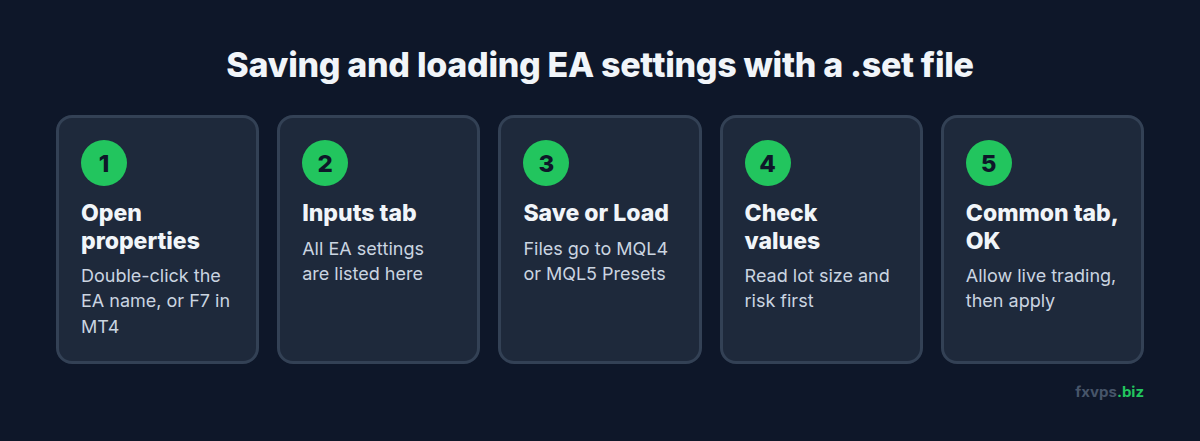
- Attach the EA, or double-click the EA’s name in the top right of the chart to open its properties. In MT4 you can also press F7.
- Go to the Inputs tab.
- To save, click Save and give the file a clear name.
- To load, click Load, pick the file, and check the values that appear.
- On the Common tab, confirm live trading is allowed, then click OK.
Saving and Loading in the Strategy Tester
In MT4, open the Strategy Tester, click Expert properties, and use the Load and Save buttons on the Inputs tab. In MT5, open the Strategy Tester’s Inputs tab and right-click the list to load or save.
An optimisation run produces many parameter sets. When you find the one you want, apply it to the inputs and save it immediately with a name that says where it came from. See MT4 and MT5 strategy tester optimisation on a VPS.
⚠️ Warning: A .set file saved from the tester can carry optimisation ranges as well as values. When you load it on a live chart, only the values are used, but check them: the value shown should be the one you chose, not the start of a range.
Moving .set Files From Your PC to the VPS
If you test on your own computer and trade on the VPS, the .set file is how your settings travel:
- Save the .set file on your PC.
- Copy it to the VPS. The simplest ways are copy and paste over Remote Desktop, or sharing a local drive in the RDP connection. See mapping a network drive from Remote Desktop and, from a Mac, copying files from a Mac to a Windows VPS.
- On the VPS, put it in the
Presetsfolder of the terminal that will run the EA. - Load it on the live chart and check the inputs.
The same applies when moving an EA to a new VPS or a new broker. Our guide to migrating an EA to FXVPS covers the full move.
Habits That Prevent the Wrong Settings Going Live
Name Files So You Can Tell Them Apart
A name like settings2.set tells you nothing in three months. Include the EA, symbol, account and date, for example GridPro_EURUSD_live-12345_2026-11-04.set. Sorting by name then shows history for each account.
Keep One File per Account
Two accounts with different balances, brokers or prop firm limits should not share a file. Lot size, risk and maximum drawdown inputs usually differ.
Save Before Every Change
Before you change a live input, save the current settings first. If the change goes wrong, you can load the previous file in seconds instead of trying to remember what the values were.
Check After Every EA Update
When a vendor releases a new version, inputs can be added, renamed or removed. An input your old .set file does not mention takes its default value, which may not suit your account. After an update, load your file, then read every input once.
Back Up the Presets Folder
Include MQL4\Presets or MQL5\Presets in your backups along with your EAs and profiles. See how to back up your trading data on a VPS.
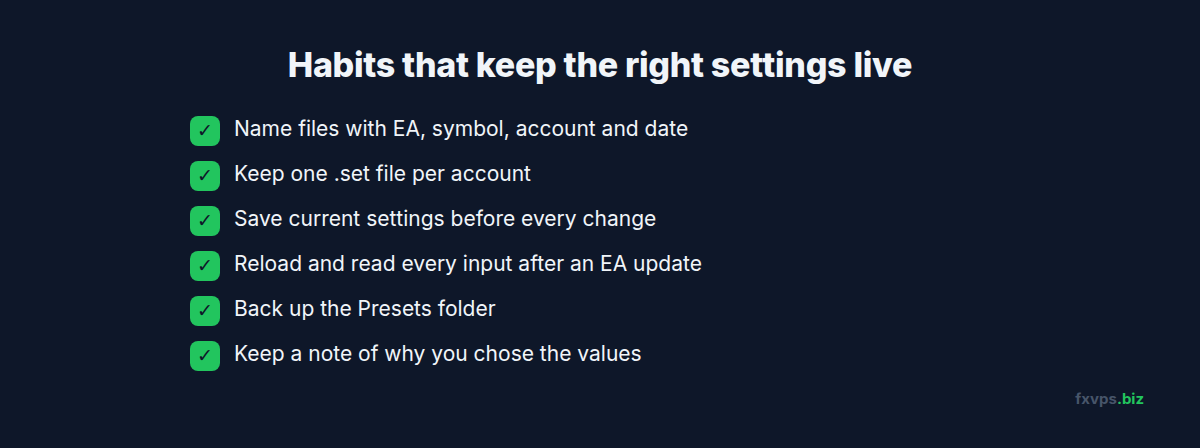
💡 Tip: Keep a short text note next to each live .set file with why you chose the values: the backtest period, the drawdown you accepted, the date you went live. It turns a folder of files into a record you can actually learn from.
.set Files and Templates
A chart template can also store an EA with its inputs. That is useful for rebuilding charts quickly, but it hides the settings inside a template file. Keeping a separate .set file for each live EA means the inputs are always visible on their own. See MT4 and MT5 templates and profiles on a VPS.
✅ Best Practice: Treat the .set file as the source of truth for each live EA. If the chart and the file ever disagree, find out why before the next trading session.
Recommended FXVPS Plan
.set files take no resources. Size the server for the terminals and tests you run:
- Core ($29/mo, 2GB RAM, 1 vCPU): one or two terminals with a few EAs.
- Pro ($39/mo, 4GB RAM, 2 vCPU): several terminals, or live trading plus occasional tester runs.
- Scaling ($79/mo, 8GB RAM, 4 vCPU): many accounts, or regular optimisation on the same server.
See the pricing page, or try your saved settings on a fresh server with the $2.99 7-day trial.
Frequently Asked Questions
Where does MetaTrader save .set files?
By default in the presets folder of the terminal’s data folder: MQL4\Presets in MT4 and MQL5\Presets in MT5. Open it with File, Open Data Folder.
Can I use an MT4 .set file in MT5?
Only if the EA has an MT5 version with the same input names. Input names and types often differ between versions, so check every value after loading.
Why did my EA settings reset after an update?
New or renamed inputs take their default values. Load your saved .set file again and check each input, especially lot size and risk.
Do I need to restart the EA after loading a .set file?
Loading the file and clicking OK applies the new inputs and restarts the EA on that chart. Check that it recovers its open trades afterwards.
Can I edit a .set file in Notepad?
Yes, it is plain text. Loading it through the Inputs tab and saving again is safer, because the terminal shows you exactly which values it read.