

Almost every EA setup guide contains the same instruction somewhere near step four: “Go to Tools, Options, Expert Advisors and tick Allow DLL imports.” Most traders tick it without a second thought, because the EA does not work otherwise.
That checkbox is one of the two settings in MetaTrader that decide how far an Expert Advisor can reach beyond the trading platform. The other is the WebRequest list. Together they control whether an EA is a script that can only place trades, or a program that can talk to the internet and run code on your VPS.
Getting them wrong in one direction gives you an EA that sits on the chart and does nothing. Getting them wrong in the other direction means running a stranger’s code on a machine that holds your broker logins. This guide explains both settings, the errors they produce, and a sensible way to handle them.
📊 Key Stat: An EA written in pure MQL can only do what the terminal lets it do: read prices, place orders, and read and write files inside the terminal’s own sandbox folders. An EA with DLL imports allowed can run any code the Windows user account is permitted to run.
The Three Permission Switches
Open Tools > Options > Expert Advisors in either platform and you will find three related settings.
Allow Automated Trading (MT4) / Allow Algorithmic Trading (MT5)
The master switch. With it off, EAs load but cannot send orders. It mirrors the AutoTrading (MT4) or Algo Trading (MT5) button on the toolbar. This one carries no security risk beyond the trades themselves.
Allow DLL Imports
A DLL is a compiled Windows library. MQL can call functions inside one, which lets an EA do things the MQL language cannot: open network sockets in ways MQL does not support, share memory between terminals, read hardware identifiers, or call any part of Windows.
MT5 labels this option as potentially dangerous and says to enable it only for trusted applications. MetaQuotes means it.
There are two levels to this setting:
- The global default in Tools > Options, which sets what newly attached EAs get.
- The per-EA checkbox in each EA’s own properties window when you attach it to a chart, on the Common tab in MT4 and on the Common or Dependencies tab in MT5 depending on the build.
Allow WebRequest for Listed URL
WebRequest is MQL’s built-in way to make HTTP calls. It is far safer than a DLL, because the EA can only contact addresses you have typed into the list underneath this checkbox. Nothing is permitted by default.
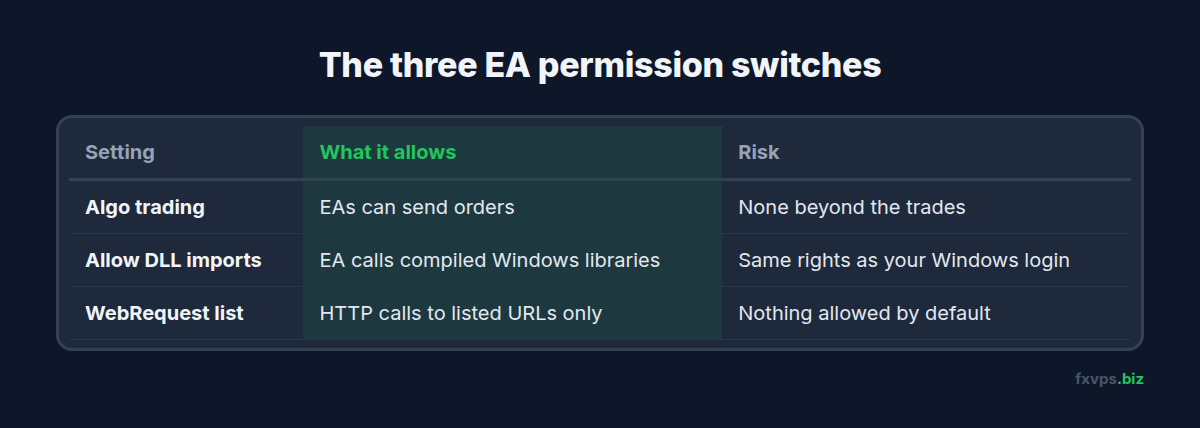
⚠️ Warning: Allowing DLL imports does not give the EA access to “a few extra functions”. It removes the sandbox. The DLL runs with the same rights as your Windows login, which on most trading VPSs is an administrator. It can read saved terminal logins, files on the desktop, and anything else on the machine.
Why Legitimate EAs Ask for These Permissions
Most requests are harmless and have a clear purpose:
- Trade copiers running between terminals on the same VPS often use a DLL to pass trades through shared memory, which is faster than writing files. See copy trading setup on VPS.
- Licence checks. Commercial EAs sold outside the MQL5 Market commonly use a DLL or a WebRequest to confirm your account number against the vendor’s server.
- News filters pull an economic calendar from a website using WebRequest.
- Telegram and Discord notifiers send messages through WebRequest to the service’s API. See Telegram signal copiers on VPS.
- Account trackers such as publisher EAs for statistics sites upload your trade history.
- Bridges to external software, including Python tools and TradingView webhook receivers. See TradingView alerts and webhooks on VPS.
One useful fact for judging a product: EAs sold through the official MQL5 Market are not allowed to use DLLs. If a Market product tells you to enable DLL imports, something does not add up. Market products may still use WebRequest, and the description should tell you which URL to add.
The Errors You See When Permissions Are Missing
These show up in the Experts tab at the bottom of the terminal. Our guide to reading MT4 and MT5 log files explains where the full logs are kept.
”DLL calls are not allowed” or “DLL loading is not allowed”
The EA imports a DLL and the permission is off, either globally or for this EA. The EA usually stops during initialisation. Enable the per-EA checkbox and re-attach it.
”Cannot load library” or “Cannot open file … .dll”
The permission is on but Windows cannot load the file. On a fresh VPS the usual causes are:
- The DLL is not in the right folder. It belongs in
MQL4\LibrariesorMQL5\Librariesinside the terminal’s data folder (File > Open Data Folder), not in Program Files. - A missing runtime. Many DLLs need a Microsoft Visual C++ Redistributable package that is present on a typical home PC and absent on a clean server install. The vendor’s documentation should name the version.
- Wrong architecture. MT4 is a 32-bit program and needs 32-bit DLLs. MT5 is 64-bit and needs 64-bit ones. A DLL shipped for one will not load in the other.
- Antivirus quarantined it. Check the protection history. See antivirus on a trading VPS.
WebRequest Errors (4060 in MT4, 4014 in MT5)
The EA tried to contact a URL that is not on the allowed list. Add the exact address the vendor specifies, including https://, and restart the EA. Related errors about a failed connection after the URL has been added usually point to a firewall rule or the remote site being down. Our list of MT4 and MT5 trade error codes covers the trading-side codes.
💡 Tip: WebRequest does not work inside the Strategy Tester and cannot be called from indicators. An EA whose news filter or licence check depends on it will behave differently in a backtest than on a live chart. This is one of the less obvious reasons backtests do not match live results.
Why This Matters More on a VPS Than on a Home PC
Your trading VPS is a small, focused target with valuable contents:
- Terminals that are permanently logged in to live accounts
- Saved passwords for brokers and possibly prop firm dashboards
- An always-on internet connection with a fixed IP
A malicious or simply careless DLL does not need to steal money directly. Reading your account credentials, placing trades, or using the server for other purposes is enough to hurt. A compiled .ex4, .ex5, or .dll file cannot be inspected by eye, so you are trusting the source entirely.
The risk is highest with EAs from the places traders most often get them: Telegram groups, file-sharing sites, “cracked” versions of paid products, and unsolicited offers. A cracked EA is, by definition, a program that somebody modified and redistributed for free. Ask what they gained from doing that.
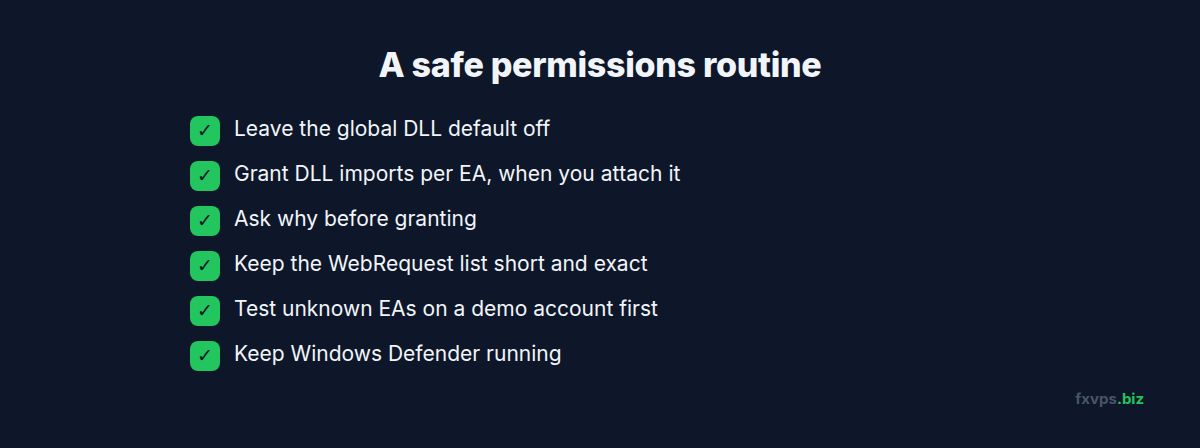
A Sensible Permissions Routine
- Leave the global DLL default off. In Tools > Options > Expert Advisors, untick “Allow DLL imports”. Grant it per EA instead, at the moment you attach each one.
- Ask why before granting. A copier or a licensed commercial EA has an obvious reason. A simple moving-average EA does not.
- Check the EA’s dependencies. In MT5 the EA’s properties window lists the libraries it imports. In MT4 the vendor’s documentation should list any DLL files shipped with the product.
- Keep the WebRequest list short and exact. Add only the URLs each EA documents. Remove entries when you stop using the EA.
- Run unknown EAs on a demo account first, on a terminal that holds no live logins. Watch what it does for a week or two before it goes anywhere near a funded account.
- Do not save the master password where a script can find it. Text files named
passwords.txton the desktop are the first thing anyone looks for. - Keep Windows Defender running. Add exclusions for the terminal’s data folder only if you see a real performance problem, not by default.
- Back up before installing. A copy of your profiles and set files means a bad install costs you minutes. See how to back up your trading data on a VPS.
✅ Best Practice: Treat every new EA like new software on a work computer. Know who made it, know what it connects to, and give it the least access that lets it do its job. Pair this with the server-level steps in VPS security hardening for traders.
What a VPS Provider Can and Cannot Do for You
A good VPS gives you an isolated Windows machine, a firewall, and a network path to your broker that stays inside the datacenter. It cannot judge the software you choose to run. Once an EA has DLL access inside your Windows session, the protection is your own caution.
What the right VPS does give you is a clean, standard environment: 64-bit Windows Server, administrator access to install the runtimes an EA needs, and enough dedicated CPU and RAM that a DLL-based copier is not fighting for resources.
🚀 Try FXVPS for $2.99. Set up your EAs on a clean Windows Server desktop with a 7-day Core VPS trial and confirm every library loads before you commit. Plans are listed at /pricing/.
Which FXVPS Plan Fits
Core Plan ($29/mo), with 2GB RAM and 1 vCPU, is enough for one or two terminals running standard EAs with a news filter or notifier.
Pro Plan ($39/mo), with 4GB RAM and 2 vCPUs, suits DLL-based copiers running across several terminals, or EAs that talk to an external Python process.
Scaling Plan ($79/mo), with 8GB RAM and 4 vCPUs, is for larger copier networks and multi-account prop setups.
Frequently Asked Questions
Is it safe to tick “Allow DLL imports”?
It is as safe as the EA you are granting it to. For software from a known vendor with a clear reason to need it, yes. For a free file from an anonymous source, no. Grant it per EA, not globally.
My EA worked on my home PC but not on the VPS. Why?
The most common cause is a missing Visual C++ runtime that the EA’s DLL depends on, followed by the DLL not being copied into the Libraries folder. Check the Experts tab for a “cannot load library” message.
Do I need to add a URL for the MQL5 Market or broker connection?
No. The WebRequest list only governs calls made by your EAs and scripts. The terminal’s own connections to the broker and MetaQuotes services do not use it.
Can an EA place trades on another account using a DLL?
A DLL can run arbitrary code, so in principle it can interact with anything on the machine, including other terminals. That is the reason to keep untrusted EAs away from a VPS that holds live logins.
Why does my EA’s news filter not work in backtests?
WebRequest is disabled in the Strategy Tester. Some vendors supply a history file for testing instead. Check the product documentation.
Related Reading
- VPS Security Hardening for Traders — locking down the server itself
- EA Licensing and MQL5 Market Activations on VPS — how licence checks behave when you move machines
- Antivirus on a Trading VPS — protection without slowing your terminals
- Reading MT4 and MT5 Log Files on VPS — finding the error behind a silent EA