

You copy an EA’s licence key from an email on your laptop, click into the input box on your VPS, press Ctrl+V, and nothing appears. Or worse, the text you copied an hour ago appears instead. You try again, try right-click Paste, and the clipboard is simply not crossing over.
This is one of the most common small annoyances with Remote Desktop, and it is almost always fixable in under a minute without restarting anything that matters. This post explains how the shared clipboard works, the quick fix that solves most cases, and the settings to check when it keeps coming back.
How the Remote Desktop Clipboard Works
When you connect with Remote Desktop, your computer and the VPS each have their own clipboard. Remote Desktop links them through a feature called clipboard redirection:
- On your computer, the Remote Desktop client must have clipboard sharing switched on.
- On the VPS, a small Windows program called
rdpclip.exeruns inside your session and passes clipboard content back and forth.
If either side stops cooperating, copy and paste stops working between the two, while still working normally inside each machine on its own. That is the clue: if you can copy and paste within the VPS, but not between your PC and the VPS, the link is the problem.
The Quick Fix: Restart rdpclip.exe
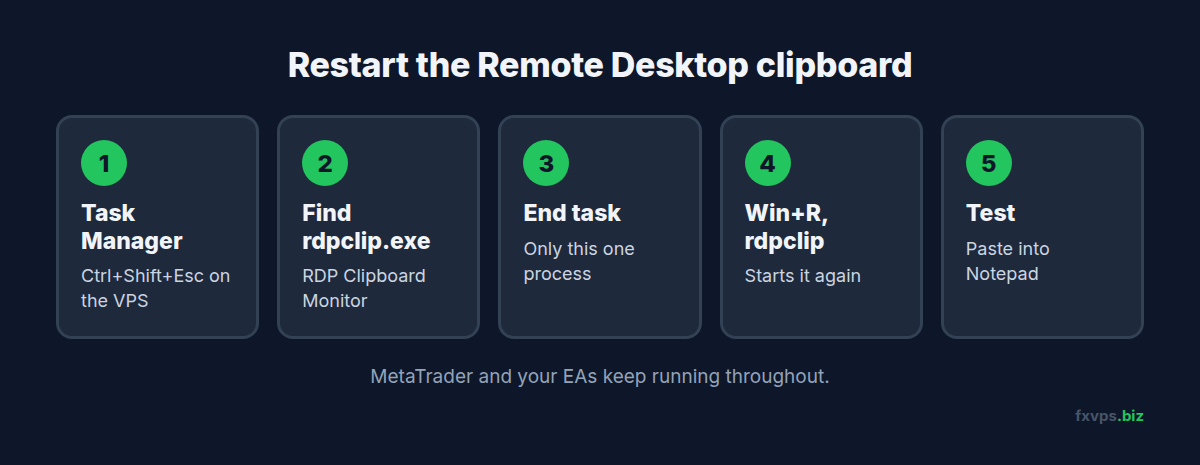
In most cases rdpclip.exe has simply stopped responding. Restarting it takes seconds and does not affect MetaTrader or your EAs.
- On the VPS, open Task Manager (right-click the taskbar, or press Ctrl+Shift+Esc).
- Find “RDP Clipboard Monitor” or
rdpclip.exein the Processes or Details tab. - End the task.
- Start it again. Press Win+R, type
rdpclipand press Enter. - Test it. Copy a word on your PC and paste it into Notepad on the VPS.
💡 Tip: If
rdpclip.exeis not in the list at all, it is not running. Just start it with Win+R andrdpclip.
⚠️ Warning: In Task Manager, end only
rdpclip.exe. Do not end processes you do not recognise, and never endterminal.exeorterminal64.exeby mistake. Those are your MT4 and MT5 terminals.
If That Does Not Work: Disconnect and Reconnect
Disconnecting and reconnecting starts a fresh clipboard link. Close the Remote Desktop window (the X at the top) rather than signing out, so your terminals keep running. See how to properly disconnect from an RDP session.
When you reconnect, rdpclip.exe starts again with the session. This fixes most cases the quick restart did not.
Check Your Client Settings
If the clipboard never works, rather than working and then stopping, clipboard sharing is probably switched off in your Remote Desktop client.
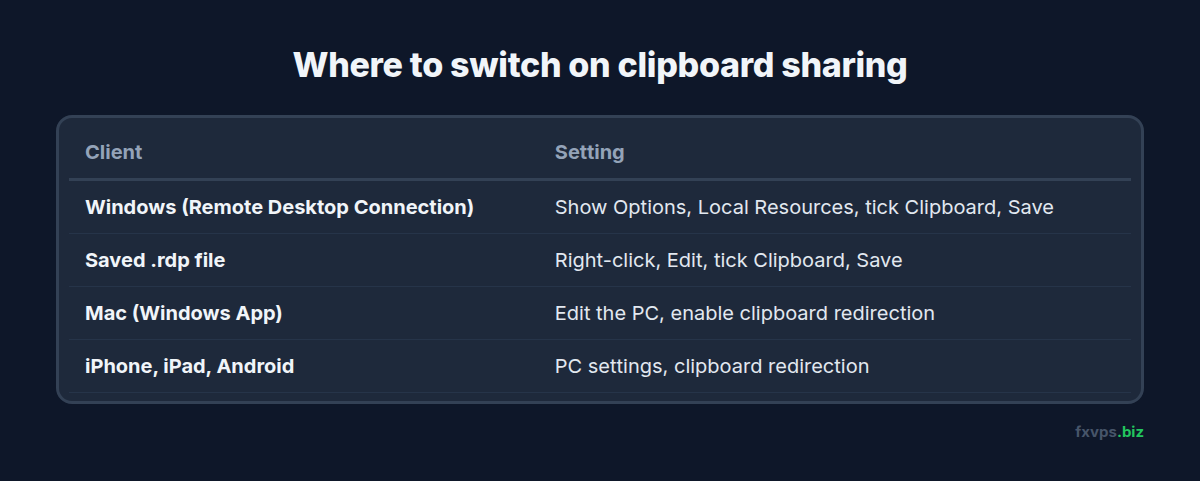
Windows (Remote Desktop Connection)
- Open Remote Desktop Connection and click Show Options.
- Go to the Local Resources tab.
- Under Local devices and resources, tick Clipboard.
- Go back to the General tab and click Save so it sticks for next time.
If you connect with a saved .rdp file, open it with Edit (right-click) and check the same box, then save.
Mac (Windows App)
In the Windows App, edit the saved PC and look at the device and redirection settings. Make sure the clipboard option is enabled, then reconnect. For the full Mac setup, see connecting from a Mac, iPhone or Android with the Windows App.
iPhone, iPad and Android
The Windows App on mobile also has a clipboard redirection setting in the PC’s settings. Copying long text on a phone is awkward anyway, so for licence keys and passwords it is often easier to send yourself the text and open it on the VPS. See how to connect to your VPS from an iPhone or iPad.
Copying Files, Not Just Text
On Windows, clipboard redirection can also copy files: copy a file in File Explorer on your PC, then paste it into a folder on the VPS. This is handy for a single EA or .set file.
It is less reliable for large files or many files at once. A big copy can stall, and if it fails halfway you may not notice. For anything bigger than a few files, use drive redirection instead, which makes your local drives appear on the VPS:
- Windows: in Local Resources, click More and tick the drives you want to share. See map a network drive from Remote Desktop.
- Mac: share a folder in the Windows App settings. See how to copy files from a Mac to your VPS.
✅ Best Practice: Use the clipboard for text and the odd small file. Use a shared drive or folder for EAs, indicators and anything you are moving in bulk. When moving trading files, close the terminal first so nothing is half written.
Pasting Passwords and Licence Keys
Pasting is convenient for long licence keys, but be careful with passwords:
- Copied text can carry a trailing space or an invisible character from an email, which makes the password wrong.
- If a pasted password fails, type it by hand before assuming it is incorrect.
- Do not paste the VPS password into the Remote Desktop login box repeatedly if it is failing. Repeated failures can lock the account. See remote desktop connection errors on a trading VPS.
If characters such as @ or # come out wrong when you type rather than paste, the cause is usually the keyboard layout, not the clipboard. See wrong characters when typing over RDP.
When It Keeps Happening
If the clipboard drops every day or two, a few habits help:
- Reconnect rather than leaving a session open for weeks on your PC. A Remote Desktop window that has been open through sleep, network changes and Wi-Fi drops is the most likely to lose the clipboard link.
- Keep the restart handy. Win+R and
rdpclipbecomes second nature. - Avoid copying very large amounts of content (whole spreadsheets, big images) through the clipboard.
None of these affect your EAs. The clipboard runs only while you are connected and has nothing to do with the terminal’s connection to your broker.
A Quick Troubleshooting Order
When copy and paste fails, work through these in order and stop as soon as it works:
- Test inside the VPS. Copy and paste within Notepad on the VPS. If that fails too, the problem is the application, not Remote Desktop.
- Restart
rdpclip.exeas described above. - Disconnect and reconnect by closing the Remote Desktop window.
- Check the client setting for clipboard sharing, and save it.
- Try a different client if you have one, for example the Windows App instead of an older Remote Desktop app. If it works there, the first client’s settings are the cause.
Most people never get past step two. If you reach step five and nothing works, note which steps you tried and what happened, which makes any support conversation much quicker. See what FXVPS support covers.
Recommended FXVPS Plan
Clipboard issues happen on any plan, so choose by what you run:
- Core ($29/mo, 2GB RAM, 1 vCPU): one or two terminals.
- Pro ($39/mo, 4GB RAM, 2 vCPU): several terminals across a few accounts.
- Scaling ($79/mo, 8GB RAM, 4 vCPU): many terminals, prop firm accounts and copiers.
See the pricing page, or try it on the $2.99 7-day trial.
Why FXVPS for Remote Desktop Traders
- A standard Windows desktop you reach with the normal Remote Desktop apps on Windows, Mac, iPhone, iPad and Android.
- Your terminals keep running when you disconnect, so fixing the clipboard never interrupts trading.
- Locations near your broker in London, New York, Tokyo, Hong Kong and more than 15 others.
- Dedicated resources for terminals that run around the clock.
Frequently Asked Questions
Why can I not paste from my PC into my VPS?
Usually the Remote Desktop clipboard program on the VPS, rdpclip.exe, has stopped responding, or clipboard sharing is switched off in your Remote Desktop client.
Will restarting rdpclip.exe close MetaTrader?
No. It only restarts the clipboard link. Your terminals and EAs keep running.
How do I turn on clipboard sharing in Remote Desktop Connection?
Click Show Options, go to Local Resources, tick Clipboard, then save the connection settings on the General tab.
Can I copy files over the Remote Desktop clipboard?
On Windows, yes, for small files. For large files or many files, share a local drive or folder with the VPS instead.
Does the clipboard problem affect my trades?
No. The clipboard only works while you are connected and has no effect on the terminal’s connection to your broker.