

Your EAs run on the VPS, but you will want to look in on them from whatever is in your hand. A Mac, an iPhone, an iPad or an Android phone can all do it with Microsoft’s remote desktop app, and nearly every failed first attempt comes down to one typo in one box.
Key Takeaways
- Microsoft’s app is now called Windows App on Mac, iPhone and iPad. Older guides still call it Remote Desktop.
- The address is
server:41011, with a colon. FXVPS uses port 41011, not 3389.- The username is
trader, and the password comes from the “Your server is now ready!” email.- A dot in place of the colon is a classic phone typo and gives you a connection error, not a password error.
- Disconnect, do not sign out. Closing the app leaves MetaTrader running.
1. Which App You Need
On a Mac, an iPhone and an iPad, Microsoft’s remote desktop client is Windows App, installed from the App Store. It replaced the older “Remote Desktop” app. If you find a tutorial that tells you to search for Remote Desktop, it is describing the previous app, and the steps below are the same in spirit.
On Android, install Microsoft’s own app from Google Play. Depending on your device and when you install it, it may be listed as Windows App or as Microsoft Remote Desktop. Both connect to a trading VPS the same way, so take the Microsoft one and ignore look-alikes from other publishers.
Menu labels differ a little between the Mac, iOS and Android versions, and Microsoft changes them from time to time. Where this guide says “add a PC”, look for a plus button or an add option on the home screen. If you want a full walkthrough of one platform, we have longer posts for the Mac, the iPhone and iPad and Android.
2. What to Have Ready
Everything you need is in one email. When your VPS is ready we send a message titled “Your server is now ready!”. It contains:
- The server address, which is what you put in the app.
- The username, which for a standard FXVPS server is
trader. - The password for that account.
Open the email on a second screen, or copy the address and password into a note on the device you are connecting from. Typing a long generated password from memory on a phone is where many people lose ten minutes.
3. Adding Your VPS Step by Step
The same four moves apply on every device.
- Add a PC. Open the app and use the plus button or the add option to create a new connection.
- Enter the PC name. Type the server address, then a colon, then
41011. For example1.2.3.4:41011. - Set the user account. Choose to add a user account. The username is
trader, and the password is the one from the email. Saving them means you will not retype them each time. - Save and connect. Name the entry something you will recognise, save it, and open it.
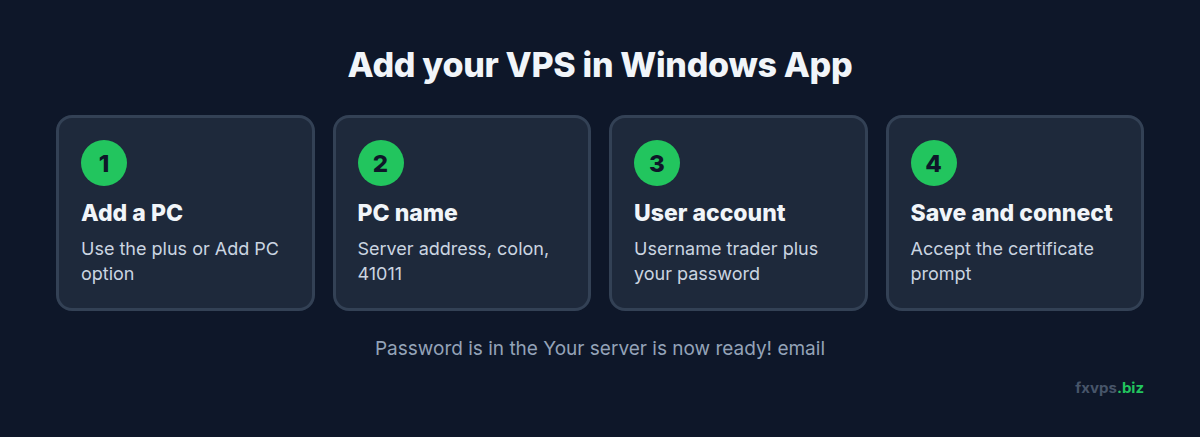
The first time you connect, the app may warn that it cannot verify the identity of the remote computer, or show a certificate prompt. That is expected for a freshly built server, because the certificate is not signed by a public authority. If the address is the one from your FXVPS email, accept it. If you are ever unsure the address is yours, stop and check it against the email before accepting anything.
Once you are in you will see the Windows desktop, with MetaTrader and anything else you left open exactly where you left it.
4. Why the Port Matters
Most Remote Desktop software assumes port 3389. FXVPS does not use it. Our servers listen on 41011, which keeps you out of the bulk scans that only ever try the default (we cover the reasoning in securing your trading VPS).
The consequence is simple. If you type only the server address, the app tries 3389, finds nothing there and reports that it cannot connect. The fix is to add the port yourself, after a colon, every time:
1.2.3.4:41011Two details are worth knowing. First, it is a colon, not a dot, comma or space. Second, a server that does not answer on 3389 is not down, so do not read a failed default-port test as a dead VPS.
5. The Dot Instead of the Colon
This is the single most common failure we see from phones, and it deserves its own section.
On most phone keyboards the colon lives on a second or third screen, while the full stop is right there on the main one. Typing an address quickly, it is very easy to end up with 1.2.3.4.41011 instead of 1.2.3.4:41011. The two look almost identical at a glance, especially in a small text box.
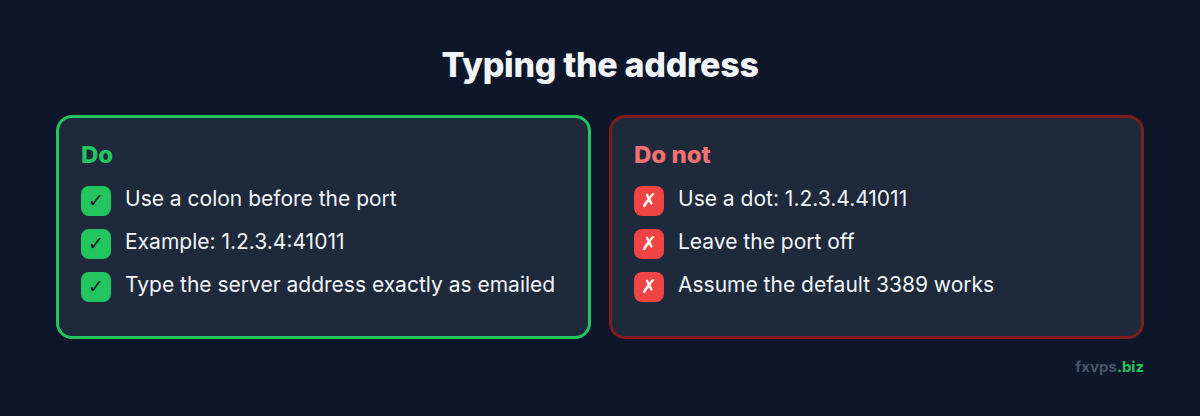
The giveaway is the type of error. A typo in the address produces a message that the app cannot find or reach the PC, not a message about your password. If you get that, do not touch the password. Open the entry, look at the last separator before 41011, and replace it with a colon.
Autocorrect and autofill can also quietly change what you typed. If an address keeps failing, delete it and retype it character by character rather than editing around the mistake.
6. Common Connection Errors
You can narrow most problems down by asking what the message is actually about.
“Cannot connect” or “couldn’t find the PC” (including error 0x204 on a Mac). This is about the address or the route to the server. Check the colon, check the port is 41011, check there are no stray spaces, and confirm the numbers against your email. Then try another network. Some office and hotel networks block unusual ports, and moving to mobile data tells you at once whether that is the cause.
“Your credentials did not work” or “login failed”. The address was fine, because the server answered, but the username or password was rejected. Re-enter trader with no extra text, and paste the password rather than typing it. If you changed the password after setup, use the new one.
“Account locked”. Too many wrong guesses in a row will lock a Windows account for a while by design. Wait out the lockout period before trying again, and stop retrying meanwhile, since each attempt can extend it.
It connects but the screen is black or frozen. The connection is fine and the display is not. Disconnect and reconnect, and on a weak mobile signal try a lower quality display setting if the app offers one.
For the full list, with the fix matched to each message, see every common Remote Desktop error, decoded.
7. Leaving Without Stopping Your EAs
When you are finished, disconnect. Closing the app, swiping it away or tapping the disconnect option leaves your Windows session running in the datacenter, and your EAs keep trading.
What stops them is signing out of Windows, or choosing shut down or restart from the Start menu. A shut-down VPS cannot be started again just by reconnecting. If you only wanted to leave, disconnect and nothing more. There is a longer explanation in how to properly disconnect from an RDP session.
8. A Few Habits for Phones and Tablets
Quick checks are what a phone is good at. Use it to confirm the terminal is connected to the broker and EAs are enabled, not to do fiddly work on a tiny screen. Rotate to landscape, or use an iPad or tablet, for anything beyond a glance.
Keep your saved entry protected. A saved password is convenient, so make sure the device itself has a screen lock and, where it is offered, biometric unlock for the app.
If you are in the middle of a trade and something looks off, check from your broker’s own app first. It reads your account directly and does not depend on the VPS. Use the remote desktop connection when you need to see or change what is running on the server itself.
Once the entry is saved, reconnecting takes two taps. The first setup is the only time the address, port and username all have to be right, which is why it is worth getting them correct now.