

Your EA opens trades on your own computer, so you copy it to your VPS, attach it to a chart, and nothing happens. This is one of the most common questions we get, and it is almost always quick to fix once you know where to look.
The good news first: the VPS does not block orders. When MetaTrader or your broker refuses an order, it always writes an error. So the question is either “which switch is off?” or “why did the EA decide not to trade?”. This guide takes you through both.
Key Takeaways
- Check the market is open. Most markets close at the weekend, so no EA can open a trade on Saturday or Sunday.
- Two switches must be on: AutoTrading (MT4) or Algo Trading (MT5) on the toolbar, and Allow live trading in the EA’s own settings.
- No error in the logs means the EA never tried. That usually points to a licence or to the EA’s own conditions.
- Some EAs need Chinese system language or your local time zone. You cannot change these yourself, but we can.
1. Is the Market Open?
It sounds obvious, but it catches many traders out. Forex, gold and most indices close from Friday night until Sunday night (Monday morning in Asia). If you test your EA at the weekend, it cannot open anything, on the VPS or at home.
Wait until the market opens, then check again.
2. Check the Switches
These cause most “EA not trading” problems.
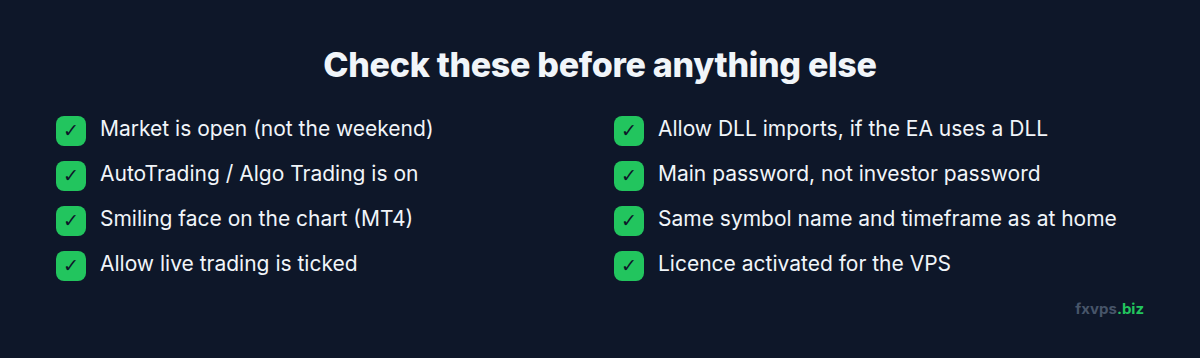
AutoTrading (MT4) or Algo Trading (MT5). The button is on the toolbar at the top. It must be green (MT4) or show as switched on (MT5). If it is off, no EA can trade.
The face on the chart (MT4). Look at the top right corner of the chart your EA is on. A smiling face means the EA is allowed to trade. A sad face means it is not. In MT5 you will see a hat icon, which is blue when trading is allowed.
Allow live trading. Right-click the chart, choose Expert Advisors, then Properties (MT4), or double-click the EA name on the chart (MT5). On the Common tab, tick Allow live trading (MT4) or Allow Algo Trading (MT5).
Allow DLL imports. If your EA uses a DLL file, tick Allow DLL imports on the same tab, and copy the DLL file into the MQL4\Libraries or MQL5\Libraries folder on the VPS too.
The right account. Make sure you are logged in with your main trading password, not the investor (read-only) password. With the investor password you can see the account but cannot trade.
The right chart. Check the EA is on the same symbol and timeframe as at home. Some brokers add a suffix to symbol names, such as XAUUSD.m, and an EA set up for one name may ignore the other.
3. Read What MetaTrader Says
At the bottom of MetaTrader there are two tabs that tell you what is happening. If you cannot see them, press Ctrl+T.
- Experts shows messages from your EA, including any errors when it tries to open a trade.
- Journal shows MetaTrader’s own messages: logging in, connecting to your broker, and orders being sent or refused.
What you see tells you where to look next:
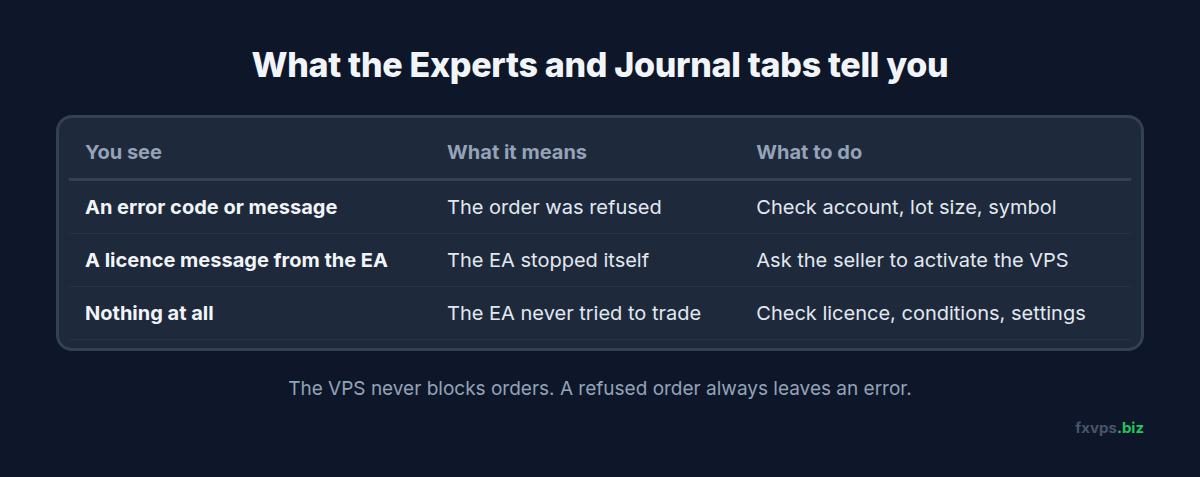
- An error with a number or message, such as “trade is disabled”, “not enough money” or “invalid volume”: the order reached the broker and was refused. Check your account, lot size and symbol. Our guide to common EA failures explains the most common error codes.
- A message from the EA itself, such as “licence not valid” or “account not allowed”: the EA has stopped itself. See section 4.
- Nothing at all: the EA is running but has decided not to trade. Either its conditions have not been met yet, or it is waiting for a licence check. See section 4.
4. Is Your EA Licensed to Your Computer?
Many EAs, especially ones bought from a seller, are licensed to one place. The licence can be tied to:
- your home computer,
- your trading account number, or
- your IP address.
If the licence is tied to your home computer or home IP address, the EA often loads normally on the VPS but quietly does nothing. Ask the seller to activate it for your VPS. They will usually need your VPS IP address, which is in your welcome email and on your server’s page in the client area.
Some EAs also check their licence over the internet. If the seller gives you a web address, add it in MetaTrader under Tools, Options, Expert Advisors, Allow WebRequest for listed URL.
5. Settings We Can Change for You
Your VPS comes in English, usually set to US Eastern time. Some EAs need something different:
- Chinese system language. EAs written with Chinese text can fail or show strange characters on an English system. This needs the Windows “system locale” set to Chinese.
- Your local time zone. Some EAs use the computer’s own clock to decide when to trade. If your EA’s trading hours are set in China time, for example, the VPS needs to be on China time too.
- 24-hour time format. Some EAs read the time as text and expect 13:05 rather than 1:05 PM.
Your login cannot change these system settings, so tell us what you need in chat or in a ticket and we will set it up and restart the server for you. To change only the language of the menus, see our guide to changing the language on your VPS.
6. Still Not Trading?
If you have checked everything above and the EA still does not open trades while the market is open, contact us in chat or open a ticket from your client area. Tell us your server address, the name of the EA, and what you see in the Experts and Journal tabs. We can check the logs on the server with you. If the EA itself is not working, the seller is the best person to help.