

A prop firm evaluation can be lost in a minute that has nothing to do with your trading: a laptop that went to sleep with a trade open, a home connection that dropped during news, an EA that stopped when Windows restarted. A VPS removes most of those. What it cannot do is tell you what your firm allows, and that is the part to sort out first.
Key Takeaways
- A VPS keeps your platform running 24/7, so trades, stops and EAs keep working when your own computer is off.
- It does not enforce your firm’s rules. Daily loss limits, drawdown and news rules are still yours to follow.
- Every firm sets its own rules on EAs, copiers, VPS use and IP addresses. Read them, or ask the firm, before you set anything up.
- One VPS can run several terminals, one per account, if your firm allows it.
- Pick the location closest to the firm’s trading server, not closest to you.
What a VPS Does for a Prop Firm Account
Your VPS is a Windows computer in a data center. You connect to it with Remote Desktop, install your trading platform there, and leave it running. For an evaluation or funded account, that gives you:
- A platform that never sleeps. Your terminal stays connected overnight, at weekends and while you travel, so EAs keep trading and trade managers keep working. See what stops working when your MT4 terminal goes offline.
- A stable connection. A data center connection drops far less often than home broadband or Wi-Fi.
- Low latency to the firm’s server, if you choose the right location, so orders reach the server quickly.
- One place you always trade from. Trades placed from the VPS reach the firm from the VPS’s address, not from whichever network your laptop happens to be on.
- Access from anywhere. You can check or manage the account from a phone, tablet or any computer. See connecting from a Mac, iPhone, iPad or Android.
What a VPS Does Not Do
It is just as important to know the limits:
- It does not know your firm’s rules. It will not stop a trade that breaks a daily loss limit, a maximum lot size or a news restriction.
- It does not make a firm accept an EA or copier it does not allow.
- It does not hide anything from the firm. Firms see your trades, your account activity and where logins come from.
- It does not replace a stop loss. If you trade without one, a VPS keeps the platform running but cannot protect the trade on its own.
⚠️ Warning: A VPS cannot save an account from a rule break. If your firm has a daily loss limit, the VPS will keep your EA running right through it unless the EA itself, or a separate equity protection tool, stops trading first.
Check Your Firm’s Rules First
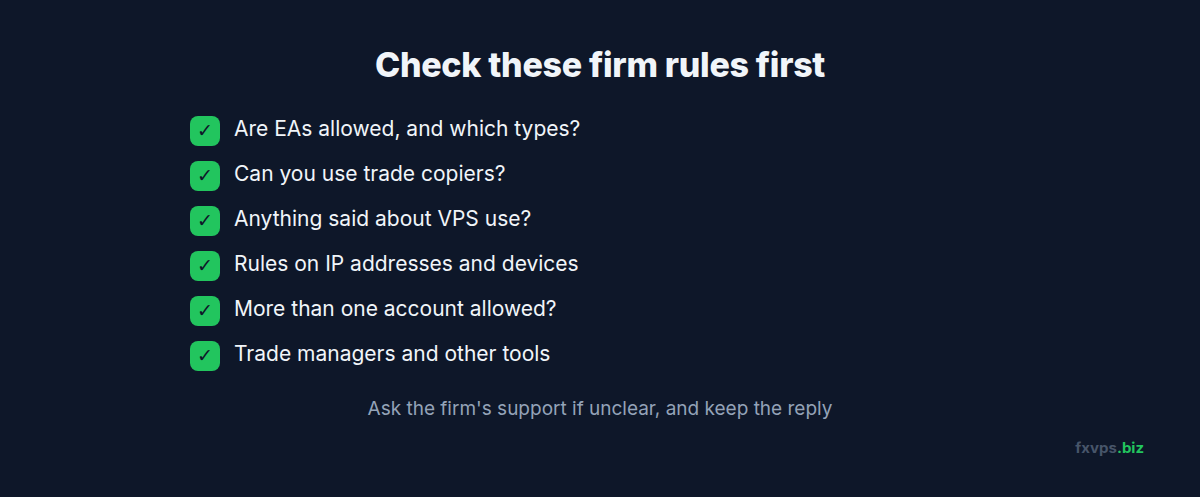
Before you install anything, read your firm’s terms and FAQ for these topics. If anything is unclear, ask the firm’s support in writing and keep the reply. We do not state any firm’s rules here, because they differ from firm to firm and change over time.
- EAs. Are Expert Advisors allowed? Are some types restricted, such as high-frequency, latency arbitrage or tick scalping EAs?
- Trade copiers. Can you copy trades between your own accounts, from another account into the firm, or from the firm to elsewhere?
- VPS use. Does the firm say anything about using a VPS, or offer its own?
- IP addresses and devices. Does the firm have rules about logging in from more than one IP address, more than one device, or the same IP as another trader?
- Several accounts. Can you hold more than one account with the firm, and can they run on the same machine?
- Third-party tools. Are trade managers, signal services or account trackers allowed?
Our blog post on multiple prop firm accounts on one VPS covers what firms tend to look at with IP addresses and shared machines, and how to keep your own setup clean.
💡 Tip: Save the firm’s answers in a text file on your VPS desktop, with the date. If the firm’s rules change later, you have a record of what you were told.
Setting Up the Account on Your VPS
Once you know what is allowed, the setup is the same as for any trading account.
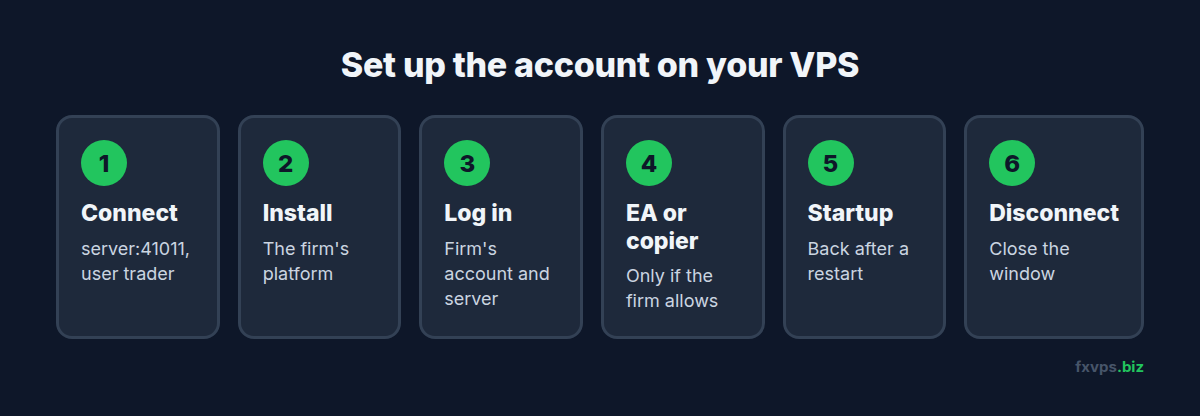
1. Connect to your VPS
Use the address, username and password from the “Your server is now ready!” email. The address is your server followed by :41011, and the default Windows user is trader. See getting your VPS login details.
2. Install the firm’s platform
Prop firms use different platforms. Your firm’s account email or dashboard tells you which one, and usually gives the download link:
- MT4 or MT5: install the version your firm links to, so the correct server is listed.
- cTrader: see cTrader on a VPS.
- Browser platforms such as DXtrade, Match-Trader or TradeLocker: see keeping browser trading platforms running.
- Futures platforms such as NinjaTrader: see NinjaTrader 8 VPS setup.
3. Log in with the firm’s details
Use the account number, password and server name exactly as the firm sent them. Evaluation and funded accounts usually have different logins, so update the terminal when you move from one to the other.
4. Add your EA or copier, if allowed
Copy the EA into the platform, attach it to a chart, and switch on AutoTrading (MT4) or Algo Trading (MT5). If it does not trade, see EA works on my computer but not on the VPS.
5. Make it start again after a restart
Windows updates and maintenance restart the VPS from time to time. Set your platform to open on its own so trading resumes. See how to restart your VPS and make sure MetaTrader comes back.
6. Disconnect, do not sign out
Close the Remote Desktop window. Your session and platform keep running. Choosing Sign out from the Start menu closes everything.
Choosing the Right Location
Latency depends on the distance between your VPS and the firm’s trading server, not on where you live. The server name in your account details often includes the name of the broker behind the firm. From there, our broker pages and the ping test in how to check if a VPS is online with ping help you confirm which location is closest. If you are not sure, message us in chat and we can help you check.
Running Several Accounts
If your firm allows more than one account, one VPS can run a separate terminal for each. Install each terminal in its own folder and give it a clear name, so you always know which account is which. See running multiple MT4 and MT5 terminals on a VPS and installing more MT4 platforms with the same broker.
Plan the size of your VPS for the number of terminals you run. Several MetaTrader terminals with EAs need more memory than one. See choosing the right VPS specs.
✅ Best Practice: If your firm allows EAs, consider an equity protection EA set a little below the firm’s daily loss limit, in its own terminal. It closes trades before the firm’s limit is reached, which a VPS alone cannot do. See equity protection EAs and kill switches.
What We Can Help With
Our support covers the VPS itself: connecting, restarts, performance, and settings your login cannot change. Questions about the firm’s rules, your account or payouts go to the firm, and questions about an EA go to whoever sold it. See what FXVPS support covers.
For more on evaluations, read the best VPS setup for passing prop firm evaluations and funded account management on a VPS.