

A new VPS is an empty Windows desktop. Before it can trade anything, it needs your platform installed and logged in to your broker. For MetaTrader 5 that takes about ten minutes, and the only part that trips people up is picking the right server. This guide walks through it from the first connection to a live, connected terminal.
Key Takeaways
- Download MT5 from your broker if you can, so their servers are already listed.
- Your trading login is not your VPS login. The account number, password and server come from your broker or prop firm.
- The server name must match exactly, including live or demo. Most login problems come from the wrong server.
- The bottom right corner tells you if it worked: a ping time means connected.
- Close the Remote Desktop window to leave, never sign out, or MT5 closes too.
Before You Start: Two Sets of Login Details
You need two completely separate logins, and mixing them up is the most common first-day problem.
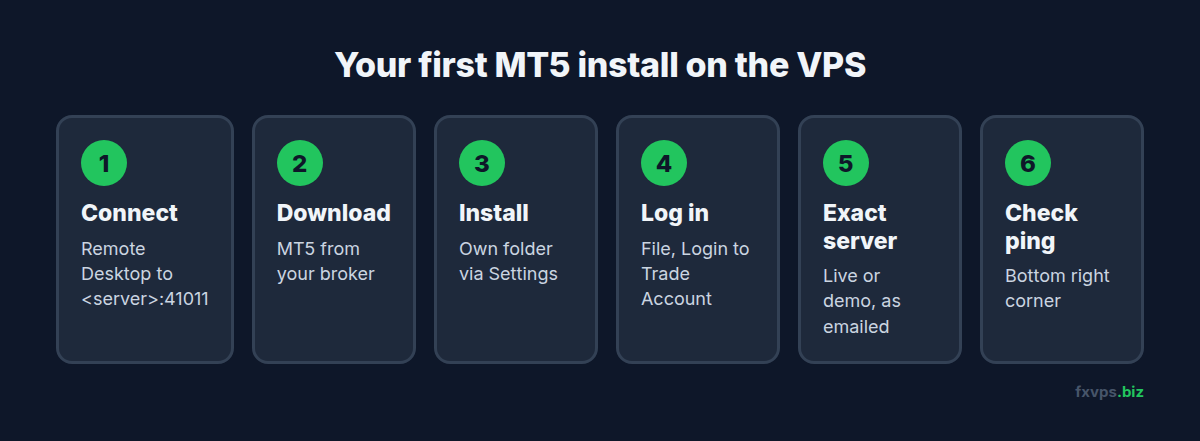
Your VPS login gets you onto the server. It arrives in the “Your server is now ready!” email from FXVPS: the address to connect to (in the form <server>:41011, because Remote Desktop on FXVPS uses port 41011), the Windows user trader, and the password. See getting your VPS login details.
Your trading login gets MT5 onto your broker’s server. It comes from your broker or prop firm: an account number (sometimes called login or ID), a password, and a server name. FXVPS never has these.
💡 Tip: Copy your account number, password and server name into a note before you start. You will type them once in MT5, and having them in one place avoids hunting through emails while connected.
Step 1: Connect to Your VPS
Open Remote Desktop on your computer, enter the address with :41011 on the end, and log in as trader with the password from the email. On Windows that is the Remote Desktop Connection app. On a Mac, iPhone, iPad or Android, use Microsoft’s Windows App. See connecting from a Mac, iPhone or Android with the Windows App, or how to access your VPS using RDP for Windows.
You will see a normal Windows desktop. Everything from here happens on the VPS, inside that window.
Step 2: Download MT5
Open the web browser on the VPS and go to your broker’s website. Look for a Platforms, Downloads or Trading Software page and download MetaTrader 5 for Windows.
Why from the broker? Their version of MT5 comes with the broker’s servers already listed, so you can usually pick your server from a short list. The standard version from MetaQuotes works with any broker too, but you may need to search for the server by name.
If you trade with a prop firm, it usually tells you which platform and which broker’s MT5 to use in its account email or dashboard. Follow that. See using your VPS for prop firm accounts.
⚠️ Warning: Only download MT5 from your broker’s site or from MetaQuotes. Copies from file sharing sites or unofficial “free MT5” pages can contain malware, and your trading password will be typed into whatever you install.
Step 3: Install It
Run the file you downloaded. The installer is short:
- Accept the licence agreement.
- Optionally click Settings to choose the install folder. The default is fine for a single terminal. If you plan to run several MT5 terminals for different accounts, give each its own folder now, such as
C:\MT5-BrokerName-Live. See running multiple MT4 and MT5 terminals on a VPS. - Click Next and wait while it downloads and installs.
- Click Finish. MT5 usually opens straight away.
On first start, MT5 may open a dialog offering to open a demo account. If you already have an account, cancel it.
Step 4: Log In to Your Trading Account
In MT5, click File, then Login to Trade Account. A small window asks for three things:
- Login: your account number.
- Password: the master password if you want to trade, or the investor password for watch-only access. See investor password vs master password.
- Server: the exact server name from your account details.
Tick Save password so MT5 can log back in on its own after a restart, then click OK.
Finding the Right Server
The server list is where most first logins go wrong. Broker server names often look alike, for example one for demo accounts and several for live accounts, numbered.
- Match it exactly to the server in your account email, including words like Live, Demo or a number.
- If your server is not in the list, type the broker’s name or the server name into the server box. MT5 searches for matching servers.
- If it still does not appear, use File, Open an Account, type the broker’s name in the search box, select the broker, and then choose to connect with an existing account.
📊 Key Stat: A login with the right account number and password still fails if the server is wrong. Live and demo accounts are on different servers, and a live account number will not work on a demo server.
Step 5: Check the Connection
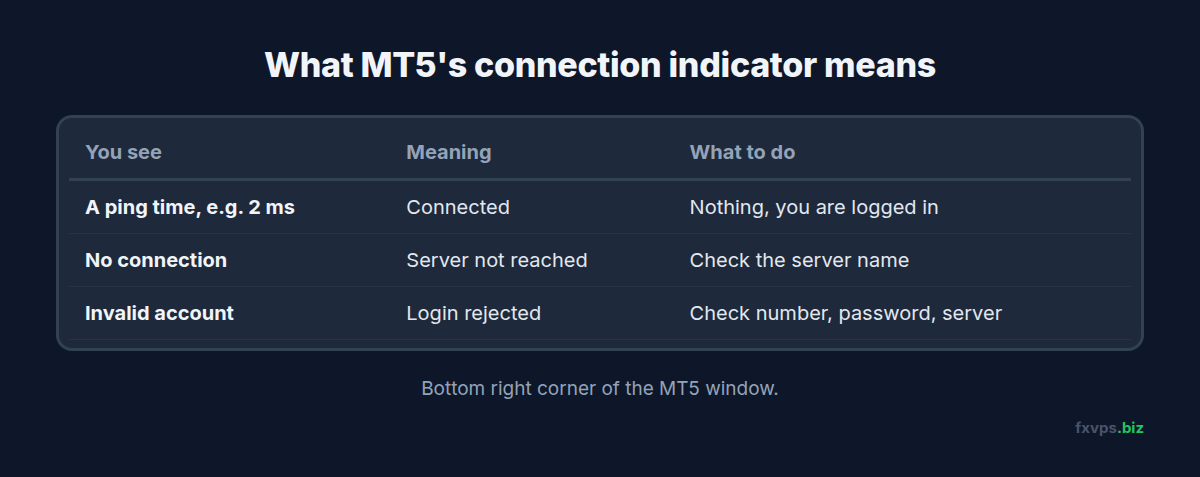
Look at the bottom right corner of MT5. It tells you straight away whether the login worked:
- A ping time, such as 2 ms or 30 ms, means you are connected. The lower the number, the closer your VPS is to the broker’s server.
- No connection means MT5 cannot reach the server. Check the server name, and see MT4 and MT5 no connection errors on a VPS.
- Invalid account means the server rejected the login. Check the account number, the password and the server.
You can also open the Navigator (Ctrl+N) and look under Accounts. Your account should be listed under the broker’s server, and prices in Market Watch should be ticking.
If the ping looks high, your VPS may be in a location far from the broker’s server. See tips for choosing the best VPS location for trading and MT4 data centers and MT5 access points.
Step 6: Get Ready for EAs
If you only trade by hand, you can stop here. If you will run Expert Advisors:
- Copy your EAs and indicators into the terminal’s data folder (File, Open Data Folder, then
MQL5). See where EAs, indicators and DLLs go. - Enable Algo Trading with the button on the toolbar. It must be on for any EA to trade. See AutoTrading disabled: why your EA stopped trading.
- Check Tools, Options, Expert Advisors for settings your EA needs, such as DLL imports or WebRequest addresses. See EA DLL imports and WebRequest permissions.
- Attach the EA to a chart and check the Experts tab for messages.
If an EA ran fine on your PC but behaves differently here, see EA works on my computer but not on the VPS.
✅ Best Practice: Once MT5 is logged in and your charts are set up, close it once with File, Exit and open it again. If it reconnects by itself with everything in place, you know your settings and saved password are stored properly.
Make MT5 Start Again After a Restart
Your VPS will restart now and then, for example after Windows updates. To make MT5 come back on its own, add it to the Windows Startup folder and set up AutoLogon so Windows signs in without you. See how to restart your VPS and make sure MetaTrader comes back and MetaTrader automatic startup.
Leaving MT5 Running
When you are done, close the Remote Desktop window with the X at the top. MT5 keeps running on the VPS, connected to your broker, while your own computer is off.
Do not use Sign out from the Windows Start menu. Signing out closes every program in your session, including MT5. See how to properly disconnect from an RDP session.
Where to Get Help
FXVPS support can help if you cannot connect to the VPS, or if MT5 cannot reach the internet from it. Questions about your trading account, password or server name go to your broker or prop firm, since only they hold those details. See what FXVPS support covers.
For a deeper look at tuning MT5 once it is running, see optimizing MT5 on a VPS.