

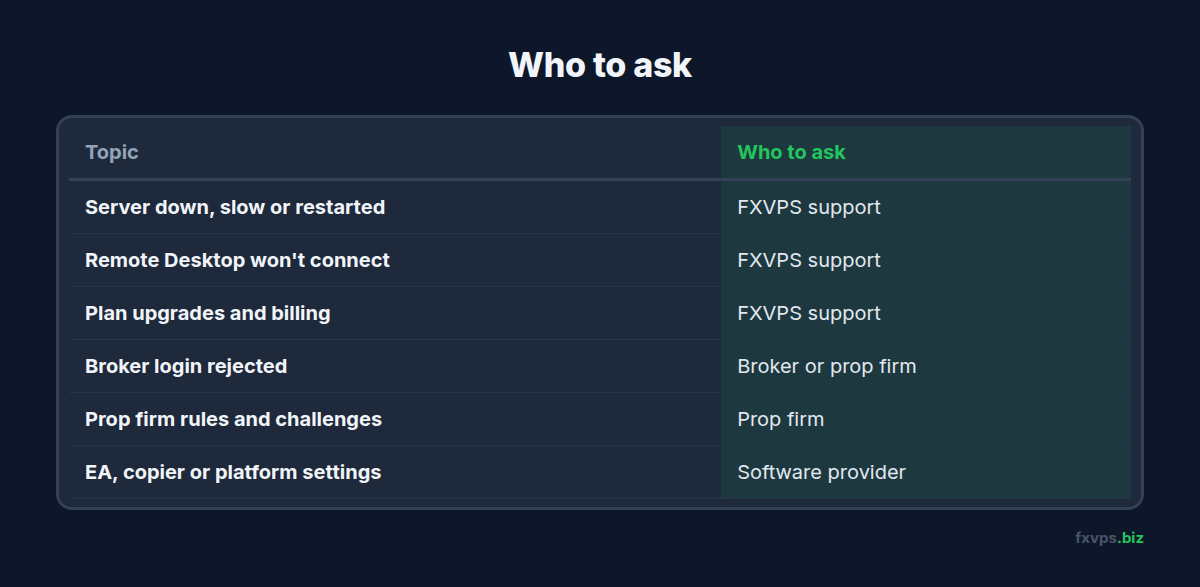
When something goes wrong on a trading setup, there are usually four or five companies involved: us for the server, your broker or prop firm for the account, a platform like MetaTrader or Match-Trader, and perhaps a copier or EA developer. Knowing which one to ask saves you a day of back and forth. This guide sets out what we look after, what we do not, and how to reach the right people quickly.
Key Takeaways
- We look after the VPS itself: keeping it online, getting you connected, and how it runs.
- Your broker or prop firm owns your account, logins, trading rules and anything about challenges.
- Software providers (EA developers, copier services, platform makers) own how their software works.
- The fastest ticket names the server, says what you were doing, and includes the exact error.
- If you are not sure whose problem it is, ask us. We will tell you, and point you to the right place.
1. What We Look After
Your VPS is a Windows server in a datacenter. Everything about that server is ours to look after. In practice that means:
- Keeping it online. If your server is down, will not respond, or restarted when you did not expect it, tell us.
- Getting you connected. Remote Desktop errors, the address and port (
server:41011), thetraderlogin, and passwords you have been locked out of. - How it runs. The server feeling slow, running out of memory or disk, Windows problems, and Windows updates.
- The connection to your broker. If your platform cannot reach your broker’s servers at all, we will check the server’s network.
- Your plan. Upgrading to more memory or CPU, moving location, billing and invoices.
We also keep a knowledge base of guides for the common jobs, such as connecting from a Mac or phone, running a browser platform, monitoring CPU and memory and securing your server.
2. What Belongs to Your Broker or Prop Firm
Your trading account lives on your broker’s or prop firm’s servers, not on the VPS. So anything about the account itself is a question for them:
- Account logins. A “wrong password” or “invalid account” message in MetaTrader or Match-Trader comes from the broker’s server.
- Which server to pick in the platform’s login box.
- Trading rules. Whether a VPS, an EA, copy trading, or trading the same strategy on several accounts is allowed.
- Challenge and funded account questions. Drawdown limits, payouts, and why an account was breached or flagged.
- Spreads, swaps, slippage and order fills.
⚠️ Warning: Prop firm rules differ from firm to firm and change over time. Before you copy trades between accounts or run an EA on a challenge, ask the firm in writing and keep the reply. We cannot confirm a firm’s rules for you, and an answer from us would not protect your account. Our post on multiple prop firm accounts on one VPS explains why this matters.
3. What Belongs to Your Software Provider
Programs you install on the VPS are made by other companies, and they know their own software best:
- EAs and indicators. How to configure them, why an EA is not opening trades, and what its settings mean. The developer is the right contact.
- Third-party copiers and bridges. Setup steps, licence keys and how they connect accounts.
- The trading platform itself. Features and bugs in MetaTrader, cTrader, NinjaTrader, Match-Trader or TradingView.
What we can do is make sure the server gives that software what it needs. If a program will not install, will not start, or keeps closing, tell us and we will check whether anything on the server is getting in its way. Our guide to common EA failures is a good first stop if an EA is misbehaving.
If you use MetaTrader or NinjaTrader, our copy trading setup guide covers the copier that comes with your server.
4. Not Sure Whose Problem It Is?
A quick way to tell is to ask where the error appears and what it is about.
- Remote Desktop will not connect, or the server is slow or frozen: that is us.
- The platform opens but rejects your login: that is your broker or prop firm.
- The platform cannot connect to the broker at all: start with us, and we will check the server’s network.
- An EA, copier or indicator is not doing what you expect: that is the software’s developer.
- A question about what you are allowed to do on your account: that is your broker or prop firm.
When it is genuinely unclear, ask us anyway. We would rather spend a minute pointing you in the right direction than have you waiting on the wrong company.
5. How to Get the Fastest Answer
You can reach us by opening a ticket from your client area, by emailing support@fxvps.biz, or through the live chat on our website. Emails to that address arrive in the same ticket system, so your replies stay together in one thread.
A ticket we can act on straight away has four things in it:
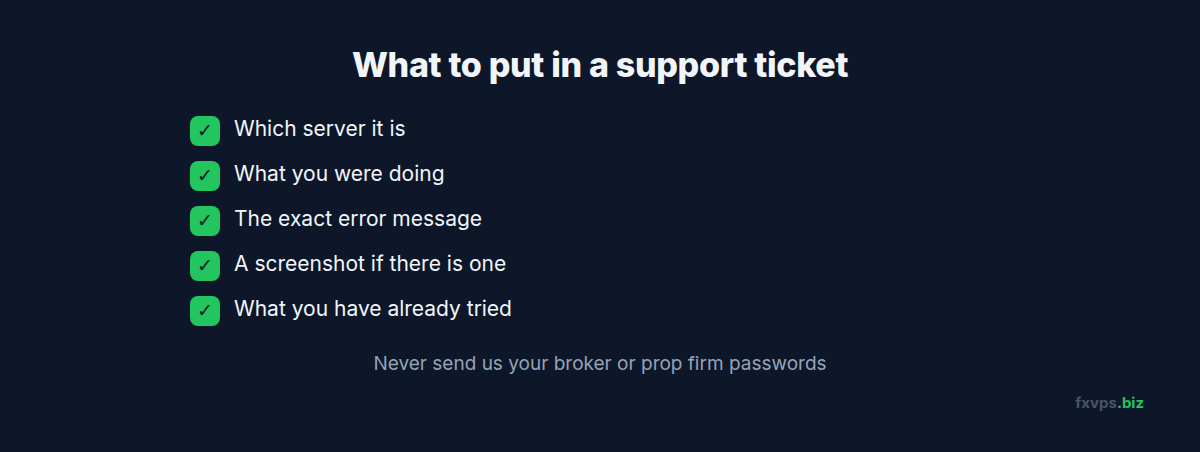
- Which server. The server name or address from your “Your server is now ready!” email.
- What you were doing. For example “connecting from my Mac” or “MetaTrader closed by itself overnight”.
- The exact error. Copy the words, or take a screenshot. “It doesn’t work” is the hardest ticket to answer quickly.
- What you have tried. If you already restarted the platform or tried another network, say so.
Please do not send us your broker or prop firm passwords. We never need them to look after the server.
6. Things to Avoid While You Wait
A few well-meant fixes can make a server problem worse:
- Do not restart the VPS over and over. One restart is fine. Repeated restarts can interrupt Windows updates and leave the server in a worse state.
- Do not keep retrying a password. Too many wrong attempts lock the Windows account for a while, and each attempt can extend it.
- Do not reinstall Windows or reset the server unless we suggest it. It deletes your platforms, EAs and settings.
If you are locked out or the server will not respond, open a ticket and leave it with us.
7. In Short
We look after the server, so it stays online, you can get connected, and it runs smoothly. Your broker or prop firm looks after your account and its rules. Software providers look after their own software. When you are not sure, ask us, and include the server, what you were doing and the exact error, so we can get started right away.