

More and more traders never install a trading program at all. Match-Trader, cTrader Web, DXtrade, TradeLocker and TradingView all run in a web browser. That is convenient, but it changes what you have to set up on your VPS, and the browser has a couple of habits that can quietly stop your platform in the background.
Key Takeaways
- Open the platform in the browser on the VPS, not on your own computer. That is what keeps it running when your computer is off.
- Switch off sleeping tabs (Edge) or Memory Saver (Chrome), or add your platform to the never-sleep list. Otherwise a background tab can be paused.
- Set the browser to reopen your tabs when it starts, so a restart does not leave you with a blank window.
- Disconnect, do not sign out. Closing the Remote Desktop window leaves the browser running.
- Check you are still logged in after any restart. Some platforms keep you signed in, some do not.
1. Why the Browser Has to Be on the VPS
If you open Match-Trader in Chrome on your own laptop, it runs on your laptop. Close the lid and it stops. The VPS only helps if the browser is running on the VPS itself.
So the first step is always the same: connect to your VPS with Remote Desktop, and open the browser inside that window. You will see the Windows desktop of the server, with its own Start menu and its own browser. Everything you open there keeps running in the datacenter after you disconnect.
If you have not connected yet, use the address from your “Your server is now ready!” email followed by :41011, with the username trader. The Windows App guide and how to access your VPS using RDP walk through it.
Why a browser platform benefits from a VPS at all, given that the platform lives on the broker’s or prop firm’s own servers, is covered in DXtrade, Match-Trader and TradeLocker on a VPS. In short: anything that has to stay online, such as a copier, a bridge or a webhook receiver, needs a machine that never sleeps.
2. Pick a Browser and Keep It Up to Date
Chrome and Edge both work well. Use the one you already know, because you will be finding settings in it.
Whichever you choose, keep it current. Browser platforms are updated often, and an old browser is the most common reason a platform shows a blank screen or a “browser not supported” message. Both browsers update themselves while they are running, and the menu shows when an update is waiting for a restart of the browser.
If your browser says it can no longer receive updates on your version of Windows, contact us before you fight it. That is a server question, and it is ours to sort out.
3. Stop the Browser From Putting Your Platform to Sleep
This is the step most people miss, and it is the one that matters most.
To save memory, both browsers pause tabs that you have not looked at for a while. A paused tab stops updating. On your own computer that is harmless. On a VPS, where you are usually not looking at the screen at all, it can mean your trading tab is paused for hours without you knowing.
You have two options: switch the feature off completely, or keep it on and tell the browser never to pause your platform’s site.
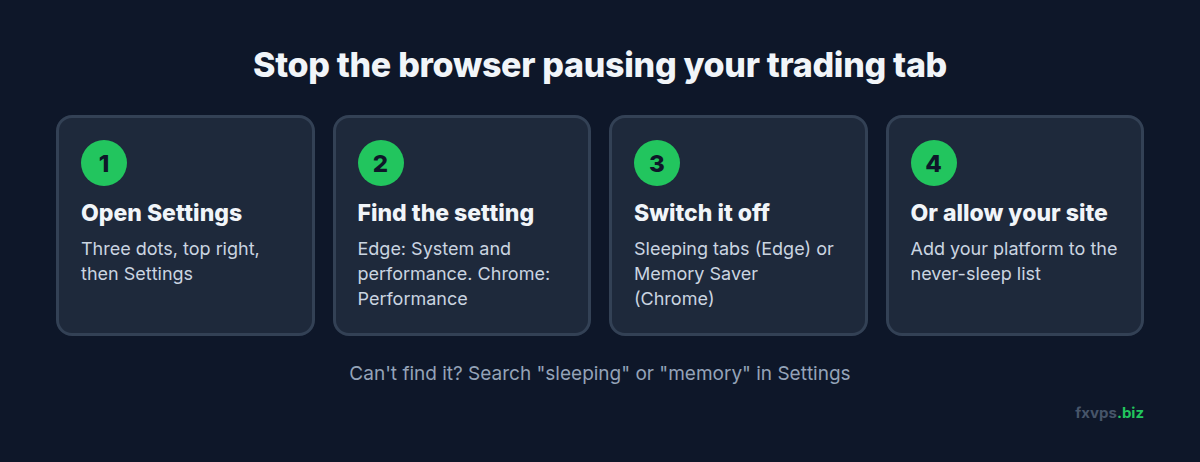
In Edge:
- Open the menu (the three dots at the top right) and choose Settings.
- Go to System and performance.
- Switch off Save resources with sleeping tabs.
- Or leave it on and add your platform’s web address under Never put these sites to sleep.
In Chrome:
- Open the menu (the three dots at the top right) and choose Settings.
- Go to Performance.
- Switch off Memory Saver.
- Or leave it on and add your platform’s web address under Always keep these sites active.
Menu names move around a little between browser versions. If you cannot find the setting, type “sleeping” or “memory” into the search box at the top of the Settings page.
💡 Tip: Switching it off completely is the simplest choice on a VPS that is only used for trading. Use the never-sleep list if you also browse other sites on the server and want those tabs to be paused.
4. Stay Logged In
Most browser platforms offer a Remember me or Keep me logged in box on the login page. Tick it when you log in on the VPS. Let the browser save the password too, so you can log in again quickly if the platform does sign you out.
Platforms decide for themselves how long a login lasts. Some keep you signed in for weeks, others sign you out every day or after a restart. There is nothing on the VPS that changes that, so get into the habit of glancing at the platform after any restart to confirm you are still in.
5. Make Your Tabs Come Back After a Restart
Your VPS will restart now and then, most often for Windows updates. When that happens the browser closes. Two settings decide whether you come back to your platform or to an empty desktop.
Reopen your tabs when the browser starts.
- In Edge: Settings, then Start, home, and new tabs, then under When Edge starts choose Open tabs from the previous session.
- In Chrome: Settings, then On startup, then choose Continue where you left off.
Start the browser when Windows starts. For this, Windows has to sign in by itself after a restart, which is called auto-login. FXVPS servers include Microsoft’s AutoLogon tool on the C: drive, and our MetaTrader automatic startup guide shows how to switch it on. The same guide shows the Windows Startup folder: put a shortcut to Chrome or Edge in there, the same way you would for MetaTrader.
⚠️ Warning: If you change your Windows password, run AutoLogon again with the new one. A mismatched password leaves the server waiting at the login screen after a restart, and nothing starts.
Once that is set up, restart the VPS once on purpose, at a quiet time, and check that the browser opens with your platform and that you are still logged in. It is much better to find a gap now than during a trading week.
6. Copiers, Bridges and Other Programs
If you use a copier or bridge that is a program you install, install it on the VPS too, and add it to the Startup folder the same way. If it is a web service that runs on the provider’s own servers, it does not need the VPS at all, though it does no harm to keep its dashboard open in a tab.
For questions about how a copier works, or whether your prop firm allows copying between your accounts, ask the copier’s provider and the prop firm. They set those rules. Our guide to multiple prop firm accounts on one VPS explains why it is worth asking before you start.
7. Keep the Browser Light
A browser uses more memory than you might expect. One window with a few chart tabs can use more than several MetaTrader terminals. A few habits keep it comfortable:
- Close tabs you are not using, especially extra chart layouts.
- Do not install browser extensions you do not need.
- Keep to one browser for trading, rather than having Chrome and Edge both open.
If the VPS still feels sluggish, the resource monitoring guide shows how to see what is using the memory, and your VPS feels slow over RDP explains why the screen can feel slow even when trading is not affected.
8. Leaving It Running
When you are finished, close the Remote Desktop window, or use disconnect in the app. Do not close the browser, do not sign out of Windows, and do not shut down the server.
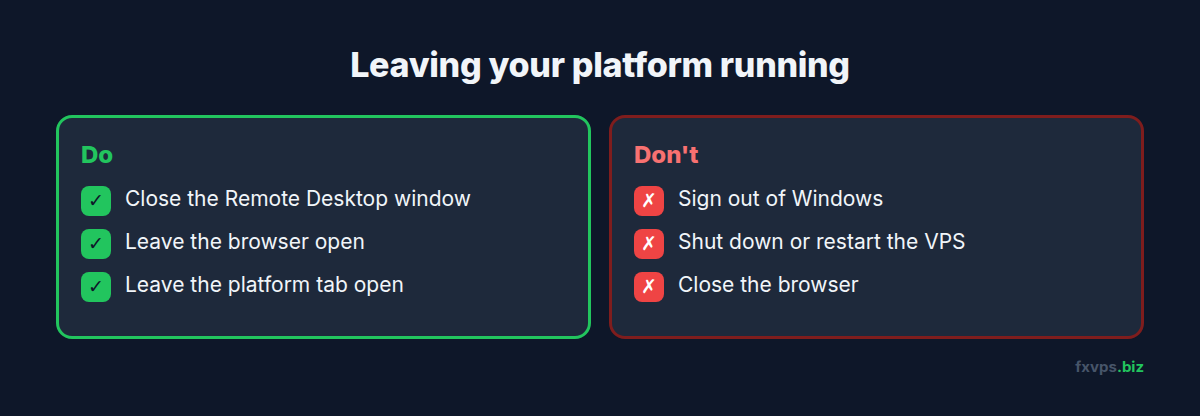
Signing out closes every program in your session, including the browser. Shutting down turns the server off. A plain disconnect leaves everything exactly where it was, and the next time you connect your platform will be on screen waiting for you. More detail is in how to properly disconnect from an RDP session.
9. A Quick Checklist
Before you rely on the setup, check each of these once:
- The platform is open in a browser on the VPS.
- Sleeping tabs or Memory Saver is off, or your platform is on the never-sleep list.
- You ticked “remember me” or “keep me logged in”.
- The browser is set to reopen your previous tabs.
- If you want it back after a restart without touching anything, AutoLogon is on and the browser is in the Startup folder.
- Any copier or bridge program is installed on the VPS and starts with Windows.
- You leave by closing the Remote Desktop window.
If anything on the VPS side is not behaving, such as connecting, speed, or the server restarting when you did not expect it, open a ticket and we will look at it with you.