

You have paid, and now you want to log in. This guide covers every step between the two, and the few things that can slow it down.
Key Takeaways
- Verify your email first. The client area asks until you click the link we send.
- Name your broker on the order. If you choose “Other” and leave the name blank, we have to ask before we can build your server.
- Your login details arrive by email: the server address, port
41011, the usernametraderand a password.- Pending for more than an hour? Message us in chat and we will check it.
1. From Payment to Login
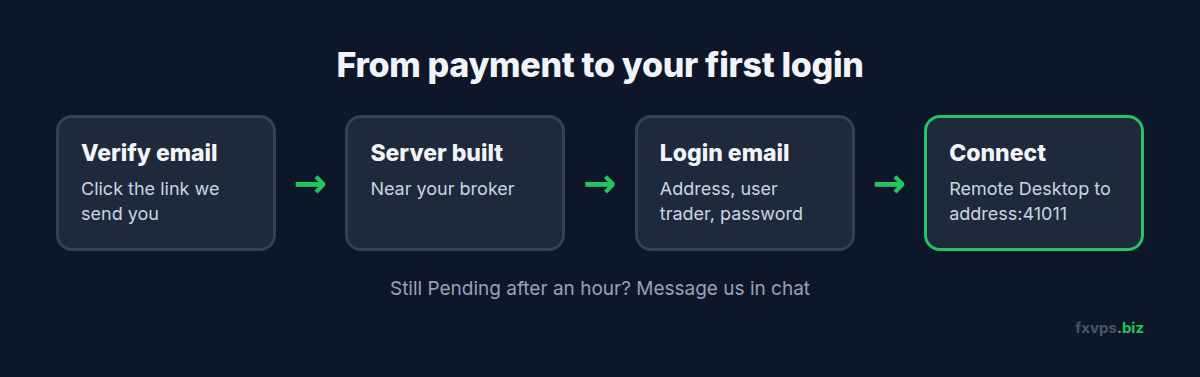
- Verify your email. When you create your account we send a link to your email address. Until you click it, the client area shows a message asking you to verify. Check your spam folder if you cannot find it.
- Your order is checked and the server is built. Once your payment goes through, we set up your server in the location closest to your broker.
- Your login details arrive by email. The email contains your server address, the username
traderand your password. - Log in. Open Remote Desktop and connect to your server address followed by
:41011, for examples12345.fxvps.biz:41011. Our guides cover connecting from Windows and from a Mac, iPhone or Android.
⚠️ Note: The port matters. Our servers use port
41011for Remote Desktop, not the usual 3389. Leaving it off is the most common reason a first login fails.
2. Why an Order Stays Pending
Most orders go straight through. When one does not, it is usually one of these:
- The broker name is missing. If you chose “Other” as your broker and left the name blank, we cannot tell which location is closest to you. We will ask by email and in chat. You can also just tell us the region you want, such as London or New York.
- The payment has not finished. If the payment page showed an error, the order may not have been paid at all. See section 4.
- The email has not been verified yet. Click the link in the verification email.
If your order still shows Pending an hour after paying, message us in chat with your order number and we will check it.
3. Finding Your Login Details Again
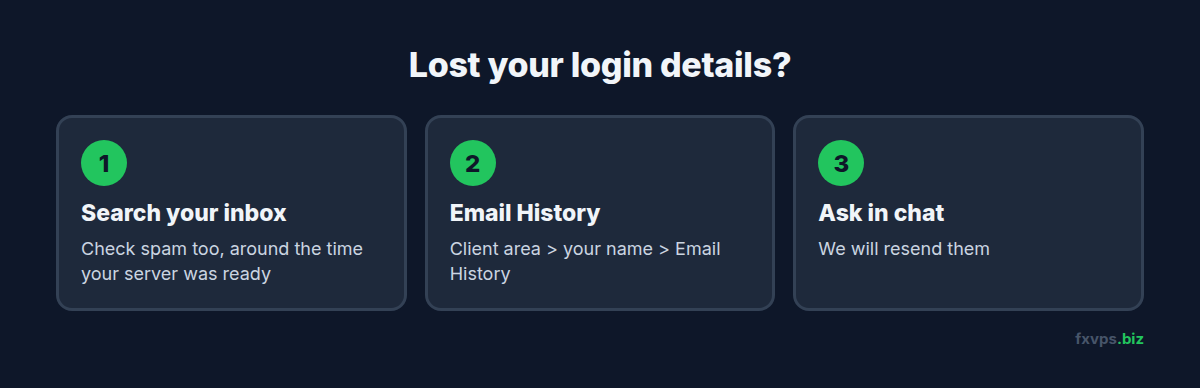
Lost the email? You have three options:
- Search your inbox and spam for an email from FXVPS sent around the time your server was ready.
- Look in the client area. Click your name at the top right, then Email History. Every email we have sent you is there.
- Ask us in chat to resend them.
4. “Remote Transaction Failure” When Paying
If you saw Remote Transaction Failure: Please Contact Support when you pressed pay, your card was not charged. The message appears when the payment page has been open too long and timed out, so nothing reached your card. Your card settings are not the problem.
Open the order page again and enter your card details within a few minutes of the page loading.
5. After Maintenance or a Move
Now and then we carry out maintenance that gives your server a new IP address. We email you before it happens and again with the new address. Your username, password and everything on the server stay the same. If your saved Remote Desktop connection stops working after maintenance, update it with the new address from that email.
Still Stuck?
Message us in chat or open a ticket from your client area. Tell us your order number or server name and what you see on screen, and we will get you logged in.