

Every FXVPS server is set up in English, but you do not have to use it that way. Windows can show its menus, settings and messages in Chinese, Spanish, Arabic, Russian and many other languages. Changing it takes about five minutes, and your trading setup is not affected.
Key Takeaways
- Any language Windows supports can be added to your VPS, including Chinese (Simplified and Traditional).
- It takes about five minutes and one sign out. No restart of the server is needed.
- MetaTrader and your EAs keep running exactly as before.
- MetaTrader has its own language setting, under View, then Languages.
1. Change the Language on Windows Server 2019
Most FXVPS servers run Windows Server 2019. Connect to your VPS with Remote Desktop first (our guide to connecting with RDP shows how), then:
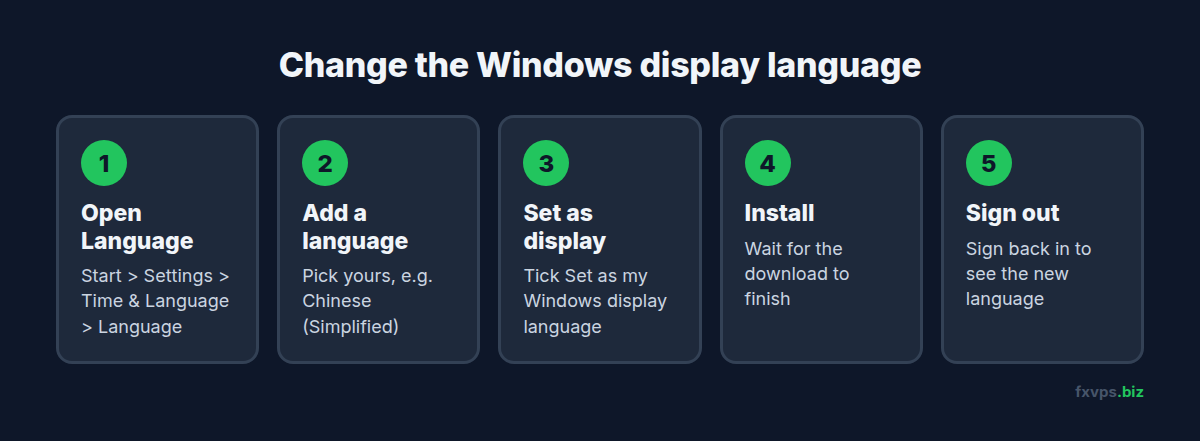
- Open Start, then Settings (the gear icon), then Time & Language, then Language.
- Under Preferred languages, click Add a language.
- Choose your language, for example 中文(中华人民共和国) for Simplified Chinese, and click Next.
- Tick Set as my Windows display language, then click Install.
- Wait for the download to finish. You will see the progress under the language name.
- Sign out of the VPS and sign back in. Windows will now be in your language.
💡 Tip: Sign out, do not just close the Remote Desktop window. Closing the window leaves your session running, and the new language only appears after a fresh sign in.
2. Older Servers on Windows Server 2012 R2
Some longer-standing servers run Windows Server 2012 R2, where the setting is in Control Panel instead:
- Open Control Panel, then Clock, Language, and Region, then Language.
- Click Add a language, choose yours, and click Add.
- Click Options next to the new language, then Download and install language pack.
- When it finishes, move the language to the top of the list with Move up, or click Make this the primary language.
- Sign out and sign back in.
Not sure which version you have? Press the Windows key, type winver and press Enter.
3. Change the Language in MetaTrader
Changing Windows does not change MetaTrader, which has its own setting. In MT4 or MT5:
- Open View, then Languages.
- Pick your language.
- Close and reopen the terminal.
4. What Stays the Same
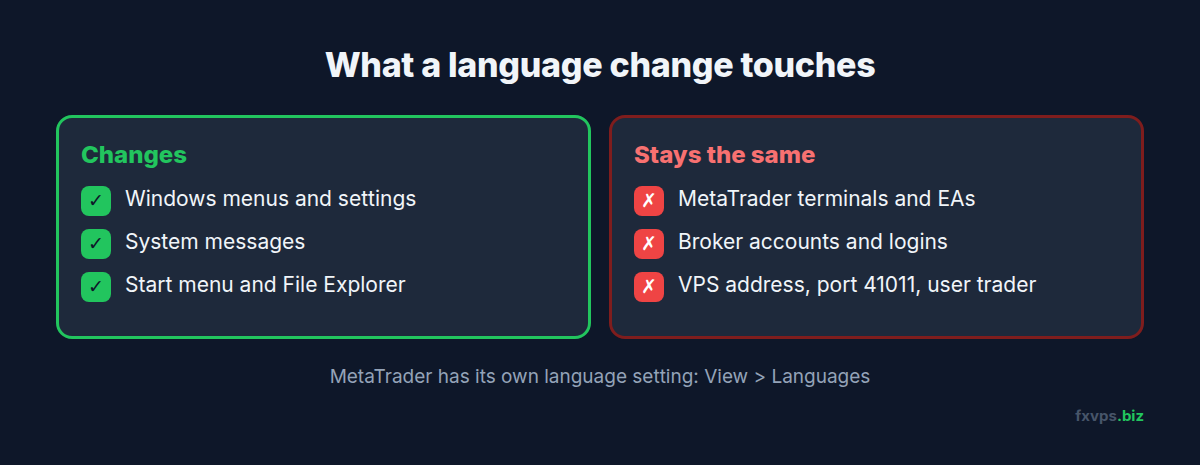
Changing the display language only changes the words on screen. These are not affected:
- Your MetaTrader terminals, EAs, indicators and their settings
- Your broker accounts and logins
- Your VPS login: the address, port
41011, thetraderusername and your password - Times and dates, unless you also change the region format
5. 中文步骤 (Chinese steps)
- 用远程桌面登录VPS,打开 开始 > 设置 > 时间和语言 > 语言。
- 点击 添加语言,选择 中文(中华人民共和国),点击 下一步。
- 勾选 设置为我的 Windows 显示语言,点击 安装。
- 安装完成后,注销并重新登录,系统就会变成中文。
MT4/MT5 和您的EA不受影响。MT4/MT5 本身的语言在 查看 (View) > 语言 (Languages) 中设置。如果语言包无法下载,请在聊天中联系我们,我们会帮您安装。
Need a Hand?
If the language pack will not download, or you would rather we set it up for you, message us in chat or open a ticket from your client area. Tell us which language you want and we will install it.