

You can cancel your FXVPS server or trial yourself at any time from the client area. It takes under a minute, and you do not need to contact us.
Key Takeaways
- The cancel option is on the server’s own page in the client area, under Actions, called Request Cancellation.
- Immediate removes the server now. End of Billing Period keeps it until your paid time runs out.
- Trials: cancel before the 7 days are up, or the trial continues as the Core plan.
- Save your files first. Everything on the server is deleted when it is removed.
1. Cancel in Five Steps
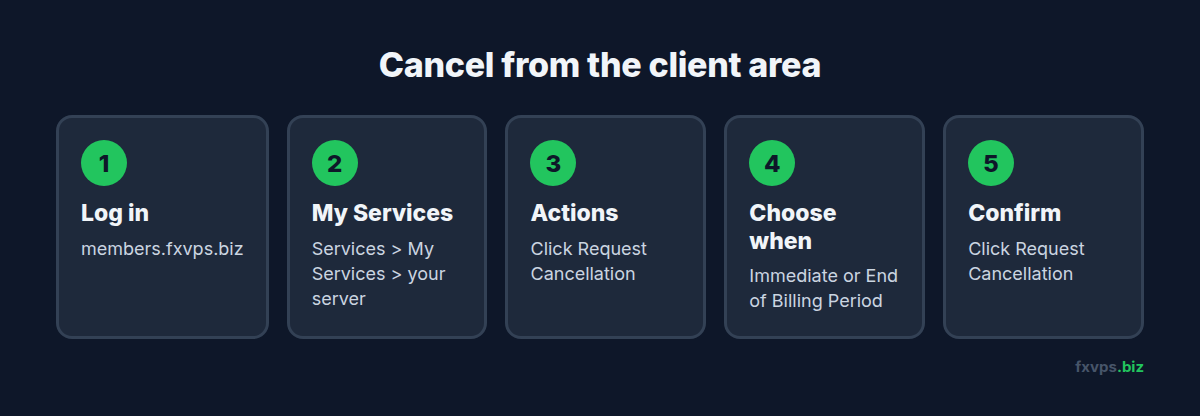
- Log in to the client area.
- Open Services, then My Services, and click the server you want to cancel.
- On the left, under Actions, click Request Cancellation. On a phone, scroll down to find the Actions menu.
- Write a short reason. It helps us improve, but one line is fine.
- Choose Immediate or End of Billing Period, then click Request Cancellation.
You will see a confirmation message, and the server’s page will show that a cancellation has been requested.
💡 Tip: If you have more than one server, check the server name or IP address on the page before you cancel, so you cancel the right one.
2. Immediate or End of Billing Period?
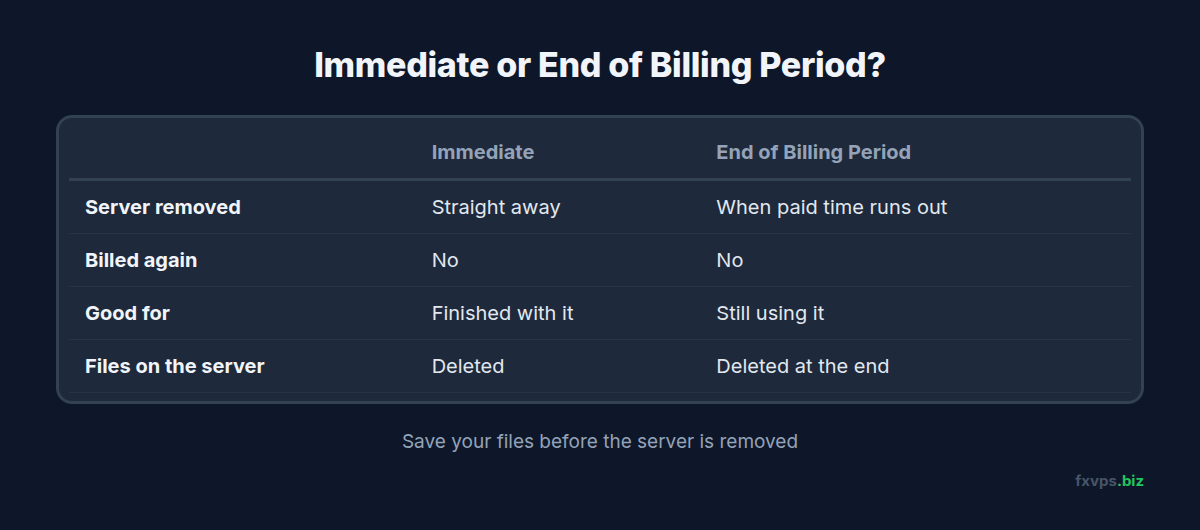
- End of Billing Period keeps your server running until the time you have already paid for runs out, then removes it. Choose this if you still want to use it until then.
- Immediate removes the server straight away. Choose this if you have finished with it.
Either way, you will not be billed again for that server.
3. Cancelling a Trial
The $2.99 trial runs for 7 days. If you do not cancel, it continues as the Core plan at $29 a month. To stop that, cancel any time before the 7 days are up:
- Choose End of Billing Period to keep testing until the trial ends.
- Choose Immediate if you have finished testing.
4. Before You Cancel
Once your server is removed, everything on it is deleted and cannot be recovered. Before you cancel:
- Copy your files to your own computer: EA files, presets, templates and any reports. Our guide to copying files from a Mac shows one way, and the same drag and drop works from Windows.
- Write down your EA settings if you will set them up again somewhere else.
- Close or move open trades if an EA on the server manages them. Your trades stay with your broker, but nothing on the VPS will manage them once it is gone.
Want a Different Plan Instead?
If the server is too small or too big, or in the wrong location, you do not have to cancel and start again. Message us in chat or open a ticket and we can talk through an upgrade or a move. For any billing question, open a ticket from your client area.