

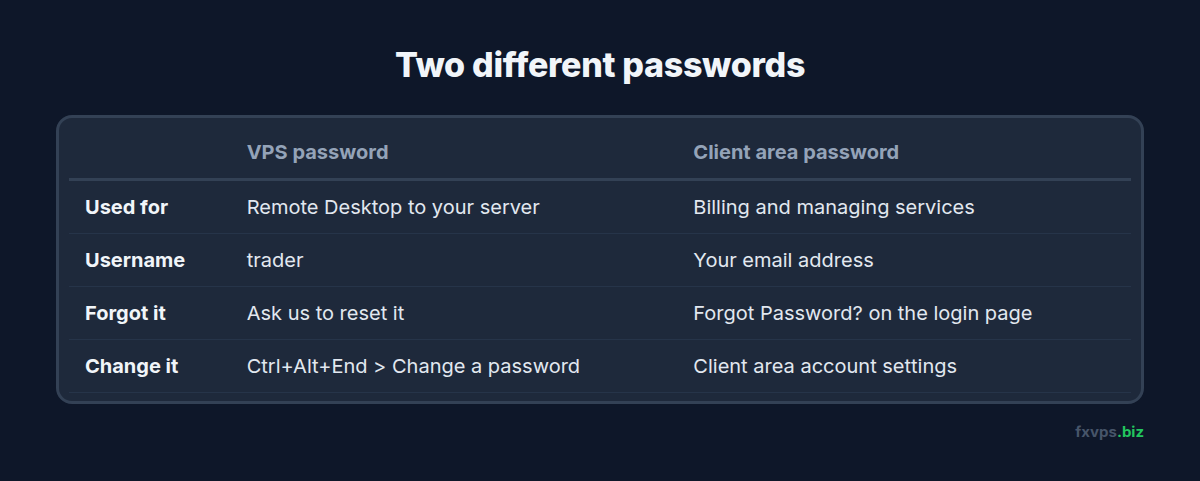
There are two passwords on your FXVPS account, and it helps to know which one you need: the VPS password, which you use in Remote Desktop, and the client area password, for billing and managing your services. This guide covers both.
Key Takeaways
- Your VPS login is your server address with
:41011, the usernametrader, and the password from your welcome email.- Forgot it? Check Email History in the client area, or ask us to reset it.
- To change it yourself, press Ctrl+Alt+End over Remote Desktop, then Change a password.
- The client area password is separate. Reset it from the client area login page.
1. Find Your Original Password
If you have never changed it, your VPS password is in the email we sent when your server was ready. Search your inbox and spam for it, or log in to the client area, click your name at the top right and open Email History. Our guide to getting your login details covers this in more detail.
2. Ask Us to Reset It
If you changed the password and cannot remember the new one, message us in chat or open a ticket with your server address. We will reset it and send the new password to the email address on your account, never to a different one.
💡 Tip: Your platforms and EAs keep running while we reset the password. Nothing on the server is changed except the password.
3. Change It Yourself
Once you are connected, you can change the password at any time:
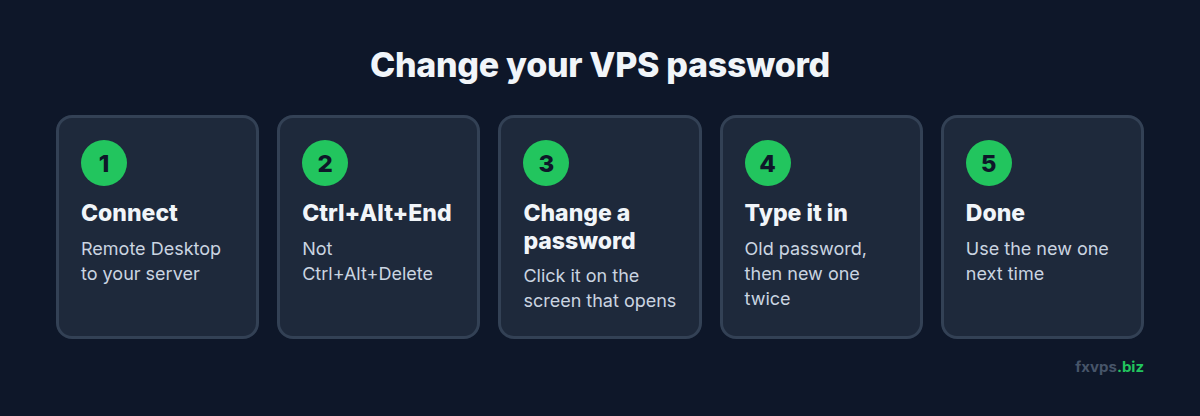
- Connect to your VPS with Remote Desktop.
- Press Ctrl+Alt+End. (Ctrl+Alt+Delete goes to your own computer, not the VPS.)
- Click Change a password.
- Enter your current password, then your new password twice.
- Press Enter. Use the new password next time you connect, and update it anywhere you saved it.
On a Mac keyboard, use Fn+Control+Option+Delete if Ctrl+Alt+End does not work, or open Start on the VPS, type password and choose Change your password.
4. Your Client Area Password
The client area at members.fxvps.biz, where you pay invoices and manage your server, has its own login. If you forget it, click Forgot Password? on the login page and we will email you a reset link. Changing one password does not change the other.
5. Keep It Safe
Use a long password you do not use anywhere else, and never share it in a chat message or email. If you think someone else has logged in to your VPS, tell us straight away and we will reset it. More tips in our guide to securing your trading VPS.