

Your VPS will restart now and then: after Windows updates, after maintenance, or because you restarted it yourself. What matters is what happens next. Set up properly, your platforms reopen, log in and carry on trading within a few minutes, with nobody touching anything. Set up badly, the server sits at a sign-in screen until you notice. This guide sets it up once, for MetaTrader, cTrader and browser platforms.
Key Takeaways
- Two pieces make it work: AutoLogon, so Windows signs in by itself, and the Startup folder, so your platforms open once it has.
- AutoLogon is already on your C: drive. Run it once with your Windows password.
- Every platform needs a saved login or it opens without connecting.
- Change your Windows password, run AutoLogon again. This is the step people forget.
- Test it with one restart at a quiet time, so you find gaps now and not mid-week.
1. Why Platforms Do Not Come Back on Their Own
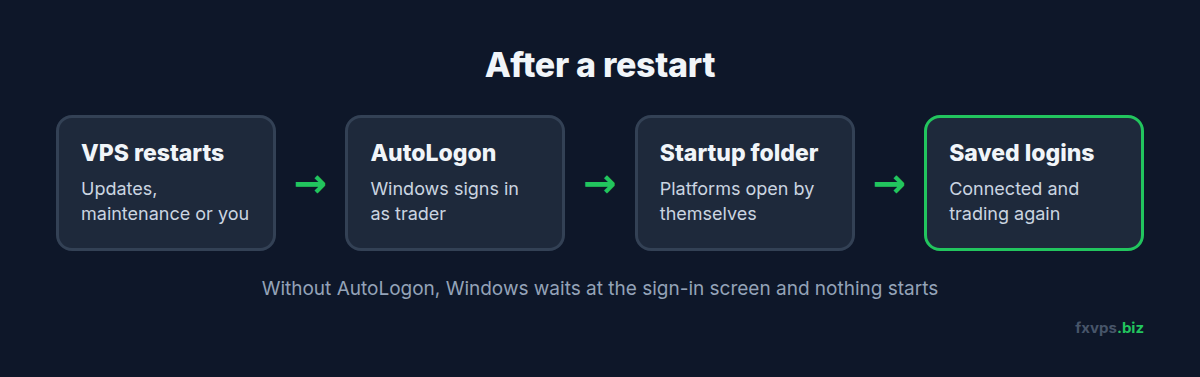
When Windows starts, it does not open anything for you until a user signs in. On your own PC you type your password at the sign-in screen. On a VPS nobody is there to type it, so the server sits waiting, and your platforms, which only open inside a signed-in desktop, never start.
So there are two separate jobs:
- Get Windows to sign in by itself after a restart. That is AutoLogon.
- Get your platforms to open once it has signed in. That is the Startup folder.
Miss the first and the second never runs. Miss the second and you have a signed-in desktop with nothing on it.
2. Turn On AutoLogon
FXVPS servers include Microsoft’s AutoLogon tool on the C: drive.
- Connect to your VPS with Remote Desktop. The address is in your “Your server is now ready!” email, in the form
<server>:41011, and the Windows user istrader. See getting your VPS login details. - Open File Explorer and click Local Disk (C:).
- Right-click AutoLogon and choose Run as administrator. Accept the licence the first time.
- Check the username is
trader, type your current Windows password, and click Enable.
That is it. From the next restart, Windows signs in as trader by itself.
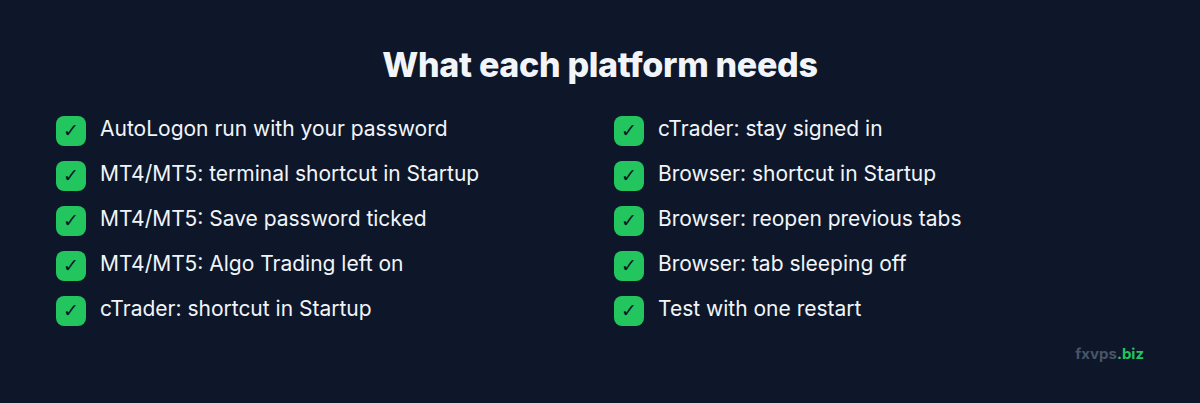
⚠️ Warning: AutoLogon stores the password you typed. If you later change your Windows password, run AutoLogon again with the new one. Otherwise, after the next restart, Windows tries the old password, fails, and waits at the sign-in screen with nothing running. See forgot or changing your VPS password.
3. Add Your Platforms to the Startup Folder
Anything in your Windows Startup folder opens automatically when you sign in.
- Press Win + R, type
shell:startupand press Enter. The Startup folder opens. - Leave that window open, and in a second File Explorer window find the program you want to start.
- Right-click it, choose Create shortcut (or Show more options, then Create shortcut), and move the shortcut into the Startup folder.
Repeat for each platform. The next sections say exactly what to put in for each one.
MetaTrader 4 and 5
Each terminal is started by the terminal.exe (MT4) or terminal64.exe (MT5) in its install folder. If you are not sure where that is, right-click the terminal’s desktop shortcut and choose Open file location.
Add one shortcut per terminal. If you run several terminals, each needs its own shortcut pointing at its own folder. See running multiple MT4/MT5 terminals on a VPS.
FXVPS servers also include a StartupAdder tool on the C: drive, which finds your installed MetaTrader terminals and writes a startup.cmd file that starts them all. Our MetaTrader automatic startup guide shows how to use it. Re-run it if you install another terminal later.
cTrader
Find cTrader in the Start menu, right-click it, and choose Open file location. Copy that shortcut (Ctrl+C) and paste it into the Startup folder. See cTrader on a VPS: complete guide.
Browser Platforms
For Match-Trader, DXtrade, TradeLocker, TradingView and other platforms that run in a browser, put a shortcut to Chrome or Edge in the Startup folder, then set the browser to reopen your previous tabs. Also switch off tab sleeping so the platform keeps running in the background. Our Match-Trader and browser platforms guide covers each setting.
Other Programs
Copiers, bridges, trade journals and similar tools you have installed go in the Startup folder the same way. Check each one’s own settings too, as some have their own “start with Windows” option.
💡 Tip: If you run four or more terminals, starting them all at the same second can make the first minute after a restart slow. Task Scheduler can stagger them with short delays. See automating EA restarts with Windows Task Scheduler.
4. Make Each Platform Log In by Itself
Opening is not enough. Each platform must also connect to your broker without you typing anything.
MetaTrader: when you log in (File, then Login to Trade Account), tick Save password. Then, before you leave, make sure Algo Trading (MT5) or AutoTrading (MT4) is switched on and your EAs are on their charts. The terminal reopens with the same charts, and the EAs start again if Algo Trading was on when it closed. Saving a profile (File, Profiles, Save As) gives you a named copy of the layout too. See MT4 and MT5 templates and profiles on a VPS.
cTrader: sign in with your cTrader ID and keep it signed in. If you run cBots, check after your test restart which of them are running, and start any that are not.
Browser platforms: tick “remember me” or “keep me logged in” on the platform’s login page. Some platforms still ask you to log in again after a while. That is the platform’s own rule, not something the VPS can change.
✅ Best Practice: Keep your broker and platform passwords somewhere safe off the VPS. If a platform ever forgets a login after a restart, you will want them to hand.
5. Test It With One Restart
Do this once, at a quiet time with no trades you care about open. A weekend is ideal.
- Restart the VPS from the Start menu (Power, Restart) or from your client area. See how to restart your VPS.
- Wait three to five minutes.
- Reconnect with Remote Desktop.
- Check that every platform is open, connected (MetaTrader shows a ping time at the bottom right, not “No connection”), and that EAs show as active on their charts.
- Look at the Experts tab in each terminal for start up messages from your EAs.
If you reconnect and see the sign-in screen instead of a desktop that is already running, AutoLogon is not working. Run it again with your current password.
If the desktop is signed in but a platform is missing, check its shortcut is in the Startup folder and still points to the right place.
6. Leaving the VPS Afterwards
When you finish, close the Remote Desktop window with the X. Do not choose Sign out from the Start menu. Signing out closes every program, including your platforms, and they will not come back until the next restart or until you reconnect and open them. See how to properly disconnect from an RDP session.
7. When the VPS Restarted and You Did Not Expect It
With all of this in place, an unexpected restart costs you a few minutes, not a day. To find out why it happened, Windows records the reason in Event Viewer. See why did my VPS restart? Checking Event Viewer, and for planned updates, how and when to do Windows updates.
If restarts keep happening, or the server is not coming back at all, open a ticket and we will look at it with you.