

You set an EA running on a demo account on your VPS, planning to let it forward test for a couple of months. A few weeks in, you check and find no new trades. The terminal shows Invalid account in the corner, or the account has vanished from the Navigator. Nothing is wrong with the VPS or the EA. The demo account has expired.
Demo accounts are free, and brokers do not keep them forever. Each broker sets its own rules for how long a demo lasts and what counts as inactive. This post explains how to recognise an expired demo, why it happens, and how to run long forward tests without losing weeks of results.
How to Tell Your Demo Has Expired
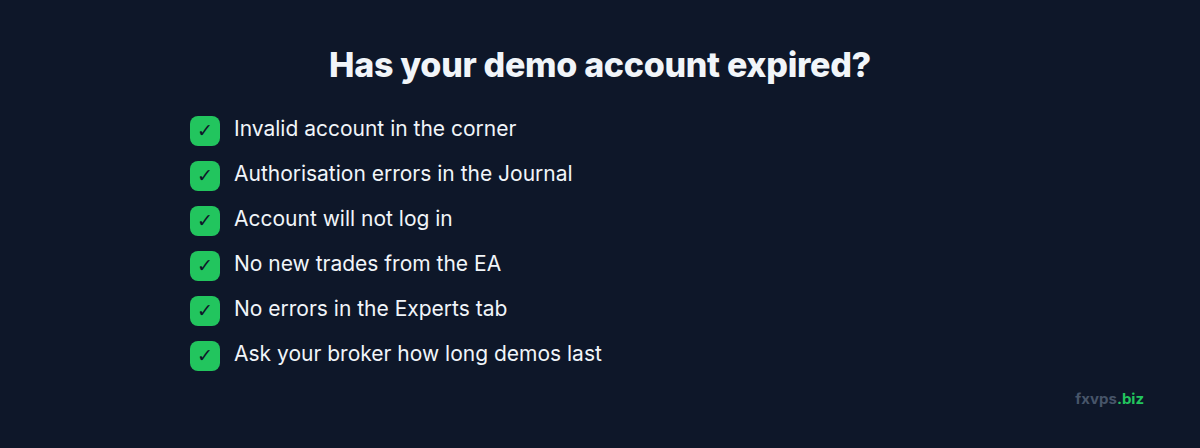
The signs are consistent across MT4 and MT5:
- “Invalid account” shown in the connection status at the bottom right of the terminal, where the ping time normally appears.
- Authorisation errors in the Journal tab each time the terminal tries to reconnect.
- The account missing or not logging in from the Navigator, even though the password has not changed.
- No new trades from the EA, and no errors in the Experts tab, because the EA never gets a connection to trade on.
That last point is the frustrating one. An EA cannot tell you the account is gone. It simply sits there waiting for a connection, so a test can be dead for days before you notice.
📊 Key Stat: An expired demo looks exactly like a login problem: “Invalid account” in the corner of the terminal. The EA itself shows no error, because it never gets a connection to trade on.
Why Demo Accounts Expire
Brokers create demo accounts in huge numbers, and most are used for a few days and abandoned. To keep their demo servers manageable, brokers delete accounts after a set time, after a period of inactivity, or both. The exact rules differ from broker to broker, and sometimes between the demo servers of the same broker.
Common patterns include:
- A fixed lifetime, after which the account is removed whether or not you used it.
- An inactivity limit, where the account is removed if nobody logs in or trades for a while.
- Longer or unlimited demos for clients who also have a funded live account, at some brokers.
Because these rules are set by the broker, the only reliable answer for your account is the broker’s own. Check their website or ask their support how long their demos last and whether they can extend one.
⚠️ Warning: Do not assume a demo that has worked for a month will keep working. If your forward test needs to run longer than your broker’s demo lifetime, plan for it from the start.
Will Running It on a VPS Keep It Alive?
Sometimes, but do not count on it.
If your broker removes demos only for inactivity, an EA that logs in and trades every day on an always-on VPS may well keep the account active. That is one of the quiet advantages of forward testing on a VPS rather than a home PC that is switched off at night.
If your broker uses a fixed lifetime, no amount of activity will save the account. It will expire on schedule.
Either way, the VPS cannot change the broker’s rules. It can only make sure your test runs every hour the market is open until the account ends.
What You Lose When a Demo Expires
The account and its server-side history. Once the broker deletes the account, you can no longer log in to see its trades on the server.
What the terminal still has. The terminal on your VPS may still have the history it downloaded while connected, and the EA’s own log files are still on disk. Export what you can straight away. See how to export your MT4 or MT5 trade history and reading MT4 and MT5 log files on a VPS.
What a tracking service still has. If the demo was connected to Myfxbook or FX Blue, its record up to the expiry stays there. That is the best reason to link long demo tests to a tracker from day one. See Myfxbook and FX Blue account tracking on a VPS.
Setting Up a Long Forward Test That Survives
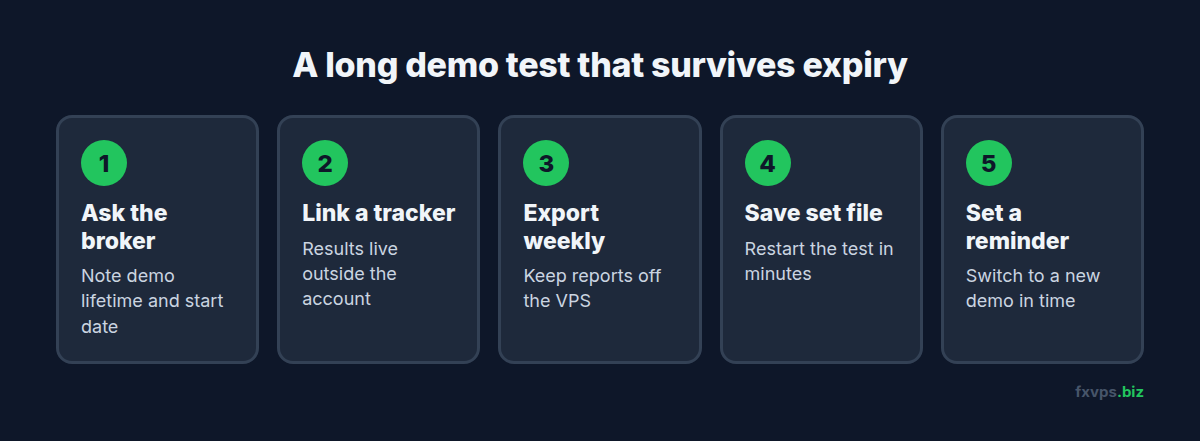
- Ask your broker how long their demos last. Note the answer and the date you opened the account.
- Link the demo to a tracking service so the results live somewhere other than the account itself.
- Export a report regularly, for example every week, and keep it off the VPS.
- Save the EA’s set file and the terminal profile, so you can restart the same test on a new demo in minutes. See EA set files and presets on a VPS and MT4 and MT5 templates and profiles on a VPS.
- Put a reminder in your calendar a few days before the expected expiry, to open a replacement and switch over cleanly.
- Check the terminal at least once a week. A quick look at the connection status catches an expired demo before you lose much time.
💡 Tip: Push notifications can alert you when the EA trades. If a normally active EA goes quiet for days, that silence is your cue to check the connection. See MT4 and MT5 push notifications for monitoring.
Moving the Test to a New Demo
When a demo expires or is about to, opening a new one is quick:
- In the terminal, open File, then Open an Account (the same in MT4 and MT5), choose your broker’s demo server, and fill in the form. Some brokers require you to open demos from their website instead.
- Use the same account type as before (raw, standard, and so on), the same leverage and a similar starting balance, so results stay comparable.
- Log in, load your saved profile, and check the EA’s inputs match your set file.
- Watch the symbol names. Some brokers use different suffixes on different servers. See broker symbol suffixes and why your EA is not trading.
- Turn on Algo Trading and confirm the EA initialises in the Experts tab.
Keep a note of where each demo started and ended, so you can stitch the results together later.
✅ Best Practice: Treat a demo forward test as a record you are building, not an account you are keeping. The account will end. The tracker link, the weekly reports and your notes are what you will actually use to decide whether to go live. See forward testing an EA on a VPS.
When to Move to a Small Live Account
A demo is useful for checking an EA works, connects, and follows its rules. It does not show everything: demo fills can differ from live, and some costs only appear on a real account. Once the EA has behaved on demo for long enough to satisfy you, a small live account removes the expiry problem entirely and gives you real fills. See why backtest does not match live results and raw vs standard accounts for EAs.
Recommended FXVPS Plan
Forward testing usually means running a demo and often a live terminal side by side:
- Core ($29/mo, 2GB RAM, 1 vCPU): one or two terminals, enough for a single EA on demo and live.
- Pro ($39/mo, 4GB RAM, 2 vCPU): several terminals, for testing more than one EA or more than one broker.
- Scaling ($79/mo, 8GB RAM, 4 vCPU): many terminals and accounts.
See the pricing page, or start your test on the $2.99 7-day trial.
Why FXVPS for Forward Testing
- 24/7 uptime, so your test runs every hour the market is open, just as it would live.
- Servers near your broker in London, New York, Tokyo, Hong Kong and over 15 locations, so demo conditions are close to what you will see live.
- Room for demo and live terminals on one server.
- Your own Windows desktop for MT4, MT5 or cTrader.
Frequently Asked Questions
Why does my MT4 or MT5 demo say Invalid account?
The most common reason is that the broker has deleted the demo account after its time limit or a period of inactivity. Check your login details first, then ask your broker whether the demo has expired.
How long do demo accounts last?
It depends on the broker. Each broker sets its own lifetime and inactivity rules. Check your broker’s website or ask their support.
Does running an EA on a VPS stop the demo from expiring?
It can help if your broker removes demos only for inactivity, because the account stays active. It will not help if the broker uses a fixed lifetime.
Can I get my demo trades back after it expires?
Not from the broker’s server once the account is deleted. Your terminal may still have downloaded history and logs, and a tracking service keeps the record up to the expiry.
Should I forward test on demo or live?
Start on demo to check the EA works. Move to a small live account to see real fills and costs, and to avoid demo expiry.