

Sooner or later you need your trades in a file. Your accountant wants a year of results. A prop firm or investor asks for a statement. You want to check an EA’s real performance in a spreadsheet instead of squinting at the History tab.
MetaTrader can produce a report in a few clicks, from the terminal on your VPS. The two things that trip people up are that the report only covers the period the History tab is showing, and that the file ends up on the VPS rather than on your own computer. This post covers both.
Where Your Trade History Really Lives
Your trade history is stored on the broker’s server. The terminal downloads it when it connects and shows it in the History tab. That has two useful consequences:
- You can export from any terminal logged in to the account, on the VPS or anywhere else, and get the same trades.
- A new VPS or a fresh install does not lose your history. Log in and it comes back down from the broker.
What the terminal does not do is show everything by default. The History tab shows a period you choose, and the report covers exactly what the tab is showing.
📊 Key Stat: The report MetaTrader saves contains only the trades in the period the History tab is set to. Set the period first, then save.
Exporting From MT4
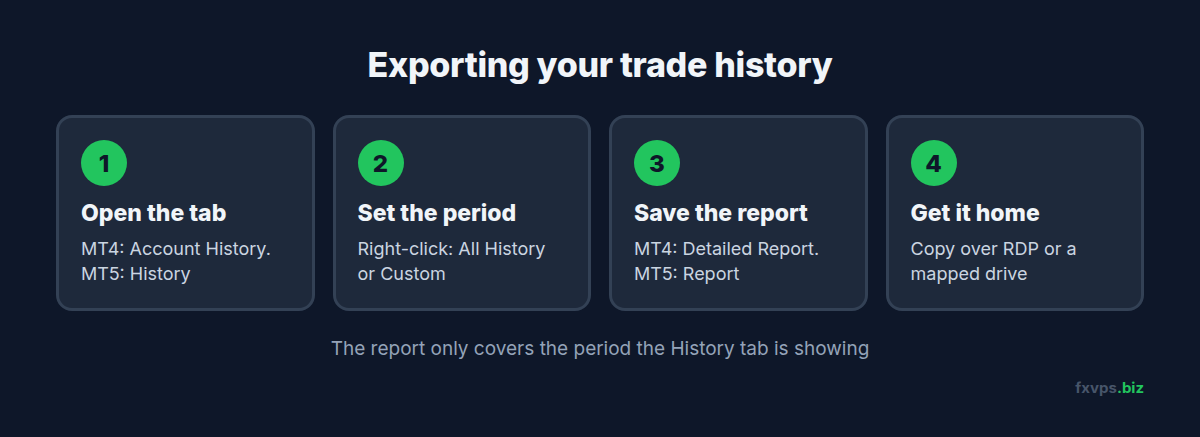
- Open the Terminal window if it is not visible (View, then Terminal, or Ctrl+T).
- Click the Account History tab.
- Right-click anywhere in the list and choose the period: All History, Last 3 Months, Last Month, or Custom Period to pick your own dates.
- Right-click again and choose Save as Report for a standard statement, or Save as Detailed Report for a fuller version with summary statistics and a balance chart.
- Choose where to save it and give it a name. MT4 saves the report as an HTML file you can open in any browser.
The detailed report is usually the one people want. It shows each closed trade along with figures such as total net profit, gross profit and loss, profit factor and drawdown.
Exporting From MT5
- Open the Toolbox window (View, then Toolbox, or Ctrl+T).
- Click the History tab.
- Right-click in the list and choose how to view it: Positions, Deals, or Orders. Positions is easiest to read, one line per trade.
- Right-click and set the period. The list runs from short ranges such as Today up to All History, and Custom Period lets you pick exact dates.
- Right-click and choose Report, then pick the format. MT5 offers HTML, and Open XML, which opens in Excel and other spreadsheet programs.
- Choose where to save the file.
If you want to work with the numbers, Open XML saves you copying data out of a web page. If you just want to send a statement, HTML is fine.
💡 Tip: Newer MT5 builds also have a Reports window (under the View menu) with charts of your results. It is a good place to look at performance, but the History tab export is the simplest way to get a file.
Getting the File Back to Your Own Computer
The report saves to the VPS. Here are the easy ways to get it home.
Copy and paste through Remote Desktop. With clipboard sharing on, copy the file in File Explorer on the VPS and paste it on your own computer. If that does not work, see copy and paste not working over RDP.
Map your local drive. Remote Desktop can show your own computer’s drives inside the VPS, so you can save the report straight to them. See map a network drive from Remote Desktop. On a Mac, see copying files from a Mac to your VPS, which works in both directions.
Email it to yourself from a browser on the VPS, or upload it to cloud storage you already use.
⚠️ Warning: A trade report shows your account number, balance and every trade. Treat it like a bank statement. Do not leave copies in shared folders, and delete old ones from the VPS desktop once you have them safely at home.
Which Report for Which Job
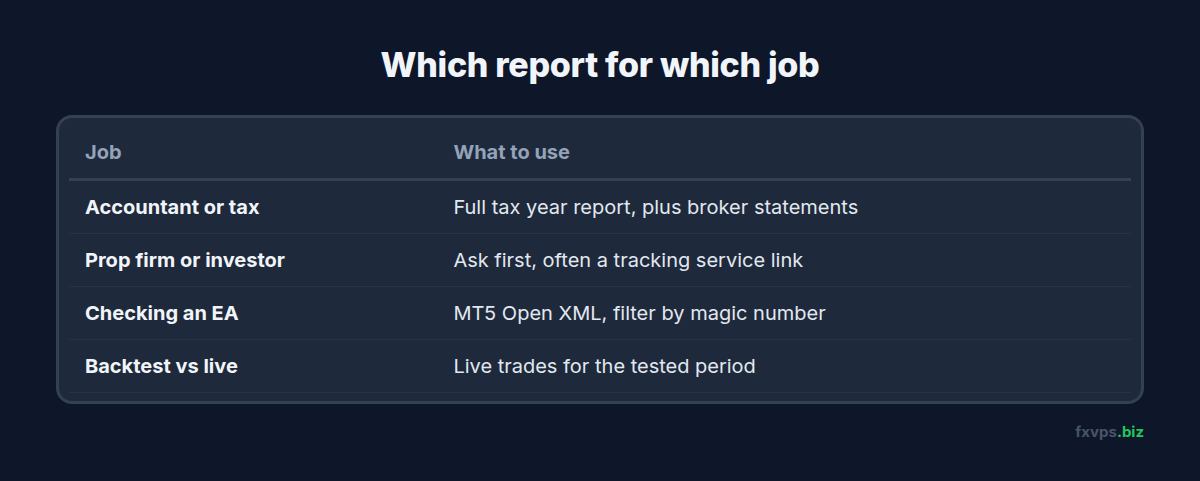
For your accountant or tax records: a report covering the full tax year, set with a custom period. Many brokers also provide official monthly or annual statements in their client area. If your accountant needs an official document, ask your broker for theirs as well. A terminal report is a useful working copy.
For a prop firm or investor: check what they ask for. Many want a link to a tracking service rather than a file, because a file can be edited. See Myfxbook and FX Blue account tracking on a VPS. Some firms show the statistics in their own dashboard.
For checking an EA: filter by the EA. In MT5 you can see the magic number of each deal in the History tab, and the Open XML file makes it easy to filter by magic number or comment in a spreadsheet. See magic numbers and running several EAs on one account.
For comparing backtest and live: export the live trades for the same period you tested, and compare entry times, prices and costs trade by trade. See why your backtest does not match live results.
Common Problems
The report is missing trades. The History tab was set to a shorter period than you thought. Right-click, choose All History or a custom range, then save the report again.
The report is empty. The terminal is not connected or not logged in to the account. Check the connection status at the bottom right. See MT4 and MT5 no connection errors on a VPS.
Times look wrong. The report uses broker server time, the same as your charts. It will not match your local time. See broker server time vs your VPS clock.
Very old trades are missing. Some brokers only keep a limited history available to the terminal, or move old accounts to an archive. Ask your broker for statements from before that point.
Several accounts. Each terminal exports the account it is logged in to. If you run several terminals, export from each one. See running multiple MT4/MT5 terminals on a VPS.
✅ Best Practice: Export a detailed report at the end of every month and keep it off the VPS. It takes two minutes, gives you a record that does not depend on any one terminal or broker portal, and makes year end far easier. See how to back up your trading data on a VPS.
Recommended FXVPS Plan
Exporting reports is a light job on any plan. Choose based on how many terminals and EAs you run:
- Core ($29/mo, 2GB RAM, 1 vCPU): one or two terminals.
- Pro ($39/mo, 4GB RAM, 2 vCPU): several accounts and EAs.
- Scaling ($79/mo, 8GB RAM, 4 vCPU): many accounts, or account managers handling several clients.
See the pricing page, or start with the $2.99 7-day trial.
Why FXVPS for Your Trading Records
- Always on, so your terminals stay connected and their history is ready whenever you need a report.
- Your own Windows desktop with File Explorer, a browser and Remote Desktop file transfer.
- Servers near your broker in London, New York, Tokyo, Hong Kong and over 15 locations.
- Room for several terminals, so all your accounts are in one place at report time.
Frequently Asked Questions
How do I export my trade history in MT4?
In the Account History tab, right-click to set the period, then right-click again and choose Save as Report or Save as Detailed Report. It saves as an HTML file.
How do I export my trade history in MT5 to Excel?
In the History tab, set the period, right-click, choose Report and pick Open XML. The file opens in Excel and other spreadsheet programs.
Why is my report missing trades?
The report only covers the period the History tab is showing. Set it to All History or a custom range before saving.
Will I lose my history if I move to a new VPS?
No. The history is stored on your broker’s server. Log in on the new VPS and the terminal downloads it again.
Is a MetaTrader report an official statement?
It is a record from your terminal. For official documents, use the statements in your broker’s client area as well.