

Every instrument your broker offers comes with a set of rules: how big one lot is, how close a stop can be placed, the smallest trade you can open, how orders are filled, and when the market is open. Your EA has to follow all of them. When it does not, the broker rejects the order, and the EA logs an error code that rarely explains itself.
Those rules are not hidden. They are in one window most traders open once, if ever: the symbol specification. This post walks through the eight fields that matter most for EAs, what goes wrong when an EA ignores each one, and how to check them in a few minutes for every symbol you trade.
How to Open the Specification Window
- In MT4 or MT5, open Market Watch (Ctrl+M).
- Right-click the symbol you trade, with your broker’s exact name and suffix.
- Choose Specification.
The window lists the symbol’s settings on your broker’s server. The values can differ between brokers, between account types at the same broker, and between demo and live servers. Always check the account you will actually trade.
📊 Key Stat: Eight fields in this window explain most “invalid stops”, “invalid volume” and “unsupported filling mode” errors an EA ever produces. None of them are fixed by a faster server.
1. Digits
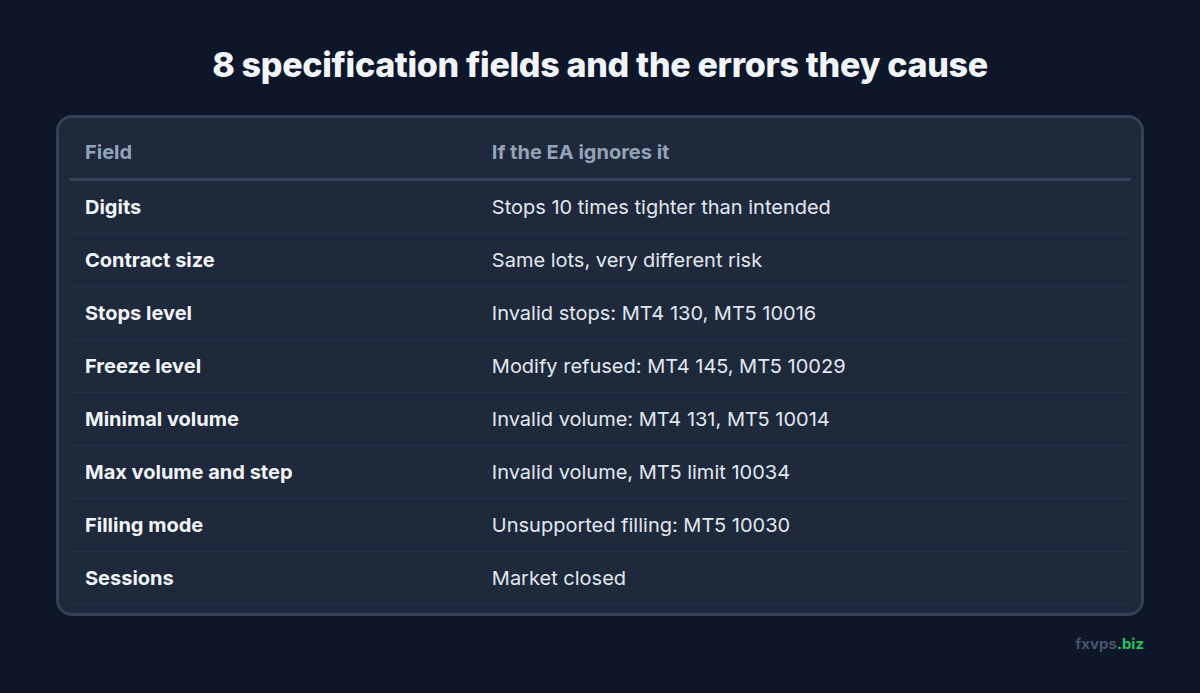
How many decimal places the price has. A 5-digit EURUSD quote such as 1.08765 has a point of 0.00001, so one pip is 10 points. A 3-digit USDJPY quote has a point of 0.001.
What goes wrong: an EA written for 4-digit prices treats “20” as 20 pips when it is actually 20 points, which is 2 pips. Stops end up ten times tighter than intended, or rejected as too close.
2. Contract Size
How many units one lot represents. For forex, one standard lot is usually 100,000 units of the base currency. For gold, indices, oil and crypto, contract sizes vary widely by broker.
What goes wrong: an EA sized for one broker’s index contract can trade ten times the risk at a broker with a larger contract. The same lot size in the inputs does not mean the same exposure.
A quick example shows why this matters. Suppose an EA risks a fixed 1 lot on an index, with a 50 point stop. If one broker’s contract is worth 1 unit of account currency per point per lot and another’s is worth 10, the same input risks ten times more money at the second broker. Tick size and tick value, shown in the same window in MT5, tell you how much one price step is worth per lot. A risk-based EA should read them rather than assume them.
3. Stops Level
The minimum distance, in points, between the current price and a new stop loss, take profit or pending order. A value of 0 means the broker does not set a fixed minimum, although it may still reject stops that are too close.
What goes wrong: orders with stops inside this distance are rejected. In MT4 this is error 130, invalid stops. In MT5 it is return code 10016. EAs with tight scalping stops hit this often, especially around news when some brokers widen it.
4. Freeze Level
The distance from the current price inside which an order or position cannot be modified or deleted. Many brokers set it to 0, but not all.
What goes wrong: a trailing stop or break-even routine that tries to move a stop very close to price is refused. MT4 reports error 145, modification denied because the order is too close to market. MT5 reports return code 10029, order or position frozen.
5. Minimal Volume
The smallest trade allowed, for example 0.01 lots.
What goes wrong: an EA that calculates lot size from a risk percentage can produce a number below the minimum on a small account. The order is rejected as invalid volume: error 131 in MT4, return code 10014 in MT5.
6. Maximal Volume and Volume Step
The largest single order allowed, and the increment lot sizes must follow. With a step of 0.01, a lot of 0.137 is invalid. It must be 0.13 or 0.14.
What goes wrong: an unrounded lot size is rejected as invalid volume. An order above the maximum is also rejected, which matters for grid and martingale EAs whose lot sizes grow. Some symbols also have a volume limit on total exposure in one direction. In MT5, reaching it returns code 10034.
💡 Tip: A robust EA reads these values instead of assuming them. In MT4:
MarketInfo(Symbol(), MODE_MINLOT),MODE_MAXLOTandMODE_LOTSTEP. In MT5:SymbolInfoDouble(_Symbol, SYMBOL_VOLUME_MIN),SYMBOL_VOLUME_MAXandSYMBOL_VOLUME_STEP. Round the calculated lot down to the step, then clamp it between minimum and maximum.
7. Execution and Filling Mode
How the broker executes orders, such as market or instant execution, and which filling policies it accepts, such as Fill or Kill, Immediate or Cancel, or Return.
What goes wrong: in MT5, an EA that sends a filling type the symbol does not support gets “unsupported filling mode”, return code 10030. MT4 does not have this setting in the same way, which is one reason EAs ported from MT4 often hit it. See market vs instant vs exchange execution.
8. Sessions
The hours, in broker server time, when quotes arrive and when trading is allowed. Many CFDs and indices have a daily break, and some symbols trade fewer hours on Friday.
What goes wrong: orders sent outside trading hours are rejected as “market closed”. EAs with time filters set in your local time, not server time, trade at the wrong hours or try to trade while the market is shut. See broker server time vs your VPS clock.
⚠️ Warning: Swap values are also in this window, including which day triple swap is charged. If your EA holds positions overnight, check them. Our post on daily rollover and spread widening covers what happens at the daily rollover.
A Five-Minute Check Before Every New Account
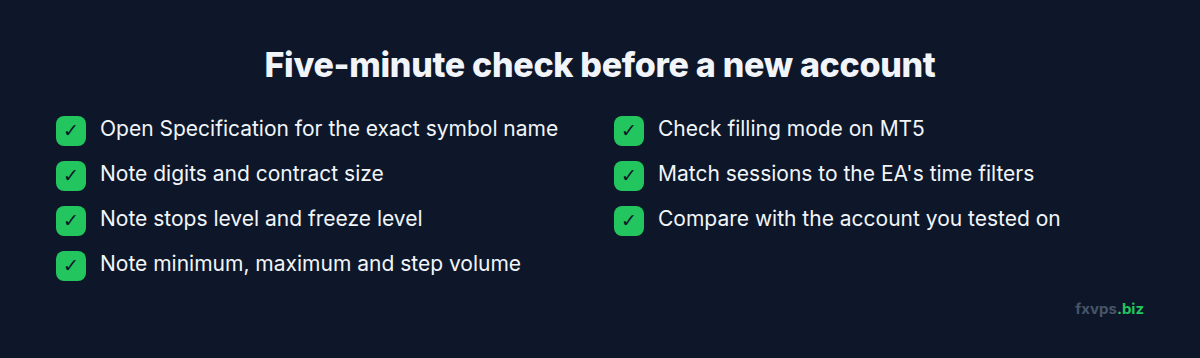
Run this for each symbol an EA will trade, every time you start on a new account, broker or server:
- Open the specification for the exact symbol name.
- Note digits, contract size, stops level and freeze level.
- Note minimum, maximum and step volume.
- Check filling mode, if you trade MT5.
- Check trading sessions against your EA’s time filters.
- Compare with the account you tested on. Anything different, adjust the EA’s inputs before going live.
Demo and live servers at the same broker can differ, so do this again when you move from demo to live. See forward testing an EA from demo to live.
✅ Best Practice: Save a screenshot or a short note of each specification alongside your EA’s .set file. When a broker changes a value later, you can see exactly what changed. See EA .set files on a VPS.
Why a VPS Does Not Fix These Errors
All of these rules are enforced on the broker’s server. An order with stops too close is rejected whether it comes from a laptop or a server next to the broker’s datacenter. What a VPS gives you is a stable place to run the EA once the settings are right, and a quick connection so prices do not move much between the EA’s calculation and the broker receiving the order. For the errors that are about the connection, see MT4 and MT5 trade error codes explained.
Recommended FXVPS Plan
Reading specifications costs nothing. Size the server for the terminals you run:
- Core ($29/mo, 2GB RAM, 1 vCPU): one or two terminals with a few EAs.
- Pro ($39/mo, 4GB RAM, 2 vCPU): several terminals across accounts or brokers.
- Scaling ($79/mo, 8GB RAM, 4 vCPU): many terminals and accounts.
See the pricing page, or check your EA against a new broker’s specifications on a fresh server with the $2.99 7-day trial.
Frequently Asked Questions
Where is the symbol specification in MetaTrader?
Right-click the symbol in Market Watch and choose Specification. It works the same way in MT4 and MT5.
What does a stops level of 0 mean?
The broker does not set a fixed minimum distance for stops. It can still reject stops placed at or extremely close to the current price.
Why does my EA get “invalid volume” on a small account?
Its calculated lot is below the minimum or not a multiple of the volume step. The EA should round to the step and respect the minimum, or skip the trade.
Is the specification the same on demo and live?
Not always. Contract sizes, stops levels, volume limits and symbol names can differ. Check the live account before going live.
What is the difference between stops level and freeze level?
Stops level limits how close you can place a new stop or pending order. Freeze level limits modifying or deleting orders and positions once price is close to them.