

Subscribing to a signal on MQL5 looks like a purely online service. You pick a provider on the website, pay, and the provider’s trades start appearing on your account. It is easy to assume the copying happens somewhere in the cloud.
It does not. MetaQuotes is clear that copying runs in the subscriber’s own trading platform, and that the platform must stay on and connected to the account that is subscribed. If your terminal is closed, nothing is copied. When it comes back, it catches up in ways that can surprise you.
This post explains how MQL5 signal copying actually works, the settings that control your risk, what happens after a restart, and how to run a subscription reliably on a VPS.
Where the Copying Happens
When you subscribe, your MT4 or MT5 terminal does the work:
- The provider’s trades are published through the MQL5 Signals service.
- Your terminal, logged in to your MQL5 account and connected to your trading account, receives them.
- Your terminal sends matching orders to your own broker, at your broker’s prices.
That means three things must be true all the time: the terminal is running, it is connected to your broker, and it is logged in to the trading account that holds the subscription.
📊 Key Stat: MetaQuotes’ own help states that the subscribed trading account must always be on and connected. Stop loss and take profit orders already placed at the broker still execute while the terminal is off, but no new trades are copied and no positions are closed by the signal.
The Subscription Settings That Matter
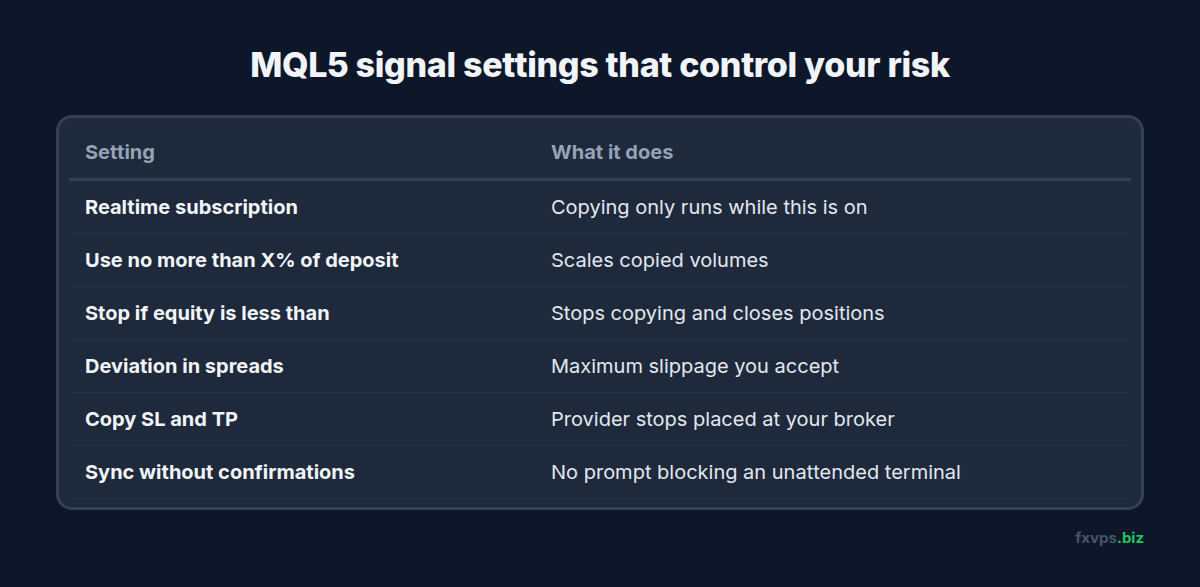
The signal settings are in the terminal options, on the Signals tab. These are the ones that control what happens to your money:
- Enable realtime signal subscription. Copying only happens while this is on. Turning it off pauses copying without cancelling the subscription.
- Use no more than X% of deposit. Sets how much of your deposit is used for copying. Copied volumes scale with it, and changing it while positions are open adjusts their volumes.
- Stop if equity is less than. If equity falls below this amount, copying stops and positions are closed. 0 means no limit.
- Deviation or slippage, in spreads. The maximum price difference from the provider’s price that you accept for a copied trade.
- Copy Stop Loss and Take Profit levels. Places the provider’s stops on your account, where they run at your broker even if your terminal is off.
- Synchronize positions without confirmations. Lets the terminal synchronise automatically. Without it, a confirmation prompt can wait on screen and block copying on an unattended terminal.
⚠️ Warning: On a VPS nobody is watching the screen. If “Synchronize positions without confirmations” is off, a dialog can sit waiting for an answer for hours while the provider trades. Decide on this setting before you leave the terminal unattended.
Choosing Your Deposit Load and Equity Stop
These two settings decide how much a bad month at the provider can cost you, so it is worth setting them deliberately rather than leaving the defaults:
- Start with a lower deposit load than you think you need. You can raise it later once you have seen how the provider’s trades behave on your account, with your broker’s spreads and your account size.
- Set an equity stop you could accept losing. It is the one setting that acts on its own when things go wrong, closing positions and stopping copying when equity falls below your number.
- Check the provider’s history for drawdown, and think about how that drawdown would look at your deposit load.
- Remember the provider’s account and yours differ. Leverage, balance and broker conditions all affect how trades are scaled and filled on your side.
Our post on margin level, margin call and stop out explains what happens at your broker if the equity stop is too far away.
What Happens After a Restart or Disconnection
When your terminal restarts or reconnects, it re-synchronises with the provider. According to MetaQuotes’ documentation:
- Missing provider trades are copied. If the provider opened a trade while your terminal was off, it can be opened on your account when you reconnect, at the current price rather than the provider’s entry.
- Positions you closed by hand can be reopened. If you closed a copied position yourself, re-synchronisation reopens it.
- A position stopped out on your side can be copied again, if your stop triggered before the provider’s.
- Positions that are not from the signal are either offered for closing or skipped, depending on the synchronisation setting.
None of this is a fault. It is the service keeping your account in line with the provider. But it means the entries you get after downtime are not the entries the provider got, and your results drift from theirs.
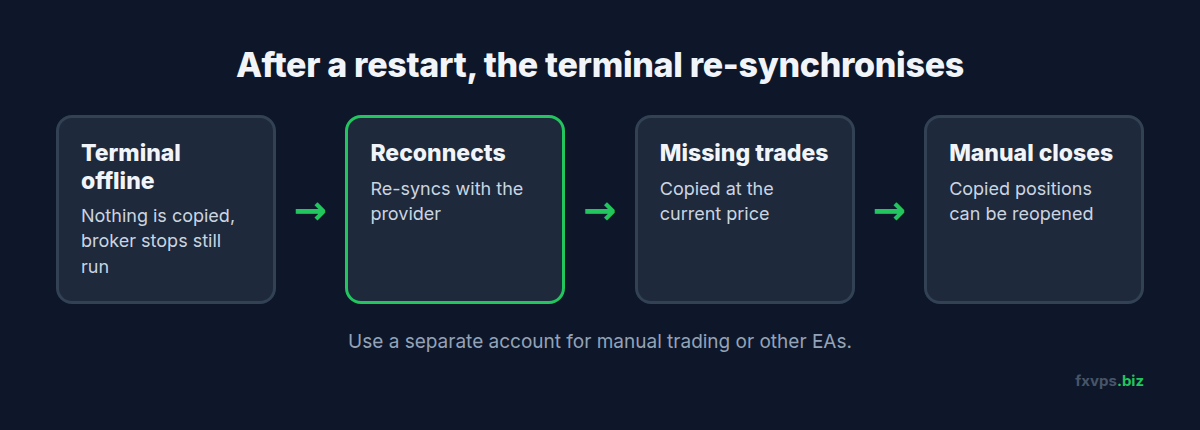
💡 Tip: Do not trade the subscribed account by hand or run other EAs on it. Manual closes can be reopened, and positions that are not from the signal may be closed during synchronisation. Use a separate account for anything else.
Unsubscribing and Moving a Subscription
- Unsubscribing does not close open positions. They stay on your account and you manage them yourself.
- To pause instead, turn off “Enable realtime signal subscription”.
- You can move a subscription to another account, including one at another broker. MetaQuotes allows one transfer per week.
If you move to a new account, check symbol names and contract sizes at the new broker first. See symbol suffixes and why your EA will not trade.
Running a Subscription on a VPS
Because copying happens in the terminal, a VPS is what keeps it running when your own computer is off. MetaQuotes also sells its own built-in virtual hosting for this. Our FXVPS vs MetaTrader VPS comparison covers the differences, mainly that a full Windows VPS lets you run other terminals, tools and EAs on separate accounts alongside it.
To set up on an FXVPS server:
- Connect to the VPS over Remote Desktop using the details in your welcome email. See how to access your VPS using RDP.
- Install your broker’s MT4 or MT5 and log in to the trading account that will follow the signal.
- Log in to your MQL5 account in the terminal options, on the Community tab.
- Subscribe, or transfer your existing subscription to this terminal’s account.
- Set the Signals tab options, including deposit load, equity stop and synchronisation.
- Make the terminal start automatically after a restart. See MetaTrader automatic startup.
- Disconnect from Remote Desktop properly instead of logging off, so the terminal keeps running. See how to properly disconnect from an RDP session.
Pick the Location Nearest Your Broker
Your terminal sends orders to your broker, not to the provider. Choose the FXVPS location closest to your broker’s trade server, such as London, New York, Tokyo or Hong Kong. See how to find your broker’s server address and tips for choosing a VPS location.
✅ Best Practice: After every Windows update or VPS restart, open the terminal’s Journal and check that the signal synchronised and reports no errors. Our weekly trading VPS maintenance checklist builds this into a routine.
Recommended FXVPS Plan
One terminal following one signal uses very little:
- Core ($29/mo, 2GB RAM, 1 vCPU): one or two terminals, each following a signal or running EAs.
- Pro ($39/mo, 4GB RAM, 2 vCPU): several terminals and accounts, for example signals on some and your own EAs on others.
- Scaling ($79/mo, 8GB RAM, 4 vCPU): many accounts and terminals.
See the pricing page, or set up your subscription on a fresh server with the $2.99 7-day trial.
Frequently Asked Questions
Does MQL5 signal copying work when my computer is off?
No. Copying runs in your terminal, which must be running and connected to the subscribed account. Stops already placed at the broker still execute.
Why was a position I closed reopened?
When the terminal re-synchronises with the provider, it reopens copied positions you closed by hand. Turn off the subscription first if you want to manage positions yourself.
Does unsubscribing close my copied trades?
No. Open positions stay on your account and you manage them yourself.
Can I run my own EA on the same account as a signal?
It is not recommended. Positions that are not from the signal can be offered for closing or skipped during synchronisation. Use a separate account.
Which VPS location should I choose for a signal?
The one closest to your broker’s trade server, because your terminal sends orders to your broker.