

You cannot watch your VPS all day, and you should not have to. Alerts let your server tell you when something needs you: memory running out, MetaTrader closed, an EA lost its broker connection, equity dropped below a level you chose, or a prop firm account is getting close to its daily loss limit. The message lands on Telegram or your phone within about a minute. This guide sets alerts up in about five minutes.
Key Takeaways
- Alerts are free and live in Trade Journal, under Alerts & Notifications.
- Set up a channel first (Telegram, phone push, ntfy or webhook), then click Send Test Alert.
- Then add rules: a metric, a threshold, and how long to stay quiet after firing.
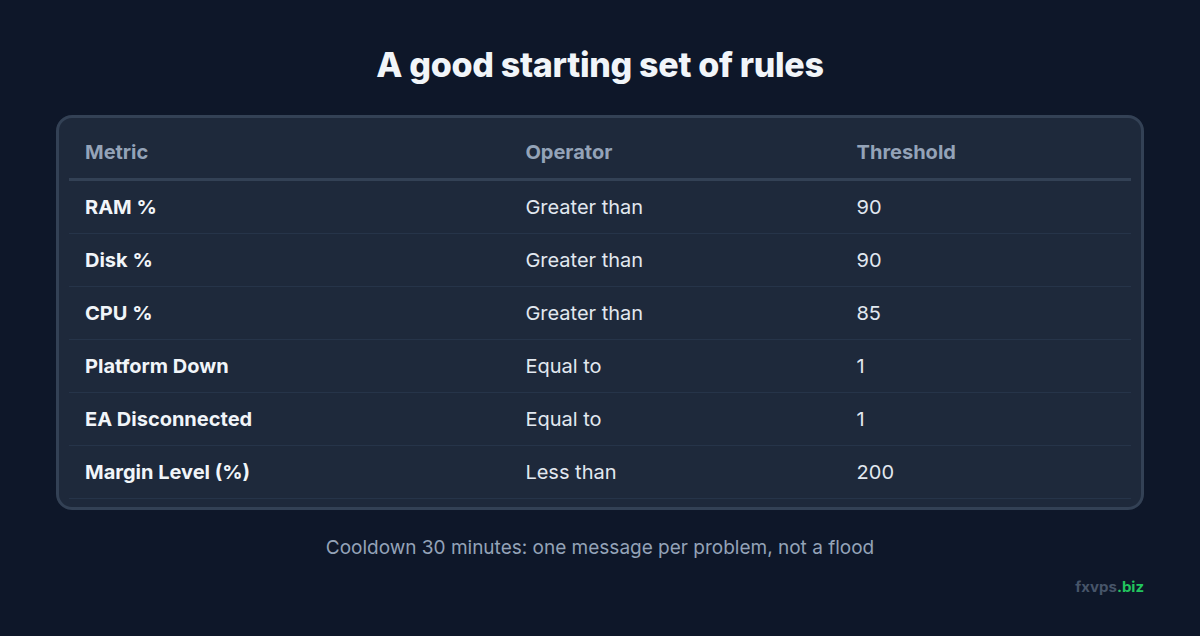
- Good starting set: RAM above 90%, Disk above 90%, Platform Down, EA Disconnected, and Margin Level below 200.
- Prop firm accounts get loss-limit warnings at 50%, 75% and 90% of the limit from the account’s Prop Firm tab.
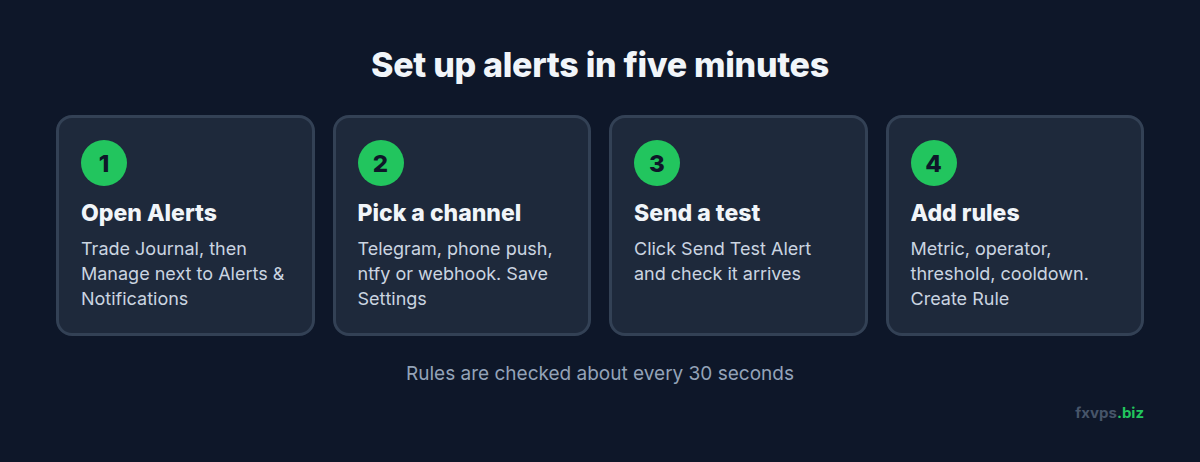
1. Open the Alerts Page
- Log in at members.fxvps.biz with your FXVPS account and open Trade Journal.
- Scroll to Alerts & Notifications and click Manage.
The page has three parts: Alert Rules (what to watch), Notification Settings (where to send it) and Recent Alerts (everything that has fired).
Alerts work for every server that shows up in Trade Journal. If one of your servers is missing from the VPS dropdown on this page, contact support and we will connect it.
2. Choose Where Alerts Go
Under Notification Settings, set up one channel or several. Each alert goes to every channel you enable.
Telegram (recommended)
- In Telegram, open @FXVPSAlertsBot and tap Start. This step matters: the bot cannot message you until you have started it.
- Open @userinfobot and tap Start. It replies with your ID, a number such as
123456789. - Paste that number into Chat ID and tick Enabled.
Push to Your Phone or Computer
In the Push box, click Enable on this device and allow notifications when your browser asks, then tick Enabled. Alerts then arrive even when the client area is closed.
- Android and desktop: works straight away in Chrome, Edge or Firefox.
- iPhone and iPad: first open members.fxvps.biz in Safari, tap Share, then Add to Home Screen. Open it from the new Home Screen icon, then enable push.
Push is set up per device, so repeat it on each phone or computer you want alerts on.
ntfy
If you use the free ntfy app, type a topic name (pick something hard to guess, such as fxvps-alerts-k7q2), tick Enabled, and subscribe to the same topic in the app.
Webhook
For your own tools, enter a URL and tick Enabled. Each alert is sent as a JSON POST. If you set a Secret, requests carry an X-FXVPS-Signature: sha256=<hex> header so you can check they came from us.
Save and Test
Click Save Settings, then Send Test Alert. If the test does not arrive, fix the channel before you add rules. A rule is no use if its message goes nowhere.
3. Add Alert Rules
Under Create Alert Rule, fill in:
- Name: anything that will make sense on your phone, for example “RAM high”.
- Metric: what to watch (the list is below).
- Operator and Threshold: when to fire, for example Greater than
90. - Severity: Info, Warning or Critical. This is a label on the message so you can tell at a glance how urgent it is.
- VPS: leave on All VPS, or pick one server if you have several.
- Cooldown (min): how long the rule stays quiet after it fires. The default is 30 minutes.
Click Create Rule. Rules are checked every time your server reports, about every 30 seconds.
What You Can Watch
Server
| Metric | What it measures | Suggested rule |
|---|---|---|
| CPU % | Processor use across the whole server | Greater than 85 |
| RAM % | Memory in use | Greater than 90 |
| Disk % | How full the C: drive is | Greater than 90 |
Platforms
| Metric | When it fires | Suggested rule |
|---|---|---|
| Platform Down | A trading platform on the server (MetaTrader 4 or 5, NinjaTrader, cTrader) is not running | Equal to 1 |
| EA Disconnected | A trading account reporting to Trade Journal has lost its connection to the broker | Equal to 1 |
Accounts
| Metric | What it measures | Suggested rule |
|---|---|---|
| Equity Below ($) | The lowest equity across your accounts | Less than a level you choose |
| Balance Below ($) | The lowest balance across your accounts | Less than a level you choose |
| Margin Level (%) | The lowest margin level across your accounts | Less than 200 |
| Open Positions (count) | The most open positions on any one account | Greater than the most your EA should ever hold |
For Platform Down and EA Disconnected, the value is 1 when there is a problem and 0 when everything is fine, so the rule is always Equal to 1.
💡 Tip: RAM is usually the first thing to run out on a trading VPS. A RAM rule is the single most useful alert to have. If it fires often, see how to monitor CPU, RAM and disk on your trading VPS and choosing the right VPS specs.
⚠️ Warning: Platform Down also fires if you close a platform on purpose. If you are doing maintenance, untick Enabled on that rule (click Edit next to it) and turn it back on afterwards.
4. Prop Firm Loss Limit Warnings
For a funded or evaluation account, Trade Journal can warn you before you hit the firm’s limits.
- In Trade Journal, open the account and click the Prop Firm tab.
- Enter the firm name, Max Daily Loss %, Max Total Drawdown % and your starting balance.
- Leave Alert on daily loss limit approach and Alert on total drawdown limit approach ticked, and save.
You are then warned at 50%, 75% and 90% of each limit. For example, with a 5% daily loss limit you hear about it at 2.5%, 3.75% and 4.5%. These warnings go to the same channels you set up in step 2. See also running prop firm accounts on a VPS.
5. What an Alert Looks Like
Each message says the severity, the rule name, the value, your threshold and where it came from:
[warning] RAM high: 92.40 gt 90.00 on your FXVPS server
If you have more than one server, it names the server’s IP. Prop firm and account alerts name the trading account number. Every alert is also listed under Recent Alerts on the alerts page.
6. What Alerts Cannot Do
Alerts are worked out from the reports your server sends. If the whole VPS is switched off or cannot reach the internet, it has nothing to report and your rules cannot fire. Our own monitoring watches for servers that stop reporting and flags them to the FXVPS team, but if you ever think your server is down, check it yourself: see how to restart your VPS and, so everything comes back afterwards, making your platforms start again after a restart.
Alerts also do not send a message for every trade. Your trades are recorded in Trade Journal, and the MetaTrader mobile app can notify you of trade activity on your account.
Need Help?
Support is included with every FXVPS plan. If a test alert does not arrive, or a server is missing from the alerts page, reach out via live chat on fxvps.biz or email support@fxvps.biz.