
Prop firm challenges come with two loss limits: a daily limit and a total limit. Go past either one, even briefly and even on a trade that is still open, and the challenge can end.
The rules are simple to read but harder to track in real time, especially when an EA is trading while you are away from the screen. This article explains how the two limits work, where they get missed, and the free broker-demo version of an MT5 tool that warns you as you get close to the limits you set.
How the two loss limits work
Daily loss limit. You can lose up to a set amount in one trading day. The day does not always start at midnight in your time zone. Each firm sets its own reset time, and the limit is measured from that point.
Total loss limit. This is the most the account can lose overall. Some firms use a static limit, a fixed level below your starting balance. Others use a trailing limit, which moves up as the account grows, so a profit you made last week can raise the level you must stay above.
Open losses count. Many firms measure the limits on equity, not balance. A losing trade you have not closed counts against you as soon as the price moves. Check your own firm’s rules for how it measures each limit.
A worked example
Take a 10,000 USD challenge with a 3% daily limit and a 10% total limit. That is 300 USD a day and 1,000 USD overall.
Three trades are open, each down about 70 USD. None of them looks like a problem on its own, but together they are an open loss of about 210 USD. That is already 70% of the day’s limit, before any trade has closed.
Where the limits get missed
- Several trades open at once and add up past the daily limit, even though each one looks small.
- The trader counts the day from their own clock, not the firm’s reset time.
- A trailing limit has moved up, and the trader is still thinking of the old level.
- A trade runs overnight and nobody is watching the floating loss.
These are tracking problems rather than strategy problems, and tracking is a job software can help with.
A tool that tracks the limits: Rule Guard
Rule Guard is an MT5 tool from StratCoreAlpha, and this article uses its free broker-demo version. You enter your firm’s limits and reset time, and it checks:
- Daily loss against your daily limit, from the reset time you set.
- Total loss against a static or trailing limit.
- Open losses as well as closed ones.
It shows how much of each limit is used and how much is left, and warns you when you get near the limits you entered.
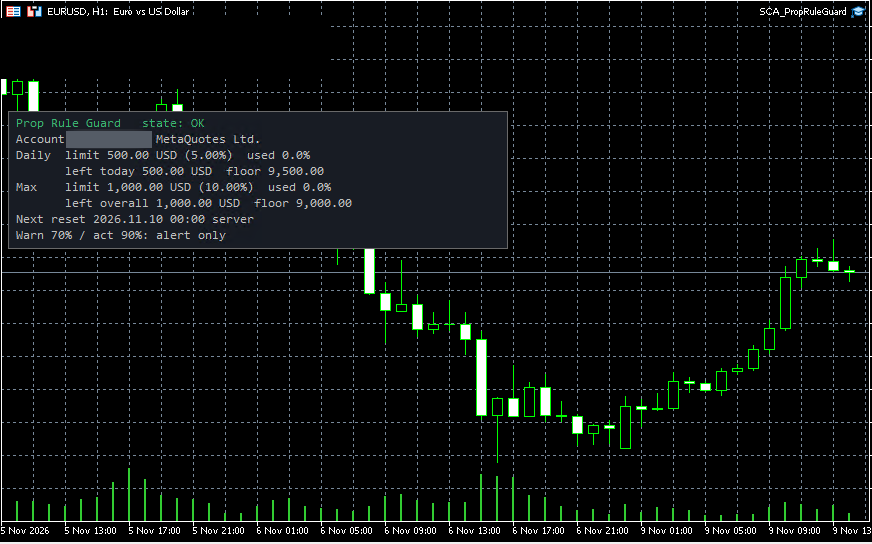 Free broker-demo version, Alert only. 10,000 USD broker demo account: 5% daily limit (500 USD), 10% total limit (1,000 USD), nothing used yet, state OK. Login covered.
By default it shows WARN at 70% of a limit, then ACT with a second alert at 90%. The clip below is a Strategy Tester recording, not a live account. It runs in Alert only mode, so it warns but does not close trades.
Our test on a broker demo account
Separately from the Strategy Tester clip, we ran the free broker-demo version on our own server, on a 10,000 USD broker demo account in Alert only mode. To reach both alerts quickly, we set the daily limit to 0.5% (50 USD) for these two screenshots.
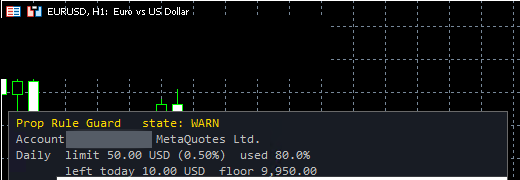 Broker demo, Alert only. WARN: 40 USD of the 50 USD daily limit used (80%), 10 USD left. Login covered.
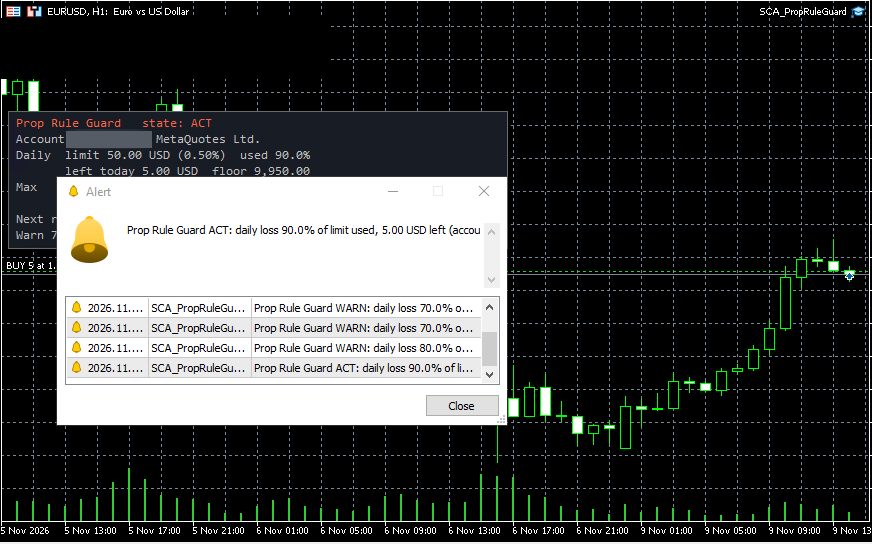 Broker demo, Alert only. ACT: 45 USD of the 50 USD daily limit used (90%), 5 USD left, and MT5 shows a second alert. In Alert only mode the trade stays open, so it is still up to you to act. Login covered.
Optional modes can try to close positions and cancel pending orders at the ACT level, or keep closing new positions until the next reset.
How to get and install it
- Request the demo at stratcorealpha.com/rule-guard. The compiled file arrives by email.
- In MT5, open File > Open Data Folder and put the file in MQL5 > Experts.
- Refresh the Navigator, then attach Rule Guard to a chart on your broker demo account.
- Enter your firm’s daily limit, total limit (static or trailing) and reset time.
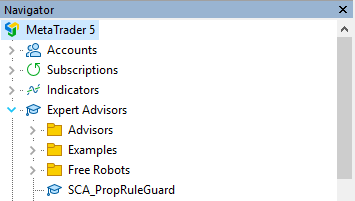 After a refresh, Rule Guard shows under Expert Advisors in the Navigator.
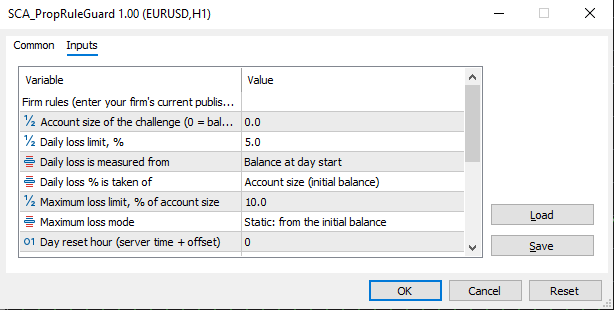 Firm rules: account size, daily limit and how it is measured, total limit (static or trailing) and the reset hour.
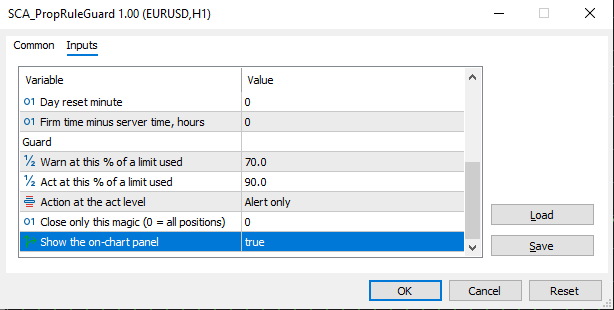 Guard settings: the WARN and ACT levels and what happens at ACT.
Why it has to run on a machine that stays on
A tool like this only works while MT5 is running. If your PC goes to sleep, restarts for a Windows update or loses its internet connection, it stops tracking, and your open trades keep moving with nobody watching.
That is why many people who trade challenges with an EA run MT5 on a VPS. It stays on 24/7, so the EA and the tracking both keep working when your own computer is off.
FXVPS servers come with MT4, MT5 and cTrader already installed, in London, New York and Chicago, with support around the clock. You log in, add your EA and Rule Guard to the chart, then disconnect Remote Desktop with MT5 still open. Do not log off or close MT5. Both keep running.
In a restart test on a London FXVPS trial server, MT5 started about 26 seconds after Windows came back, signed back in to the demo account, and Rule Guard loaded again.
A short checklist before you start a challenge
- Write down your firm’s daily limit, total limit and reset time, and whether the total limit is static or trailing.
- Check whether the limits are measured on equity or balance.
- Enter the same numbers in Rule Guard and test it on a demo account first.
- Run MT5 on a machine that does not sleep or restart on its own.
- On a VPS, disconnect Remote Desktop with MT5 still open instead of logging off.
- Check the tool is still on the chart after any MT5 update or restart.